Best Offline PDF Password Protector Desktop Free (2026)
📑 Table of Contents
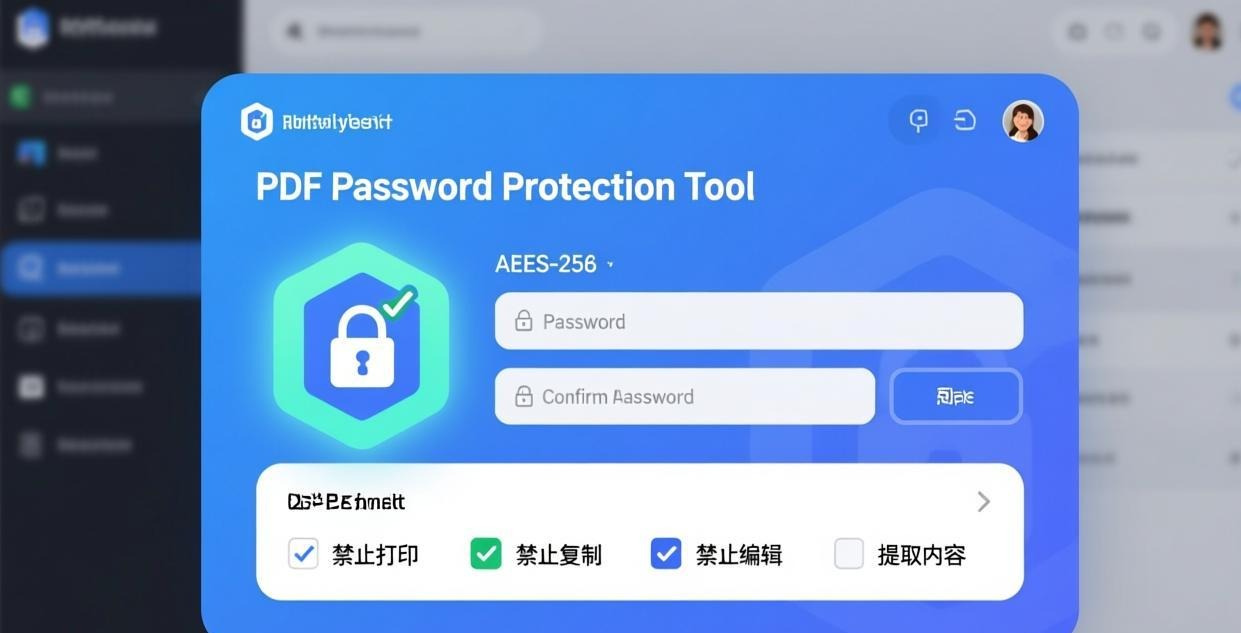
Need to protect a PDF before sharing it? Whether you want to prevent unauthorized viewing, stop people from copying text, or restrict printing, you can add password protection to any PDF offline — no need to upload your files to a web service.
Types of PDF Password Protection
PDF supports two types of passwords:
- Open password (user password) — required to open and view the PDF. Anyone without the password cannot open the file at all.
- Permissions password (owner password) — controls what recipients can do with the PDF:
- Print (allowed or not, or low-resolution only)
- Copy text and images
- Edit the document
- Add or modify annotations
- Fill in form fields
You can set either or both types of password on a single PDF.
Top 5 Free Offline PDF Password Protectors
| Tool | Platforms | Open Password | Permissions | Encryption Level | Free Tier |
|---|---|---|---|---|---|
| PDFgear | Win / Mac | Yes | Yes | 256-bit AES | Unlimited |
| PDF24 Creator | Windows | Yes | Yes | 128-bit AES | Unlimited |
| LibreOffice Draw | Win / Mac / Linux | Yes | Yes | 128-bit AES | Unlimited (open source) |
| qpdf | Win / Mac / Linux | Yes | Yes | 256-bit AES | Unlimited (open source) |
| Microsoft Print to PDF | Windows 10+ | No | No | N/A | Built-in (no encryption) |
#1 Pick: PDFgear — Best Free PDF Protector
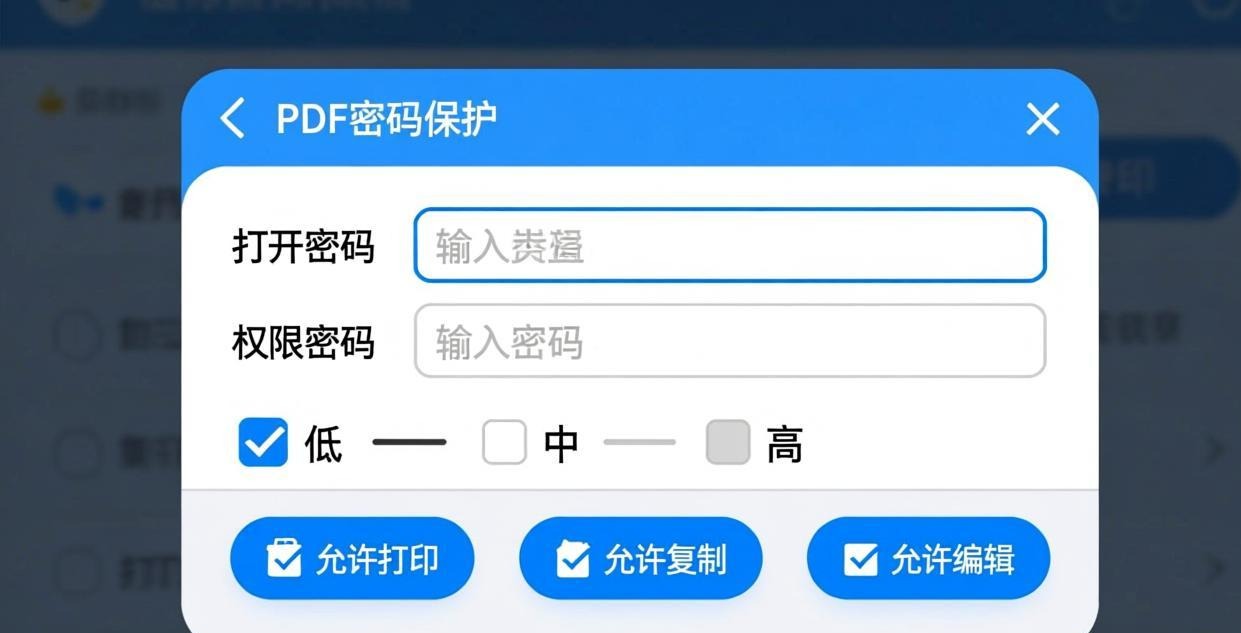
PDFgear provides comprehensive password protection with the strongest encryption available (256-bit AES). The interface is straightforward — set your passwords and permissions in a few clicks.
How to protect a PDF with PDFgear:
- Open the PDF in PDFgear
- Click “Protect” → “Set Password”
- Choose your protection settings:
- Open password — enter a password required to open the file
- Permissions password — set restrictions on printing, copying, and editing
- Select encryption level (128-bit or 256-bit AES)
- Click Apply and save the protected PDF
Permission options:
- Printing: allowed / not allowed / low-resolution only
- Copying text and images: allowed / not allowed
- Editing: allowed / not allowed
- Commenting: allowed / not allowed
- Form filling: allowed / not allowed
For unlocking protected PDFs, see our Best Offline PDF Password Remover guide.
#2 Pick: qpdf — Command-Line Encryption
qpdf provides the fastest way to encrypt PDFs from the command line with 256-bit AES encryption.
Set open password:
qpdf --encrypt OPEN_PASSWORD OWNER_PASSWORD 256 -- input.pdf output.pdf
Set permissions (no printing, no copying):
qpdf --encrypt OPEN_PASSWORD OWNER_PASSWORD 256 \
  --print=n --modify=n --extract=n \
  -- input.pdf output.pdf
Permission flags:
--print=y|n|full— allow/disallow/restrict printing--modify=y|n— allow/disallow editing--extract=n— prevent copying text and images--annotate=n— prevent adding annotations--form=n— prevent form filling--assemble=n— prevent inserting/deleting pages
Batch encryption:
Get-ChildItem *.pdf | ForEach-Object {
    qpdf --encrypt "mypassword" "ownerpass" 256 -- $_.FullName ($_.BaseName + "_protected.pdf")
}
#3 Pick: PDF24 Creator — Simple GUI Protection
PDF24 Creator makes PDF protection accessible to non-technical users.
Step-by-step:
- Open PDF24 Creator
- Drag your PDF into the window
- Click “Protect PDF”
- Enter the open password and confirm
- Optionally set a permissions password and restrictions
- Click Save
PDF24 uses 128-bit AES encryption, which is secure for most purposes. If you need the stronger 256-bit encryption, use PDFgear or qpdf instead.
Choosing the Right Encryption Level
| Level | Security | Compatibility | Use Case |
|---|---|---|---|
| 40-bit RC4 | Low | Very old readers | Not recommended |
| 128-bit RC4 | Medium | Most readers | Legacy compatibility |
| 128-bit AES | High | Modern readers | General use |
| 256-bit AES | Very High | Acrobat X+ | Sensitive documents |
For most purposes, 128-bit AES is sufficient. Use 256-bit AES for financial records, legal documents, and healthcare data.
Password Best Practices
- Use strong passwords — at least 12 characters with mixed case, numbers, and symbols
- Don’t reuse passwords — use a different password for each protected document
- Share passwords separately — send the PDF and password through different channels (email the file, text the password)
- Test before sharing — open the protected PDF to verify the password works before sending
- Keep a record — store passwords in a password manager; once set, they can’t be recovered if forgotten
For redacting sensitive content, see our Best Offline PDF Redaction Software guide.
Frequently Asked Questions
Can I add a password to a PDF without Adobe Acrobat?
Yes. PDFgear, PDF24 Creator, LibreOffice Draw, and qpdf all add password protection to PDFs for free. PDFgear and qpdf support the strongest 256-bit AES encryption.
What’s the strongest PDF encryption?
256-bit AES is the strongest encryption available for PDF files. It’s supported by PDFgear and qpdf. This level of encryption is used by governments and financial institutions.
Can I set different passwords for opening and editing?
Yes. PDF’s two-password system lets you set an open password (required to view the file) and a separate permissions password (controls what viewers can do). This is useful when you want to allow viewing but restrict editing.
What happens if I forget my PDF password?
If you forget the permissions password, tools like qpdf can remove the restrictions (see our PDF Password Remover guide). If you forget the open password, you’ll need brute-force recovery tools, which may not succeed for strong passwords.
Can I password-protect specific pages in a PDF?
Not directly. PDF encryption applies to the entire file. If you need to protect only certain pages, extract those pages into a separate PDF and protect that file. See our Extract Pages from PDF Offline guide.
Is PDF password protection the same as DRM?
No. PDF passwords are a basic security measure that can be removed with the right tools. DRM (Digital Rights Management) provides stronger protection with server-based authentication and cannot be removed as easily.
📖 Recommended Reading
How to Check PDF Security & Permissions Offline (2026)
Inspect PDF encryption, permissions, and metadata offline. Free security audit tools.
How to Lock PDF from Editing Offline — Best Free Tools to Restrict PDF Permissions (2026)
Best Offline PDF Repair Tool Free — Fix Corrupted PDFs (2026)
5 free offline PDF repair tools. Fix corrupted headers, broken cross-references, and damaged pages.