Best Offline PDF Comparison Tool Desktop Free (2026)
📑 Table of Contents
Need to compare two versions of a contract, check what changed in a revised report, or verify that a document hasn’t been tampered with? PDF comparison tools highlight differences between two files — and you can do it all offline without uploading sensitive documents.
Types of PDF Comparison
- Text comparison — finds added, deleted, and modified text. Works like a document diff but understands PDF text structure.
- Visual comparison — overlays two PDFs and highlights visual differences (formatting, images, layout changes). Useful when text is the same but presentation differs.
- Structural comparison — compares PDF metadata, bookmarks, links, and form fields. Reveals changes that aren’t visible on the page.
Top 5 Free Offline PDF Comparison Tools
| Tool | Platforms | Text Diff | Visual Diff | Structural Diff | Free Tier |
|---|---|---|---|---|---|
| PDFgear | Win / Mac | Yes | Yes | No | Unlimited |
| DiffPDF | Win / Mac / Linux | Yes | Yes | No | Unlimited (open source) |
| Compare PDF (CLI) | Win / Mac / Linux | Yes | No | No | Unlimited (open source) |
| LibreOffice Draw | Win / Mac / Linux | Partial | Manual | No | Unlimited (open source) |
| Adobe Acrobat Reader | Win / Mac | Yes | Yes | Yes | Limited (paid for full) |
#1 Pick: PDFgear — Best Visual Comparison
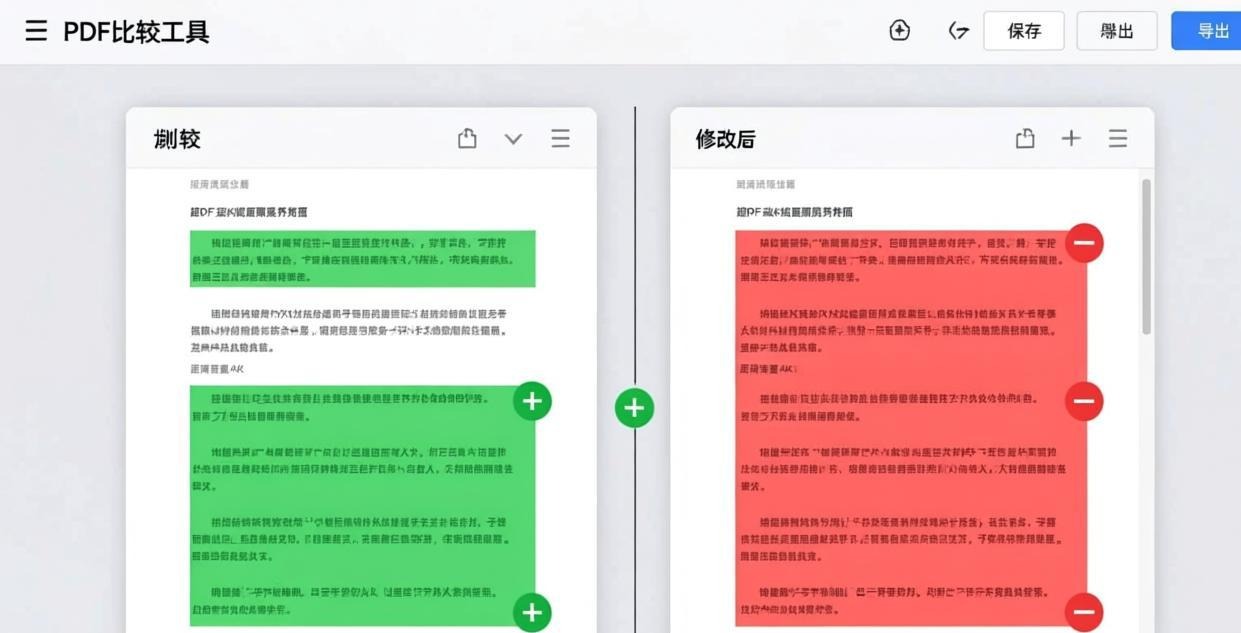
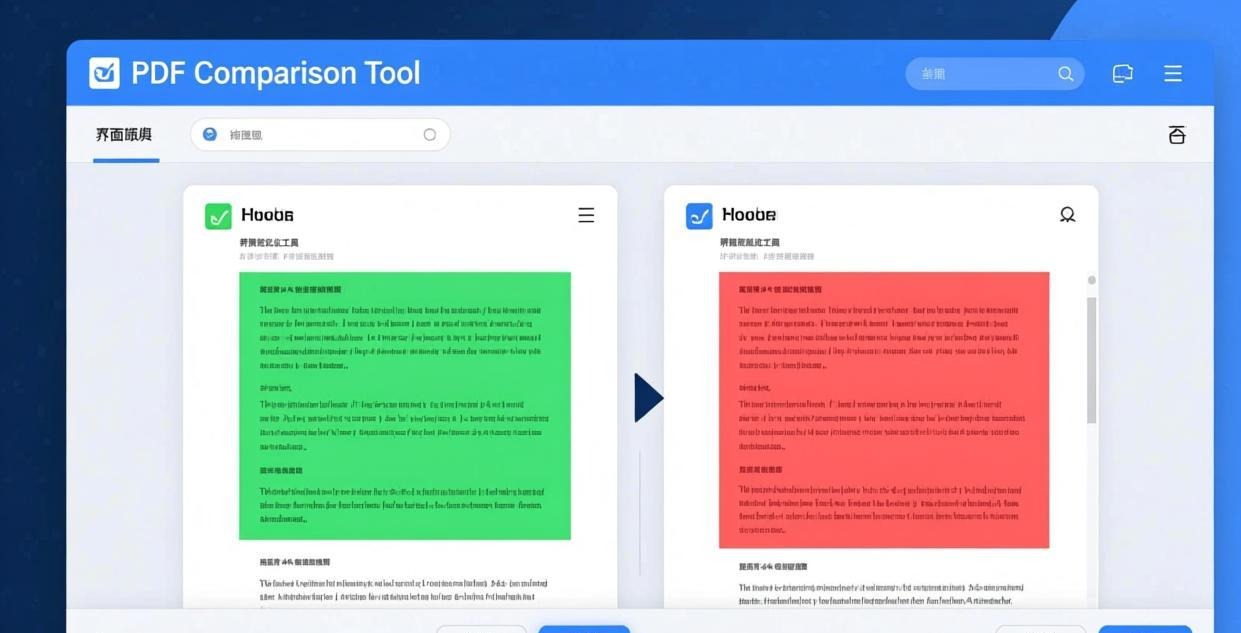
PDFgear’s comparison feature overlays two PDFs and highlights differences with color coding.
How to compare:
- Open PDFgear
- Click “Tool” → “Compare”
- Load both PDF files (old version and new version)
- Choose comparison mode:
- Text — highlights added, deleted, and changed text
- Visual — overlays pages and shows pixel-level differences
- Browse through pages with differences highlighted
- Export a comparison report
Color coding:
- Green — content in the new document (additions)
- Red — content removed from the old document (deletions)
- Blue — content that moved or was modified
For editing after comparison, see our Best Free Offline PDF Editor for PC guide.
#2 Pick: DiffPDF — Best Open Source Comparison
DiffPDF is a free, open source tool specifically designed for comparing PDF files. It offers three comparison modes.
Appearance mode — compares the visual appearance of pages, pixel by pixel. Differences are highlighted in a combined view.
Text mode — compares the text content of each page. Added and deleted text is highlighted with different colors.
Annotation mode — shows differences as annotations on the PDF pages.
Usage:
- Open DiffPDF
- Load PDF #1 (left panel) and PDF #2 (right panel)
- Select comparison mode (Appearance, Text, or Annotation)
- Navigate through pages — DiffPDF automatically jumps to pages with differences
- Review highlighted differences in both panels
DiffPDF is fast and handles large documents well. It’s available for Windows, Mac, and Linux.
#3 Pick: Command-Line Text Comparison
For text-only comparison, you can extract text from both PDFs and use standard diff tools.
Using pdftotext + diff:
# Extract text from both PDFs
pdftotext old.pdf old.txt
pdftotext new.pdf new.txt

# Compare
diff old.txt new.txt
Using Python with pdfminer:
from pdfminer.high_level import extract_text
import difflib

text1 = extract_text("old.pdf")
text2 = extract_text("new.pdf")

diff = difflib.unified_diff(
    text1.splitlines(), text2.splitlines(),
    fromfile="old.pdf", tofile="new.pdf", lineterm=""
)
print("\n".join(diff))
This approach is useful for automated comparison pipelines where you need to check if content has changed without visual inspection.
When to Use Each Comparison Type
| Scenario | Best Method | Why |
|---|---|---|
| Contract revisions | Text comparison | Catches clause changes |
| Layout redesign | Visual comparison | Catches formatting shifts |
| Document tampering check | Structural + visual | Reveals hidden changes |
| Version control audit | Text + structural | Complete change log |
| Accessibility review | Visual comparison | Catches color/position changes |
For verifying document security, see our Check PDF Security & Permissions guide.
Frequently Asked Questions
Can I compare two PDFs without installing software?
Modern web browsers can display two PDFs side by side, but they don’t highlight differences. For automated comparison, you need a dedicated tool. All tools we recommend work offline.
What’s the best free PDF comparison tool?
PDFgear offers the best balance of features and ease of use with both text and visual comparison. DiffPDF is the best open source option with similar capabilities.
Can I compare password-protected PDFs?
PDFgear can compare protected PDFs if you know the passwords. It will prompt you for the password when loading each file. DiffPDF doesn’t support encrypted PDFs.
How do I compare PDFs for legal review?
Use text comparison to find clause changes and additions. Export the comparison report as evidence of what changed between versions. For the strongest verification, also run a visual comparison to catch formatting changes that might affect interpretation.
Can I compare more than two PDFs at once?
Most comparison tools work with two files at a time. To compare multiple versions, compare them pairwise: v1 vs v2, v2 vs v3, etc. Some commercial tools support multi-file comparison, but free tools are limited to two files.
Does PDF comparison work with scanned documents?
Visual comparison works with scanned PDFs (it compares pixel data). Text comparison requires OCR first — see our Best Offline PDF to Text Converter guide for OCR tools.
📖 Recommended Reading
Best Offline PDF Password Protector Desktop Free (2026)
5 free offline PDF password protectors. Set open passwords and editing restrictions.
Best Offline PDF Metadata Editor & Remover Free (2026)
5 free offline PDF metadata tools. Edit, view, or strip metadata for privacy.