📑 Table of Contents
title: “How to Lock PDF from Editing Offline — Best Free Tools to Restrict PDF Permissions (2026)” slug: lock-pdf-from-editing-offline description: “Want to prevent others from editing, copying, or printing your PDF? This guide tests 5 free offline tools that let you restrict PDF permissions — no upload, no subscription, no internet required.” date: 2026-05-26 category: “repair-security” tag_label: “Repair & Security” tag_color: “repair” card_icon: “🔒” card_label: “Lock PDF” readtime: 8 screenshots: 4 faq:
- q: “Can I lock a PDF from being edited without setting a password?” a: “Technically no. PDF permission restrictions (no-edit, no-print, no-copy) are enforced through an Owner Password. If there’s no password at all, anyone with a PDF editor can change the permissions. The good news is that some tools let you set permission restrictions with a simple checkbox — you don’t need to memorize a complex password. The tool generates and embeds the permission lock automatically.”
- q: “What’s the difference between locking editing and password-protecting a PDF?” a: “Password protection (User Password) prevents someone from opening the file at all — they need the password just to view it. Locking editing (Owner Password / Permissions Password) allows anyone to open and read the PDF, but restricts actions like editing, copying text, printing, or adding annotations. Both can be applied simultaneously, but they serve different purposes.”
- q: “Can someone still edit a locked PDF?” a: “Yes, but not easily. Free readers like Adobe Acrobat Reader will respect the permission restrictions and disable the editing buttons. However, determined users can remove the Owner Password using a password remover tool (like offline PDF password removers). Permission locks are about raising the barrier, not making files tamper-proof. For truly sensitive documents, combine permission locks with a User Password.”
- q: “Which free tool supports the most PDF permission options?” a: “LibreOffice Draw supports the widest range of permission restrictions among free tools — you can restrict editing, copying, printing (with low-resolution print option), and content extraction. PDF24 Tools also has solid permission controls. Both are completely free. Sejda PDF (desktop) supports editing and printing restrictions but has a daily page limit on the free tier.”
- q: “Will locking a PDF affect its quality or file size?” a: “No. Applying permission restrictions adds a small amount of metadata (typically under 1KB) to the PDF file. The visual quality, resolution, and file size remain virtually unchanged. Some tools re-save the file during the process which can slightly reduce file size due to re-compression, but the difference is negligible — usually under 1%.”
Locking a PDF from editing is different from password-protecting it. Password protection stops people from opening the file. Permission locking stops people from changing it — while still letting them read it.
This distinction matters more than you’d think. If you’re sending a contract, a report, or a design proof, you want the recipient to open and read it, not copy the text or modify the content. That’s where PDF permission restrictions come in. Most PDF tools only focus on editing and converting — very few clearly explain the difference between locking and encrypting.
Here’s the problem: most tutorials point you to Adobe Acrobat Pro ($23/month) or online PDF tools that require uploading your files to a server. There are perfectly good free desktop tools that do the same thing — offline, no upload, no subscription.
I tested 5 of them and compared what permission restrictions each one actually supports.
Owner Password vs User Password: Quick Clarification
Before diving into the tools, one thing that confuses a lot of people:
- User Password (open password): Required to open and view the file. Nobody can even look at the PDF without it.
- Owner Password (permissions password): Controls what people can do with the file once it’s open — edit, print, copy, extract text, add comments.
These are independent. You can set an Owner Password to lock editing while leaving the file freely openable. Or set both — requiring a password to open and additional restrictions after opening.
Most “lock PDF from editing” scenarios only need an Owner Password. That’s what this guide focuses on.
Tool 1: LibreOffice Draw — Most Permission Options
Price: Free (open source) | Platform: Windows, Mac, Linux
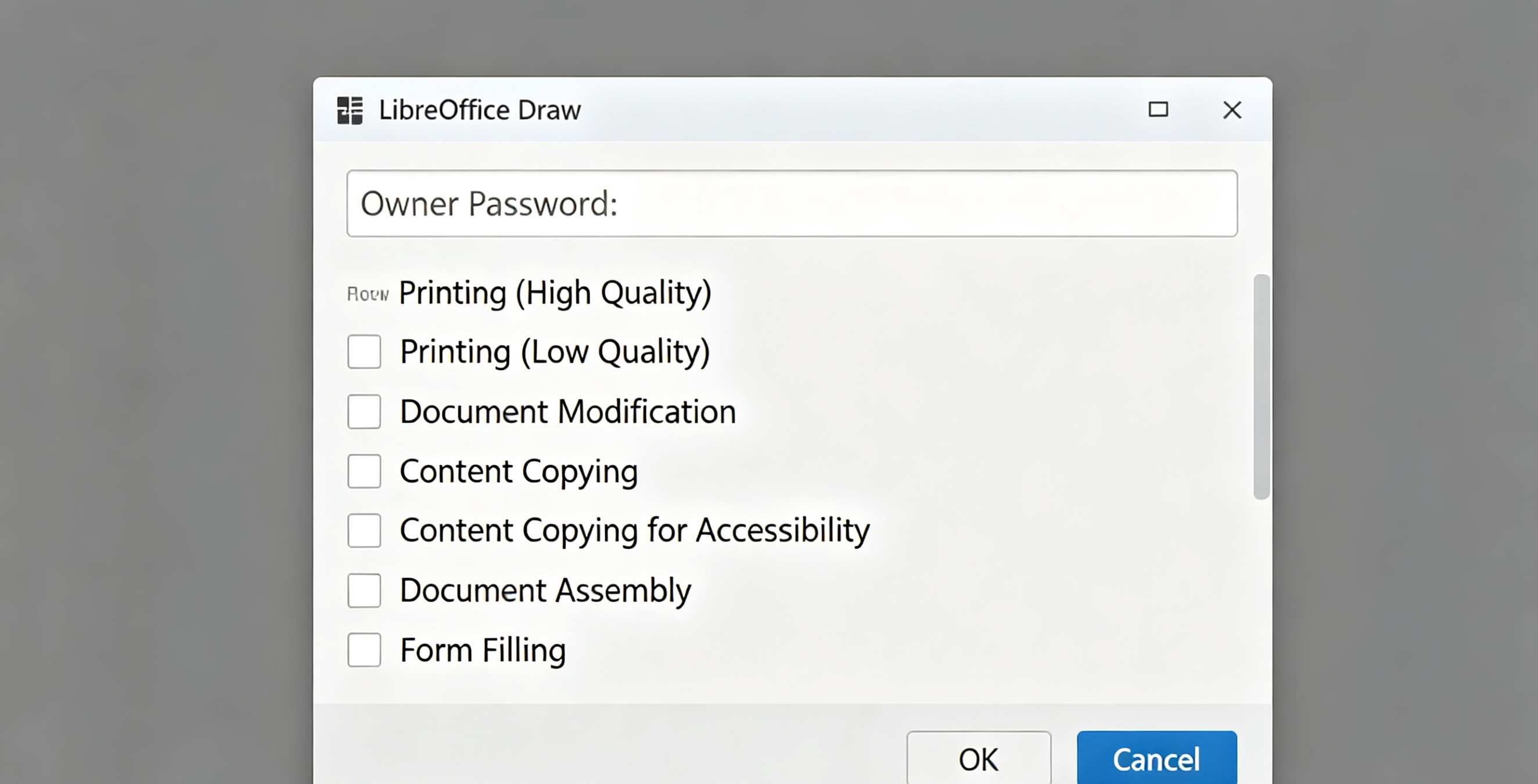
LibreOffice can open and save PDFs, and its export dialog includes a full set of permission controls.
How to use it:
- Open the PDF in LibreOffice Draw
- Go to File > Export As > Export as PDF
- In the PDF Options dialog, check “Encrypt the PDF with a password”
- Click “Set Passwords” — leave the “Set open password” empty, enter an Owner Password
- In the Permissions tab, set your restrictions
- Export
Permission options: Restrict editing, copying, printing (with low-resolution option), and content extraction. This is the most granular free option available.
The catch: LibreOffice sometimes slightly alters the PDF layout when opening it — fonts might shift, spacing can change. For text-heavy documents this usually isn’t noticeable, but for design-critical PDFs (brochures, business cards), test the output carefully. Also, large PDFs (100+ pages) can be slow to open.
Verdict: Best for comprehensive permission control. Acceptable layout fidelity for most documents.
Tool 2: PDF24 Tools — Cleanest Interface
Price: Free | Platform: Windows
PDF24 is a Swiss-army-knife PDF toolkit with a surprisingly clean interface. Its “PDF protect” module handles permission locking.
How to use it:
- Open PDF24 Tools (desktop version)
- Go to “PDF protect” or drag your PDF into the main window
- Set an Owner Password
- Toggle individual permissions: allow/disallow editing, printing, copying, annotating
- Apply and save
Permission options: Edit, print, copy, annotate. Slightly fewer options than LibreOffice (no content extraction toggle), but covers the most commonly needed restrictions.
The catch: Windows only. The interface is straightforward but some options are buried in expandable sections. PDF24 also adds a small “processed with PDF24” metadata tag to files, which some corporate environments might flag.
Verdict: Best for Windows users who want a simple, no-fuss interface.
Tool 3: PDFsam Basic — Good for Batch Processing
Price: Free | Platform: Windows, Mac, Linux
PDFsam Basic is primarily a merge/split tool, but its paid version (Enhanced, €5/month) adds permission locking. However, the free version does support basic encryption.
How to use it:
- Open PDFsam Basic
- Go to the “Encrypt” module
- Add your PDF files
- Set Owner Password and toggle permissions
- Run
Permission options: Edit, print, copy, assemble — standard set. The interface is designed for batch operations, so if you need to lock 50 PDFs at once, this is the tool.
The catch: The free version has limited permission options compared to LibreOffice or PDF24. The batch processing capability is the main selling point.
Verdict: Best if you need to lock multiple PDFs in one go.
Tool 4: Sejda PDF Desktop — Limited Free Tier
Price: Free (up to 200 pages/day or 3 tasks/day) | Platform: Web + Desktop
Sejda is a well-known PDF tool with both online and desktop versions. Its “Protect PDF” feature handles permission locking.
How to use it:
- Open Sejda Desktop
- Choose “Protect PDF”
- Upload your file
- Set permissions and password
- Apply
Permission options: Editing, printing, copying, commenting. Clean and modern interface.
The catch: The free tier limits you to 200 pages per day or 3 tasks per day. For occasional use this is fine, but if you’re processing documents regularly, you’ll hit the limit. The desktop version processes files locally, which is good for privacy.
Verdict: Good for occasional use with a polished interface. Not ideal for heavy users on the free tier.
Tool 5: iText RUPS / qPDF — For Power Users
Price: Free (open source) | Platform: Java-based (cross-platform)
These are developer-oriented tools that give you raw access to PDF permission flags. iText RUPS (Render and Update PDF Structure) lets you view and modify PDF security settings at the structure level.
Permission options: Every single permission flag in the PDF spec — assembly, extract, modify, annotate, fill forms, print (full/low-res), copy. Full control.
The catch: Not user-friendly at all. This is a Java application with a technical interface meant for developers. Nobody should use this unless they specifically need to set unusual permission combinations that other tools don’t expose.
Verdict: Only if you know what you’re doing and need maximum control.
Permission Restriction Comparison Table
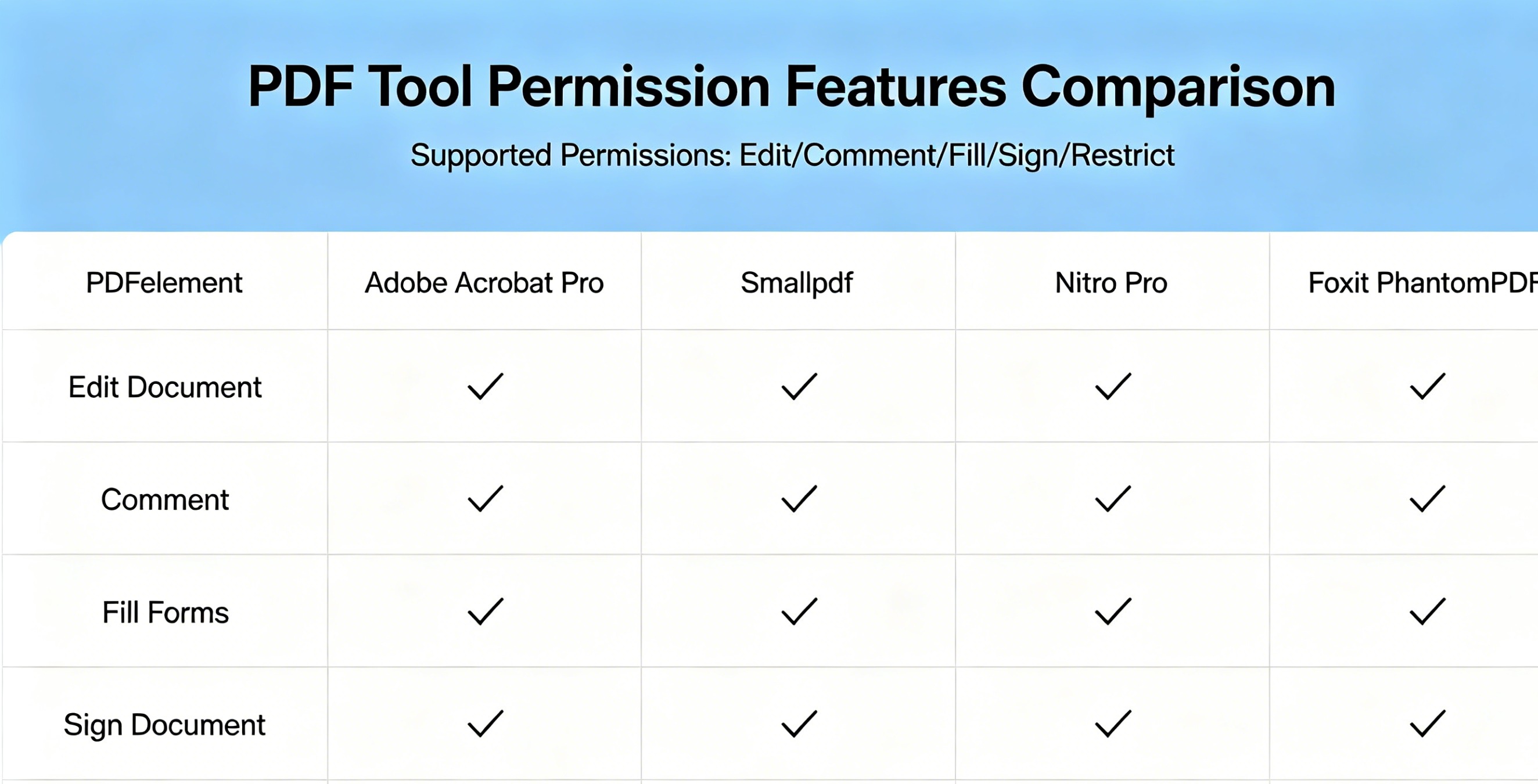
| Tool | Restrict Edit | Restrict Print | Restrict Copy | Restrict Annotate | Low-Res Print | Batch Mode |
|---|---|---|---|---|---|---|
| LibreOffice Draw | ✅ | ✅ | ✅ | ✅ | ✅ | ❌ |
| PDF24 Tools | ✅ | ✅ | ✅ | ✅ | ❌ | ✅ |
| PDFsam Basic | ✅ | ✅ | ✅ | ❌ | ❌ | ✅ |
| Sejda Desktop | ✅ | ✅ | ✅ | ✅ | ❌ | ❌ |
| iText RUPS | ✅ | ✅ | ✅ | ✅ | ✅ | ❌ |
Common Mistake: Assuming “Locked” Means Secure
Here’s something most guides don’t mention: PDF permission restrictions are trivially bypassable.
Anyone can download a free password remover (and there are plenty of offline options) and strip the Owner Password in seconds. The restrictions are enforced by the PDF reader, not the file itself. A compliant reader (Adobe Reader, Chrome’s built-in viewer) will respect them, but a non-compliant one or a simple tool can ignore them entirely.
This doesn’t mean permission locking is useless — it raises the effort required to modify the document, which is enough for most casual scenarios (contracts, reports, shareable templates). But if you’re protecting genuinely sensitive content, pair permission locks with a User Password, or consider redaction tools to permanently remove sensitive information before distributing.
How to Verify Your PDF is Actually Locked
After applying restrictions, verify them:
- Open the locked PDF in Adobe Acrobat Reader (free)
- Try to select text and copy it — should be disabled
- Try Ctrl+P to print — check if it asks for the Owner Password or shows a restriction message
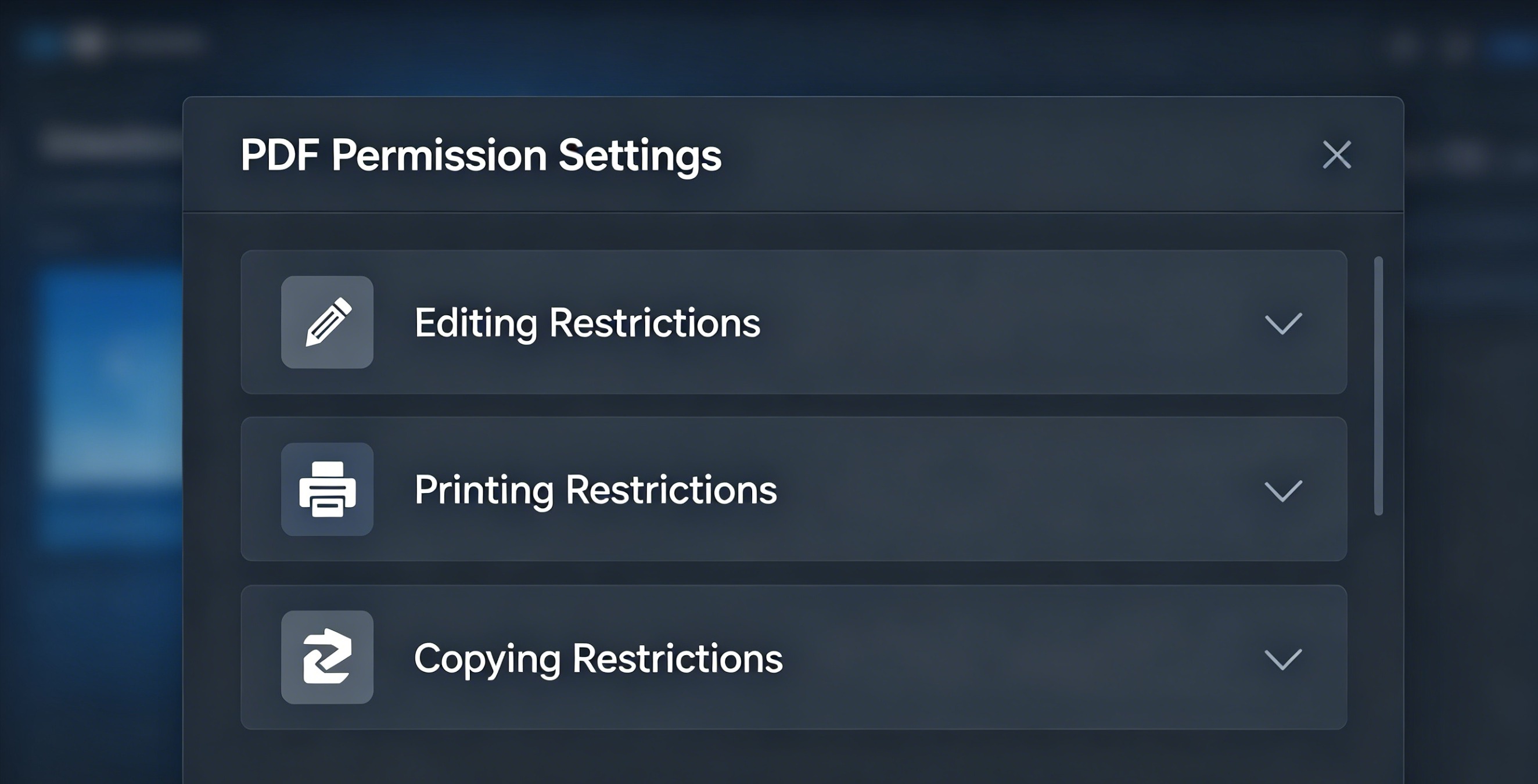
- Check file properties: Ctrl+D or File > Properties > Security tab
The Security tab will show exactly which restrictions are active and which password type was used. If it says “No security” after you applied restrictions, something went wrong during the export process.
My Recommendation
For most people: PDF24 Tools on Windows or LibreOffice Draw on Mac/Linux. Both are free, handle the most common permission restrictions, and produce clean output.
If you process PDFs in bulk: PDFsam Basic for batch encryption with permission controls.
If you need the widest range of permission options: LibreOffice Draw — the low-resolution printing option alone makes it worth keeping installed.
For other PDF security needs, check out how to check PDF security permissions or offline PDF password protection tools.
📖 Recommended Reading
How to Check PDF Security & Permissions Offline (2026)
Inspect PDF encryption, permissions, and metadata offline. Free security audit tools.
Best Offline PDF Comparison Tool Desktop Free (2026)
5 free offline PDF comparison tools. Find text and visual differences between documents.
Best Offline PDF Redaction Software Desktop Free (2026)
5 free offline PDF redaction tools. Permanently remove sensitive data — no undo possible.