How to Check PDF Security & Permissions Offline (2026)
📑 Table of Contents
Before sharing or processing a PDF, it’s important to know its security status. Is it encrypted? Can recipients print or copy the content? What encryption level is used? Checking PDF security offline is fast and keeps your files private.
What to Check in PDF Security
A complete PDF security audit covers:
- Encryption type and key length — 40-bit RC4, 128-bit AES, 256-bit AES
- Open password — is a password required to view the file?
- Permissions password — what restrictions are in place?
- Permission details — printing, copying, editing, commenting, form filling
- Metadata — author, creation date, modification date, software used
- JavaScript — does the PDF contain scripts?
- Embedded files — are there hidden attachments?
- Digital signatures — is the document signed and are signatures valid?
Top 5 Free Offline PDF Security Checkers
| Tool | Platforms | Encryption Info | Permissions | Metadata | Free Tier |
|---|---|---|---|---|---|
| PDFgear | Win / Mac | Yes | Yes | Yes | Unlimited |
| qpdf --show-encryption | Win / Mac / Linux | Yes | Yes | Partial | Unlimited (open source) |
| PDF24 Creator | Windows | Yes | Yes | Yes | Unlimited |
| exiftool | Win / Mac / Linux | Partial | Partial | Yes | Unlimited (open source) |
| pdfinfo (Xpdf) | Win / Mac / Linux | Yes | Yes | Yes | Unlimited (open source) |
Method 1: PDFgear — Visual Security Inspector
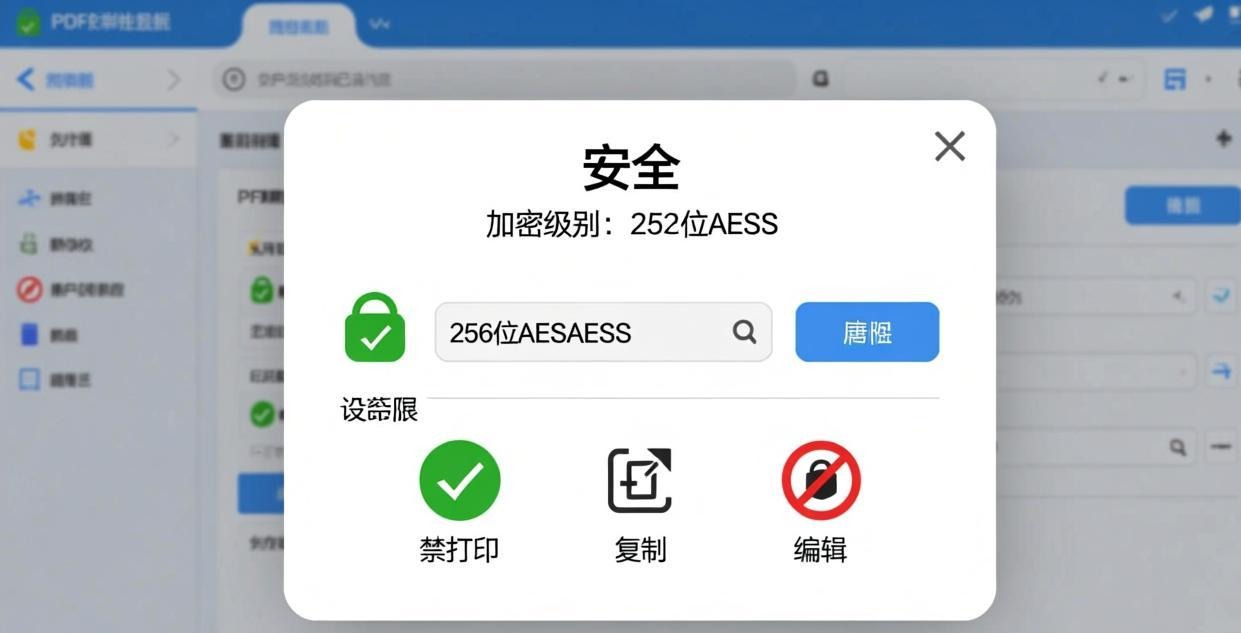
PDFgear provides the most user-friendly way to check PDF security through its Properties dialog.
How to check:
- Open the PDF in PDFgear
- Go to File → Properties → Security tab
- Review the security information:
- Security method (None, Password, Certificate)
- Encryption level (40-bit, 128-bit, 256-bit)
- Permissions (printing, copying, editing, etc.)
- Whether the document has a permissions password set
For password removal after checking, see our Best Offline PDF Password Remover guide.
Method 2: qpdf — Command-Line Security Audit
qpdf provides detailed encryption and permission information from the command line.
Check encryption:
qpdf --show-encryption input.pdf
Output example:
R = 6
User password = (not set)
Owner password = (set)
Permissions:
  Print: allowed
  Modify: not allowed
  Extract: not allowed
  Annotate: allowed
  Fill forms: allowed
  Accessibility: allowed
  Assemble: not allowed
  Print high-res: allowed
Encryption: AES-256
Check linearization and structure:
qpdf --check input.pdf
This reports any structural issues, encryption details, and whether the PDF is linearized (optimized for web viewing).
Method 3: pdfinfo — Fast Metadata and Security Check
pdfinfo (part of the Xpdf toolkit) provides a quick summary of PDF properties including security.
Usage:
pdfinfo input.pdf
Output includes:
Title:          Quarterly Report Q1 2026
Author:         Finance Department
Creator:        Microsoft Word
Producer:       PDFgear
CreationDate:   2026-01-15
ModDate:        2026-03-20
Tagged:         yes
Pages:          42
Encrypted:      yes (print:yes copy:no change:no addNotes:yes)
Page size:      612 x 792 pts (US Letter)
File size:      2,450,621 bytes
PDF version:    1.7
The “Encrypted” line tells you exactly what permissions are set.
Method 4: exiftool — Comprehensive Metadata Analysis
exiftool extracts every piece of metadata from a PDF, including security information that other tools miss.
Usage:
exiftool input.pdf
Useful metadata includes:
- Author, creator, producer software
- Creation and modification timestamps
- PDF version
- Page count and dimensions
- Encryption status
- Embedded fonts and images count
- XMP metadata (rights management, workflow info)
exiftool is particularly useful for forensic analysis — it can reveal editing history, software versions, and sometimes the original author even if metadata was partially scrubbed.
Common Security Issues to Watch For
1. Weak Encryption
PDFs encrypted with 40-bit RC4 can be cracked in seconds. If you find weak encryption, re-encrypt with 256-bit AES using PDFgear.
2. No Open Password with Restrictions
If a PDF has a permissions password but no open password, the restrictions can be removed by anyone using qpdf. This is a common configuration mistake.
3. Hidden JavaScript
PDFs can contain JavaScript that executes when the file is opened. This is a potential security risk. Check for scripts and disable JavaScript in your PDF reader.
4. Embedded Files
PDFs can contain hidden file attachments. These might be legitimate (embedded fonts, supporting documents) or could contain malware. Check for unexpected embedded files.
For redacting sensitive metadata, see our Best Offline PDF Redaction Software guide.
Frequently Asked Questions
How do I know if a PDF is encrypted?
Open it in PDFgear and check File → Properties → Security. If “Security Method” shows anything other than “No Security,” the PDF is encrypted. You can also use qpdf --show-encryption or pdfinfo from the command line.
Can I see PDF permissions without the password?
Yes. Permission settings are stored in the PDF’s encryption dictionary and can be read without the owner password. Use qpdf --show-encryption or PDFgear’s Properties dialog.
What does “Encrypted: yes (print:yes copy:no)” mean?
The PDF has a permissions password. Anyone can open and print it, but copying text and images is restricted. The restrictions can be removed with tools like qpdf.
Is it safe to open a PDF with unknown security settings?
Exercise caution. Use PDFgear in sandboxed mode, disable JavaScript in your PDF reader, and scan the file with antivirus software. PDFs can contain malicious JavaScript, embedded files, and exploit payloads.
How do I remove all security from a PDF?
Use PDFgear’s “Remove Security” feature or qpdf’s --decrypt flag. See our Best Offline PDF Password Remover guide for step-by-step instructions.
Can I check PDF security on Mac without installing software?
Preview shows basic security info (File → Get Info). For detailed security auditing, install PDFgear (free) or use the command-line tools qpdf and exiftool via Homebrew.
📖 Recommended Reading
Best Offline PDF Comparison Tool Desktop Free (2026)
5 free offline PDF comparison tools. Find text and visual differences between documents.
Best Offline PDF Redaction Software Desktop Free (2026)
5 free offline PDF redaction tools. Permanently remove sensitive data — no undo possible.
Best Offline PDF Metadata Editor & Remover Free (2026)
5 free offline PDF metadata tools. Edit, view, or strip metadata for privacy.