How to Add and Remove Watermarks from PDF Files: 2026 Complete Guide
📑 Table of Contents
Adding a watermark to your PDF is one of the simplest ways to protect your work. Whether you’re sharing a draft contract, a design portfolio, or an eBook, a watermark tells recipients: this document has an owner, don’t redistribute without permission.
But what about removing watermarks from PDFs you receive? Maybe a supplier sent you a watermarked invoice and you need a clean copy for your records. That’s a different challenge entirely.
This guide covers both operations — adding and removing watermarks — using free and paid tools across Windows, Mac, and web-based platforms.
Part 1: Adding Watermarks to PDFs
Adding a watermark serves multiple purposes: copyright protection, branding, document status indication (DRAFT, CONFIDENTIAL, FINAL), and version control. The right method depends on how many files you need to process and what level of customization you need.
How Watermarking Actually Works
When you add a watermark through a PDF editor, the software creates a new layer on top of your existing content. This layer contains your watermark text or image with the opacity, rotation, and position you specified. The original content underneath remains untouched — think of it like placing a semi-transparent sticker on a photograph. Some tools then “flatten” the PDF, merging all layers into one, which makes the watermark harder to remove (but also means you can’t edit it later).
This distinction matters: if you send someone a PDF with an unflattened watermark layer, they can potentially remove it. If the PDF is flattened, the watermark is effectively baked into the content.
Method 1: PDF24 Creator (Free, Windows)
PDF24 Creator is a completely free, no-adware Windows tool that handles watermarking cleanly.
Steps:
- Download and install PDF24 Creator from pdf24.org
- Open PDF24 Creator → select “PDF Watermark” from the toolbox
- Drag and drop your PDF file into the window
- Choose your watermark type:
- Text watermark: Type your text (e.g., “DRAFT”, “CONFIDENTIAL”, or your name). Customize font, size, color, rotation, and opacity.
- Image watermark: Upload your logo or signature image (PNG recommended for transparency).
- Position the watermark — center, top, bottom, or custom placement with rotation angle (45° diagonal is standard for document protection).
- Set opacity between 10-20% for background watermarks, 50-70% for prominent ones.
- Choose page range — first page only, all pages, or specific pages.
- Click “Create PDF” to generate your watermarked file.
Why PDF24 stands out: Batch processing, no file size limits, no watermarks added to your output, and it’s genuinely free — not “free with a paid upgrade popup.”
Method 2: Sejda Online (Web-based, All Platforms)
If you’re on Mac or Linux and don’t want to install anything, Sejda’s online PDF editor handles watermarks well.
Steps:
- Go to sejda.com → “Watermark PDF”
- Upload your PDF (free tier: files up to 50MB and 200 pages)
- Add text or image watermark with full customization
- Download the result
Caveat: Free tier limits you to 3 tasks per hour. For occasional use it’s fine; for batch work, install the desktop version or use PDF24.
Method 3: Adobe Acrobat Pro (Paid, All Platforms, Most Powerful)
If you already have Acrobat Pro (or your workplace does), it has the most advanced watermark features.
Steps:
- Open your PDF in Acrobat Pro
- Go to Tools → Edit PDF → Watermark → Add
- Configure text or file-based watermark with all the usual options
- Key advantage: Acrobat’s “Appearance” options let you set the watermark to appear only when printing (not on screen), or to scale with the page.
Watermark Best Practices
Not all watermarks are created equal. The difference between a watermark that protects your work and one that just annoys your readers comes down to a few design decisions.
- For copyright protection: Diagonal text watermark at 15% opacity, spanning the entire page from bottom-left to top-right. Text should include the copyright symbol, year, and your name/company: “© 2026 Your Name / Company. All rights reserved.” Use Arial or Helvetica at 48-60pt. The diagonal placement ensures it can’t be cropped out without cutting into the page content.
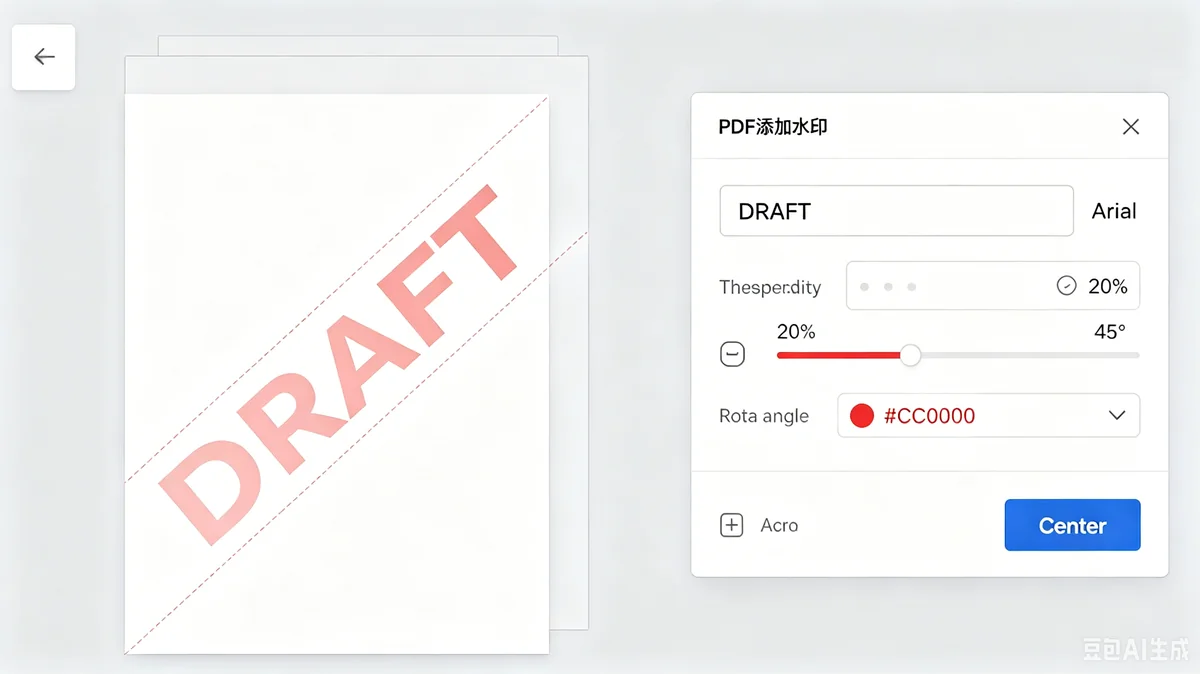
- For draft documents: Large “DRAFT” text centered on each page at 30% opacity using red color (#CC0000). 72-96pt font. Red is universally understood as “not final” in business contexts. Add a timestamp underneath in smaller text: “Generated: January 15, 2026 14:30 UTC.”
- For design portfolios: A subtle logo in the bottom-right corner at 30-40% opacity, approximately 150-200px wide. The watermark should identify you without competing with your work. Include your website URL below the logo in 8pt text.
- For confidential business documents: “CONFIDENTIAL — Intended for [Recipient Name]” in light gray (#999999) at 20% opacity. Individual recipient identification serves double duty — it reminds readers of confidentiality and creates accountability. If a document leaks, you know exactly which copy was the source.
- For photo proofs: A repeating tiled watermark pattern at 40% opacity that covers the entire image. Photographers use this because it makes the proof usable for client review but completely unusable for printing or publishing. Tools like PDF24 support tiled/repeating watermark patterns.
One Setting Most People Get Wrong
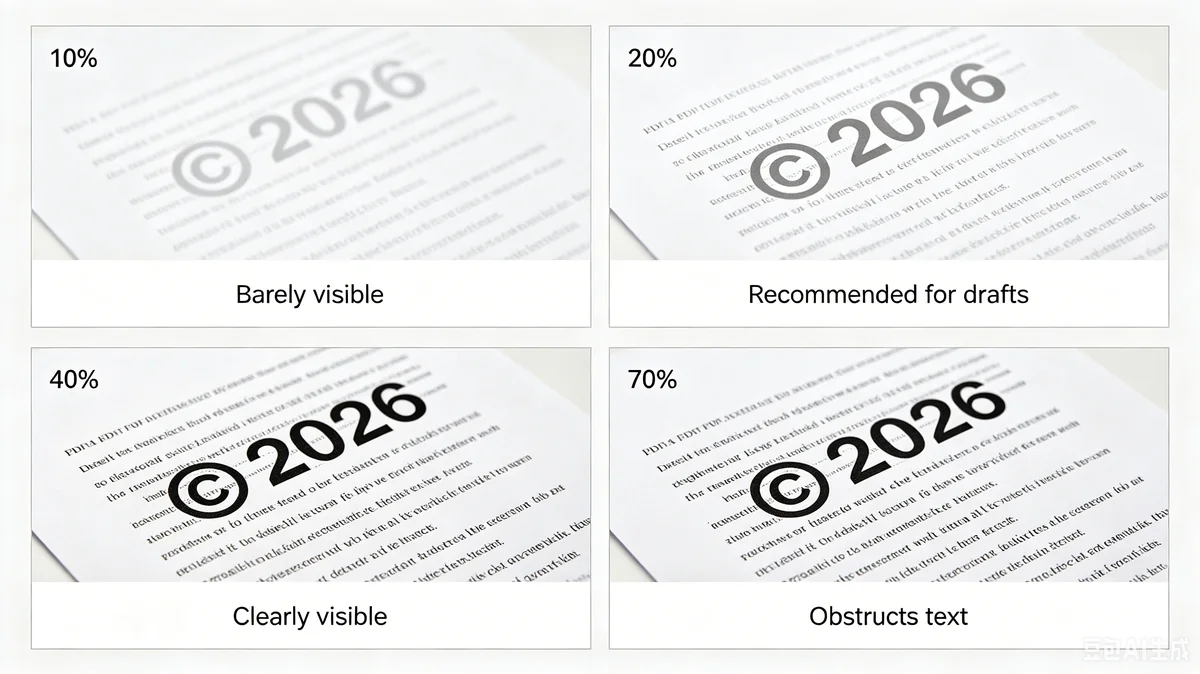
The opacity setting is the single most important choice you’ll make. Here’s a practical guide:
| Opacity | Best For | What It Looks Like |
|---|---|---|
| 5-10% | Background copyright, barely visible | Like a ghost — you can read through it effortlessly |
| 15-20% | Standard copyright protection | Noticeable but doesn’t interfere with reading |
| 30-40% | DRAFT/CONFIDENTIAL stamps | Clearly visible, impossible to ignore |
| 50-70% | Photo proofs, design comps | Makes the image unusable for theft |
The most common mistake: setting opacity too high for copyright watermarks. At 40% opacity, a diagonal watermark makes text hard to read. Your goal is to be assertive but not obstructive.
Part 2: Removing Watermarks from PDFs
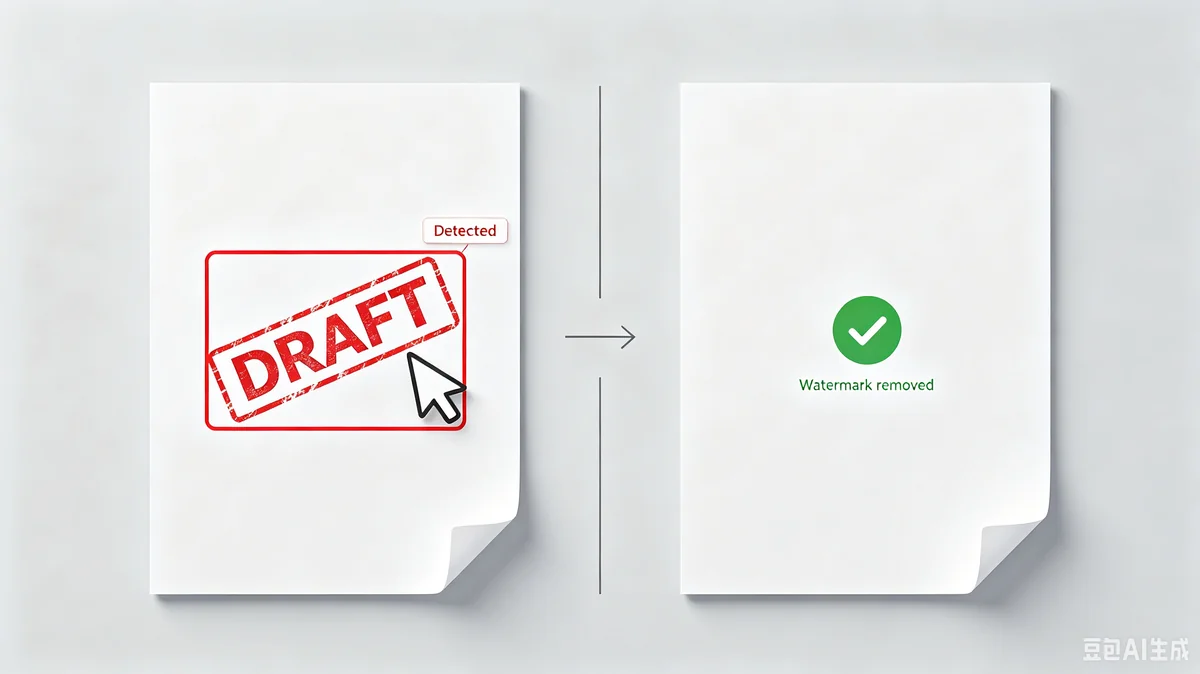
Removing watermarks is substantially harder than adding them — and in some cases, impossible with consumer-grade tools. The key factor is how the original watermark was created and whether the PDF has been flattened.
Here’s the honest truth upfront: if you’re trying to remove watermarks from a protected document to redistribute it without permission, you’re almost certainly violating copyright law. This guide focuses on legitimate removal scenarios: cleaning up supplier documents, removing draft stamps from finalized contracts, and personal documents where you need a clean copy for printing or archiving.
Types of Watermarks and What You Can Do
| Watermark Type | Removable? | How |
|---|---|---|
| Text overlay (added by PDF software) | ✅ Yes | Most PDF editors can select and delete it |
| Image overlay (added as separate layer) | ✅ Yes | PDF editors can remove the layer |
| Baked-in (part of the scanned image) | ❌ Very difficult | Requires Photoshop-level image editing per page |
| Flattened (merged with content permanently) | ❌ Nearly impossible | The watermark literally is part of the content now |
Method 1: Sejda Web Tool (Free, All Platforms)
Sejda has a dedicated watermark removal tool that works for overlay-type watermarks.
Steps:
- Go to sejda.com/remove-pdf-watermark
- Upload your PDF
- Sejda automatically detects and highlights potential watermarks in red
- Review the selections — you can manually add or remove areas
- Click “Remove Watermarks” and download
Limitation: Works best with clear text watermarks. Faded or complex overlays may be partially missed.
Method 2: PDF24 Creator (Free, Windows)
PDF24 doesn’t have a dedicated “remove watermark” button, but you can work around it:
- Open the PDF in PDF24’s PDF Editor
- Click on the watermark element — if it’s a separate layer, it should be selectable
- Press Delete
- Save the file
If the watermark is not selectable, it’s baked into the content and PDF24 can’t remove it.
Method 3: Adobe Acrobat Pro (Paid)
- Open the PDF in Acrobat Pro
- Go to Tools → Edit PDF
- Click on the watermark — if it’s an overlay, it will highlight as a selectable object
- Press Delete → Save
Acrobat’s watermark detection is more sophisticated than free tools. If Acrobat can’t select it, the watermark is almost certainly baked into the page images — and you’ll need image editing software to remove it.
Method 4: Photoshop / GIMP (Baked-in Watermarks Only)
For scanned documents where the watermark is part of the image itself:
- Export each PDF page as a high-resolution image (600 DPI minimum)
- Open in Photoshop or GIMP
- Use the Clone Stamp tool or Content-Aware Fill to carefully paint over the watermark
- Reassemble the edited images into a new PDF
This is extremely time-consuming for multi-page documents. It’s only practical for 1-3 critical pages. For entire books, it’s not worth the effort.
What to Do When Watermark Removal Fails
If all methods above fail, your options are limited:
- Request a clean copy from the sender. This is the simplest solution — just ask. Most organizations will provide clean copies if you have a legitimate reason.
- Use the document as-is. If the watermark is faint and doesn’t obstruct reading, accept it.
- Professional document recovery services. There are companies that specialize in document restoration, but their services cost $50-200 per document and are only worth it for irreplaceable legal or historical documents.