Best Free PDF Annotator Desktop (No Ads) — 2026
📑 Table of Contents
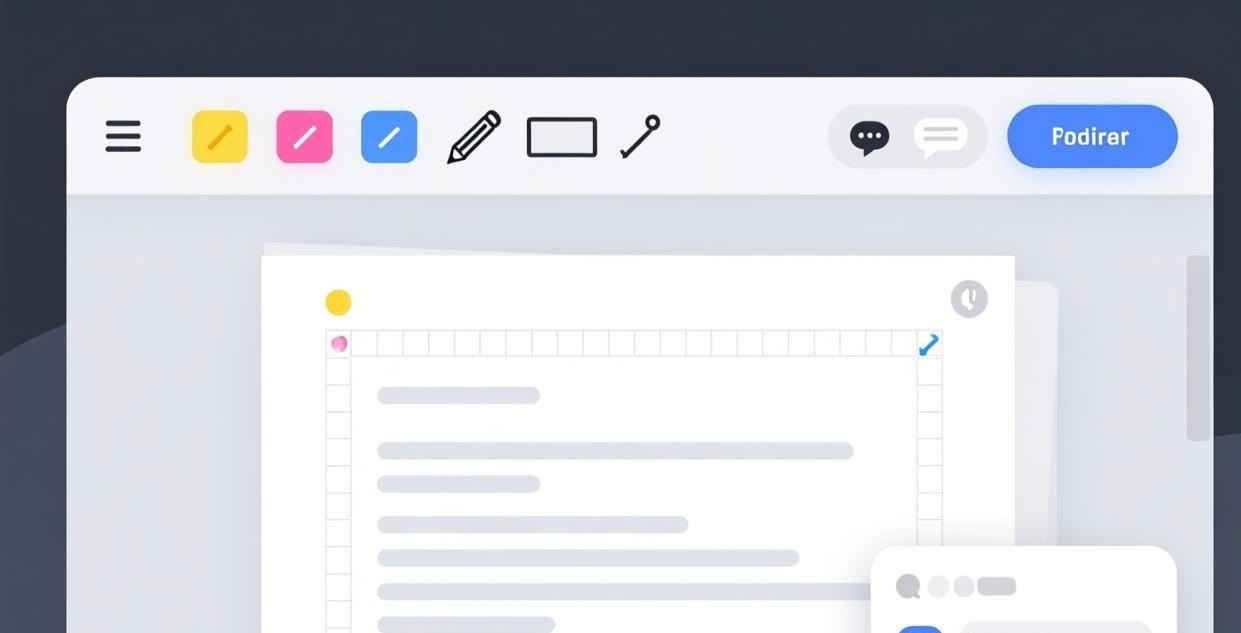
If you’ve ever tried to annotate a PDF with a free tool, you know the frustration: pop-up ads, nag screens, watermarks on your notes, and “upgrade now” banners that cover half the screen. We tested 6 free desktop PDF annotators to find the ones that are genuinely ad-free and fully offline.
Whether you’re a student highlighting lecture notes, a lawyer marking up contracts, or a designer leaving feedback on proofs, you need an annotator that stays out of your way. Here are the best options for 2026.
Why Ad-Free PDF Annotation Matters
Most “free” PDF annotators aren’t really free — they’re freemium tools that bombard you with ads and upgrade prompts. This isn’t just annoying; it actively hurts your productivity:
- Distractions break focus — every popup interrupts your reading flow
- Ads slow down the app — ad-rendering uses CPU and memory
- Privacy concerns — some free annotators track your usage data
- Watermarks on exports — your annotations get branded with the tool’s logo
A truly free, offline annotator gives you a clean workspace with zero compromises on your privacy or output quality.
Top 6 Free PDF Annotators Compared (No Ads)
We installed each annotator on Windows 11 and macOS Sequoia, then tested them with a 50-page PDF containing text, images, and forms. Here’s how they compare:
| Software | Platforms | Annotation Types | Truly Ad-Free | Free Tier |
|---|---|---|---|---|
| PDFgear | Win / Mac | Highlight, draw, text, stamp, sign | Yes | Unlimited |
| Okular | Win / Mac / Linux | Highlight, draw, text, inline notes | Yes | Unlimited (open source) |
| Xournal++ | Win / Mac / Linux | Draw, text, highlight, shapes | Yes | Unlimited (open source) |
| Xodo PDF Studio | Win / Mac | Highlight, draw, text, sign, stamp | Yes | Limited features |
| Foxit Reader | Win / Mac | Highlight, draw, text, sign | Occasional prompts | Limited |
| PDF Annotator | Windows | Full annotation suite | No (30-day trial) | Trial only |
#1 Pick: PDFgear — Best Overall Annotator
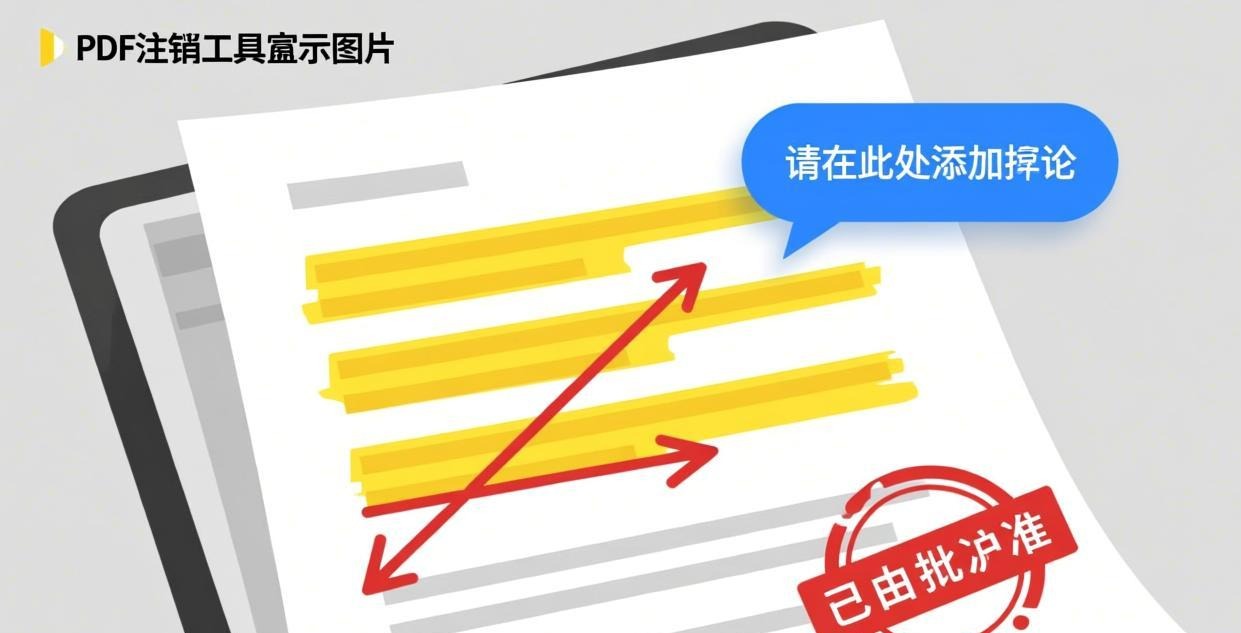
PDFgear isn’t just an annotator — it’s a full PDF editor that happens to have excellent annotation tools. But for annotation specifically, it stands out because it’s completely free with no ads, no watermarks, and no feature limits.
What makes PDFgear great for annotation:
- Highlight tool with customizable colors (yellow, green, pink, blue, and custom)
- Freehand drawing with adjustable pen width and opacity
- Text boxes for adding comments anywhere on the page
- Stamps — approved, rejected, confidential, and custom stamps
- Signature tool — draw or import your signature for one-click signing
- Shape tools — rectangles, circles, arrows, and lines
The interface is clean and modern. Annotations are saved directly in the PDF (not as a separate layer), so they’re visible in any PDF reader. And because PDFgear works 100% offline, you can annotate sensitive documents without any privacy concerns.
For a deeper look at PDFgear’s full editing capabilities, see our Best Free Offline PDF Editor for PC review.
#2 Pick: Okular — Best Open Source Annotator
Okular is KDE’s document viewer, and it’s one of the most underrated PDF annotators available. As an open source project, it’s completely free forever with zero ads — not because of a freemium model, but because it’s maintained by a community.
Key annotation features:
- Highlight with multiple colors
- Inline notes that expand on click (great for long comments)
- Freehand drawing with smooth rendering
- Text annotations with positioning control
- Pop-up notes attached to specific text selections
Okular runs on Windows, Mac, and Linux. It’s lightweight (about 60MB installer) and opens even large PDFs quickly. The only downside is that its interface feels a bit technical — it’s designed for the KDE ecosystem, so some features are buried in menus.
If open source software matters to you, also check out our Best Open Source PDF Desktop Software guide.
#3 Pick: Xournal++ — Best for Handwritten Notes
If you use a stylus or graphics tablet, Xournal++ is in a league of its own. It was designed from the ground up for handwritten annotation, and it shows.
Why Xournal++ excels for handwriting:
- Pressure sensitivity — varies line width based on pen pressure
- Stroke smoothing — makes handwritten notes look natural
- Layer support — separate layers for highlights, text, and drawings
- PDF background locking — annotate without accidentally moving the original content
- Custom pen settings — create profiles for different annotation styles
Xournal++ saves annotations in its own format (.xopp) by default, but can export to PDF with annotations flattened. The learning curve is slightly steeper than PDFgear, but for handwritten annotation it’s unmatched.
How to Annotate PDFs Effectively
The tool matters, but your annotation workflow matters more. Here are our tips for effective PDF annotation:
1. Use a Color System
Assign meaning to highlight colors and stick with it:
- Yellow — important information
- Green — action items or tasks
- Pink — questions or things to follow up on
- Blue — references to other documents
2. Combine Highlights with Notes
Don’t just highlight — add a note explaining why you highlighted. Future-you will thank present-you.
3. Use Stamps for Quick Reviews
If you review documents regularly, use stamps (✓ Approved, ✗ Rejected, ⚠ Revision Needed) for one-click feedback.
4. Save Annotated Versions Separately
Always “Save As” after annotating, keeping the original unmodified. This is especially important for legal and academic documents.
Offline vs Online Annotation
You might wonder why we focus on offline annotation tools when there are plenty of online options. The answer comes down to three factors:
- Privacy — legal documents, medical records, and financial statements should never be uploaded to a third-party server
- Reliability — offline tools don’t depend on internet connectivity or server uptime
- Speed — no upload/download wait times, even for large files
If you need signature features specifically, see our Best Offline PDF Signature Software guide.
Frequently Asked Questions
What’s the best free PDF annotator for Windows?
PDFgear is our top pick for Windows. It offers highlight, draw, text, stamp, and signature tools with zero ads and no feature limits. For a fully open source alternative, Okular is also excellent.
Can I annotate PDFs without an internet connection?
Yes, all the tools we recommend work 100% offline. PDFgear, Okular, and Xournal++ all function without any internet connection. Your files never leave your computer.
Is there a free PDF annotator with no watermarks?
PDFgear, Okular, and Xournal++ all produce clean annotations with no watermarks on the output. Foxit Reader and PDF Annotator may add watermarks in their free tiers.
Which PDF annotator is best for students?
For students, we recommend PDFgear for general annotation (highlighting, text notes) or Xournal++ if you use a stylus for handwritten notes. Both are completely free and won’t distract you with ads during study sessions.
Can I annotate scanned PDF documents?
Yes, but you’ll need a tool with OCR support. PDFgear includes built-in OCR that makes scanned text selectable and annotatable. Other tools like Okular and Xournal++ can annotate the image layer of scanned PDFs but can’t make the text selectable.
How do I remove annotations from a PDF?
Most annotators let you click on an annotation and press Delete. In PDFgear, right-click any annotation and select “Remove.” In Okular, use the annotation panel to select and delete multiple annotations at once.
Can I export only the annotations (not the PDF)?
Xournal++ supports exporting annotations as a separate layer. PDFgear doesn’t have this feature directly, but you can copy highlighted text to clipboard. For a summary of annotations, most tools allow exporting comments as a text file.
📖 Recommended Reading
Best Lightweight PDF Reader for Low-End PC
8 lightweight PDF readers tested on low-end hardware. Find the fastest one for your old PC.
Best Free Offline PDF Annotator for PC (2026): 5 Tools Tested
Best Free Offline PDF Editor for PC (2026)
We tested 7 offline PDF editors with real benchmarks. Here's our honest ranking for 2026.