Best Free Offline PDF Annotator for PC (2026): 5 Tools Tested
📑 Table of Contents
⚠️ This article only recommends legitimate PDF tools based on official versions. No cracks or license violations.
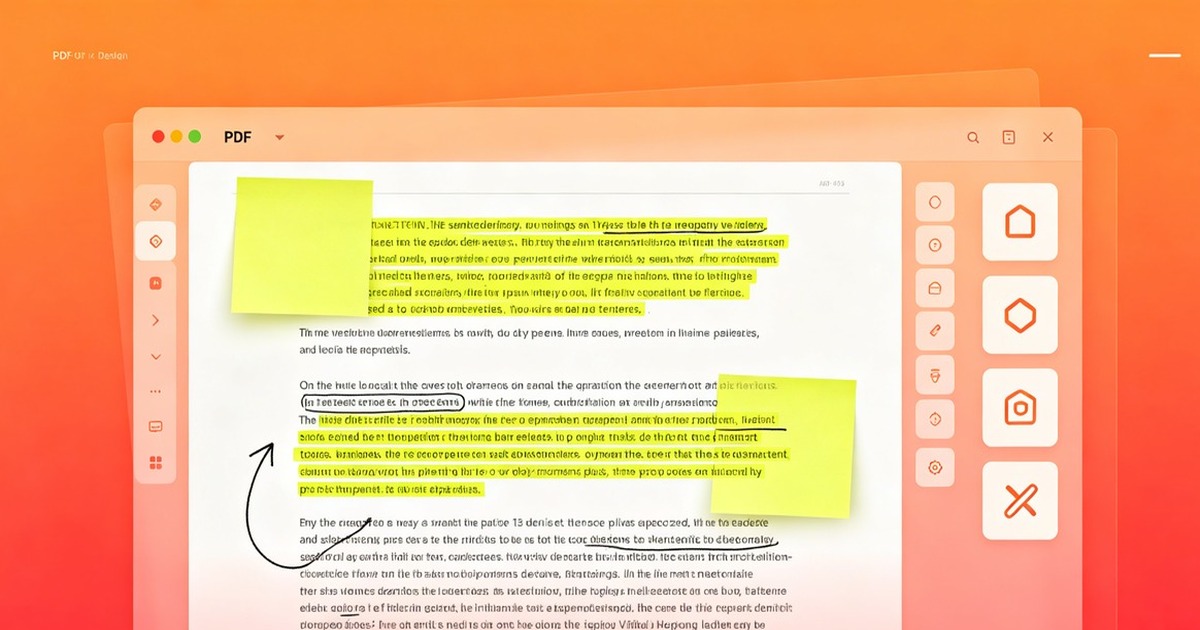
PDF annotation is essential for reviewing documents, studying, and collaborating. But most free tools require internet and upload your files to cloud servers. If you work with confidential contracts, legal documents, or proprietary research, offline annotation is non-negotiable. This guide tests 5 free offline PDF annotators for PC. More PDF tools and desktop software available on our site.
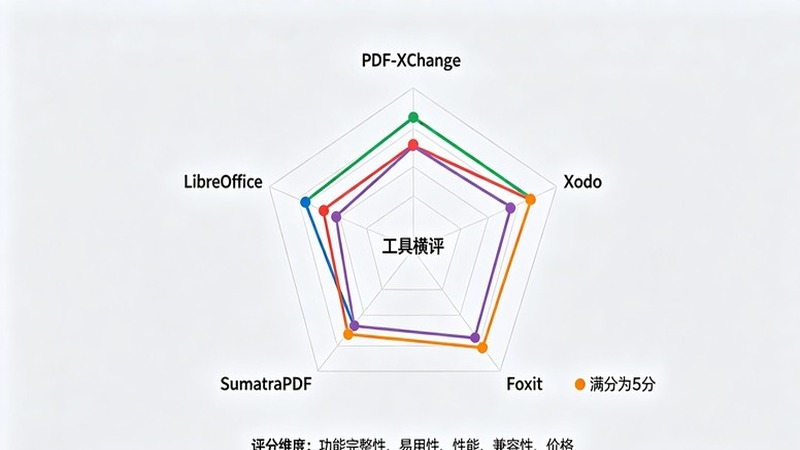
5 Free Offline PDF Annotators Compared
| Tool | Highlight | Comment | Draw | Stamp | Export | Rating |
|---|---|---|---|---|---|---|
| PDF-XChange Editor | ✅ | ✅ | ✅ | ✅ | ✅ | ★★★★★ |
| Xodo PDF Studio | ✅ | ✅ | ✅ | ❌ | ✅ | ★★★★ |
| Foxit Reader | ✅ | ✅ | ❌ | ✅ | ✅ | ★★★★ |
| SumatraPDF + plugins | ✅ | ✅ | ❌ | ❌ | ⚠️ | ★★★ |
| LibreOffice Draw | ✅ | ⚠️ | ✅ | ❌ | ✅ | ★★★ |
PDF-XChange Editor: Best Overall
PDF-XChange Editor is the most feature-rich free PDF annotator available. The free version includes highlighting, commenting, drawing, stamps, and measuring tools.
Key features:
- 9 highlight colors with opacity control
- Typewriter tool for adding text anywhere
- Freehand drawing with customizable pen
- Stamp library with 20+ standard stamps
- Callout and textbox tools
Limitations: Some advanced features (OCR, form creation) require the paid Pro version. A watermark appears on documents when using Pro features.
Best for: Professionals who need comprehensive annotation without paying.
Xodo PDF Studio: Best for Touchscreens
Xodo offers the smoothest drawing experience on touchscreen PCs. If you use a Surface Pro or 2-in-1 laptop, Xodo is your best bet.
Key features:
- Smooth ink drawing on touchscreens
- Real-time collaboration (when online)
- Dark mode for extended reading
- Integrated cloud storage access
Limitations: No stamp tool in the free version. Offline mode is limited compared to PDF-XChange.
Best for: Touchscreen users and students who annotate lecture slides.
Foxit Reader: Best for Business
Foxit Reader is a solid choice with good commenting and highlighting tools. Its interface resembles Microsoft Office, making it familiar for business users.
Key features:
- Multi-tab document viewing
- Comment review and reply threads
- Form filling support
- Integration with SharePoint and OneDrive
Limitations: No freehand drawing in the free version. Some features push upgrade prompts.
Best for: Business users who need commenting and form filling.
Annotation Feature Deep Dive
Highlighting
All 5 tools support text highlighting, but quality varies:
| Tool | Colors | Opacity | Strikethrough | Underline |
|---|---|---|---|---|
| PDF-XChange | 9+ | Adjustable | ✅ | ✅ |
| Xodo | 6 | Fixed | ✅ | ✅ |
| Foxit | 8 | Adjustable | ✅ | ✅ |
| SumatraPDF | 3 | Fixed | ❌ | ❌ |
| LibreOffice | 5 | Adjustable | ✅ | ✅ |
For studying and research, PDF-XChange is the clear winner. Adjustable opacity lets you highlight without obscuring the text underneath.
Commenting
Commenting features also differ significantly:
- PDF-XChange: Threaded comments, sticky notes, callout boxes, attachment annotations
- Foxit: Threaded comments with reply support, good for team reviews
- Xodo: Simple sticky notes, good for personal use
- SumatraPDF: Basic bookmarks only, limited commenting
- LibreOffice: Comments work but can shift document layout
Drawing and Markup
If you need to draw on PDFs (circling, arrows, freehand notes), your options narrow to 3:
| Tool | Freehand | Shapes | Arrows | Eraser |
|---|---|---|---|---|
| PDF-XChange | ✅ | ✅ | ✅ | ✅ |
| Xodo | ✅ | ✅ | ✅ | ❌ |
| LibreOffice | ✅ | ✅ | ✅ | ✅ |
PDF-XChange again leads with the most complete drawing toolkit. Xodo’s freehand is smoother on touchscreens but lacks an eraser.
Which Annotator Should You Choose?
| Your Need | Pick This | Why |
|---|---|---|
| All-around best | PDF-XChange | Most features in free version |
| Touchscreen PC | Xodo | Smoothest ink experience |
| Business documents | Foxit | Familiar UI, threaded comments |
| Minimal, fast reading | SumatraPDF | Lightest weight, fastest startup |
| Already use LibreOffice | LibreOffice Draw | No extra install needed |
Honestly, for most users PDF-XChange Editor is the answer. The free version has everything you need and nothing you don’t. If you also need to compress PDFs or merge PDFs, PDF-XChange handles those too.
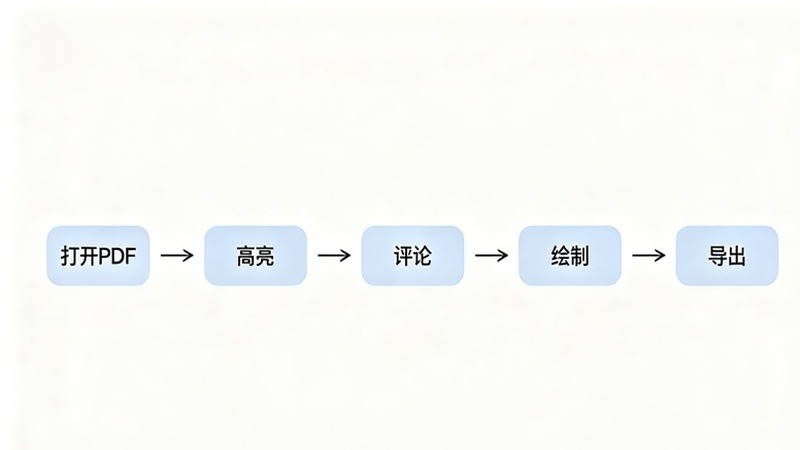
Annotation Best Practices
For Students
- Use different highlight colors for different topics (yellow=definitions, green=examples, pink=questions)
- Add summary comments at the end of each chapter
- Export highlighted text to study notes
For Professionals
- Use callout boxes for action items
- Add timestamps to comments for audit trails
- Flatten annotations before sharing to prevent accidental edits
- Protect sensitive annotations with PDF encryption
For Researchers
- Highlight methodology sections in one color, results in another
- Add marginal notes for cross-references
- Use stamps to mark “verified”, “disputed”, or “needs review”
- After annotation, convert to searchable PDF using our offline PDF editor guide
Common Issues and Fixes
| Issue | Cause | Fix |
|---|---|---|
| Annotations not saving | Read-only file | Save As to a new file |
| Highlights appear offset | PDF has non-standard layout | Use PDF-XChange repair tool |
| Comments disappear in other readers | Non-standard annotation format | Flatten annotations before sharing |
| Drawing is laggy | Large PDF file | Use offline PDF compressor first |
| Cannot add text to form fields | PDF has XFA forms | Use Foxit Reader for XFA support |
FAQ
Can I annotate PDFs without internet?
Yes. All 5 tools in this guide work completely offline. You only need internet for the initial download. Once installed, no connection required for highlighting, commenting, drawing, or any annotation features.
Which free PDF annotator supports drawing?
Xodo PDF Studio and PDF-XChange Editor both support freehand drawing. Xodo has smoother drawing on touchscreens, while PDF-XChange offers more pen styles and colors. For basic drawing, either works well.
Can I save annotations so others can see them?
Yes. All tools save annotations as standard PDF markup, which any PDF reader can display. You can also flatten annotations (merge them into the page) if you want them to be permanent and uneditable. Check our free offline PDF editor guide for flattening steps.
What is the difference between commenting and annotating?
Commenting adds text notes (like sticky notes) that appear in a sidebar or popup. Annotating includes comments plus highlighting, underlining, drawing, stamps, and other visual markup directly on the page. All tools in this guide support both.
Are these annotators safe for confidential documents?
Since all 5 tools work offline, your documents never leave your computer. This is safer than online PDF editors where files are uploaded to cloud servers. For maximum security, use offline PDF password protection after annotating.
⚠️ This article is for informational purposes only. Software features and pricing may change. Visit PDF tools for more recommendations or desktop software for the full catalog.
📖 Recommended Reading
Best Free Offline PDF Editor for PC (2026)
We tested 7 offline PDF editors with real benchmarks. Here's our honest ranking for 2026.
Best Open Source PDF Desktop Software — Free & Private
Top 6 open source PDF tools compared. Free, auditable code, no tracking — perfect for privacy-conscious users.
Best Lightweight PDF Reader for Low-End PC
8 lightweight PDF readers tested on low-end hardware. Find the fastest one for your old PC.