Best Tool to Reorder PDF Pages Offline (2026)
📑 Table of Contents
Scanned a document in the wrong order? Merged two PDFs and the pages are scrambled? Maybe you just need to move the cover page to the front. Whatever the case, reordering PDF pages is one of those tasks that should take seconds — but finding the right tool can eat up your whole afternoon if you start downloading bloated software or uploading sensitive documents to random websites.
This guide covers five free desktop tools that let you rearrange PDF pages entirely offline. No uploads, no accounts, no internet required once installed. I tested each one on a 120-page report, a 50-page scanned contract, and a batch of 20 small invoices. Here’s what actually works in 2026.
Why Reorder PDF Pages Offline Instead of Online
You’ve probably seen the online tools — upload your file, drag some thumbnails around, download the result. They work fine for a one-off task with a non-sensitive document. But there are real reasons to skip them for anything serious.
Privacy is the obvious one. Every time you upload a PDF to a web service, you’re trusting that company with your data. Contracts, tax forms, medical records, legal filings — these should never leave your machine. Offline tools process everything locally, so your files never touch a remote server.
Speed matters too. A 50 MB PDF with high-resolution scans can take minutes to upload, process on their server, and download again. Offline tools handle the same file in seconds because there’s no network overhead.
Reliability is underrated. Online tools go down, change their pricing, impose file size limits, or watermark your output. Desktop software you’ve already installed doesn’t suddenly require a subscription or cap you at three pages. It just works.
Batch processing is where offline really shines. Need to reorder pages in 30 different invoices? Online tools make you do it one at a time. Desktop tools like PDF24 and PDFsam handle folders of files with a single drag-and-drop.
Comparison: 5 Best Offline PDF Page Reordering Tools
I tested five tools head-to-head on the same set of files. Here’s how they stack up for the specific task of reordering pages.
| Tool | Platforms | Drag-Drop UI | Thumbnail Preview | Undo Support | Free Tier |
|---|---|---|---|---|---|
| PDF24 Creator | Windows, macOS | Yes — full drag-and-drop | Yes — clear thumbnails | No native undo | 100% free, no limits |
| PDFgear | Windows, macOS | Yes — sidebar thumbnails | Yes — high quality | Yes — Ctrl+Z | Free, no watermarks |
| PDFsam Basic | Windows, macOS, Linux | Yes — visual merge | Yes — page thumbnails | No native undo | Free, open source |
| Sejda Desktop | Windows, macOS, Linux | Yes — smooth drag-and-drop | Yes — detailed preview | Yes — undo/redo | 3 tasks/day or pages/day |
| PDFill PDF Tools | Windows only | Partial — limited UI | No — text list only | No | Free for basic use |
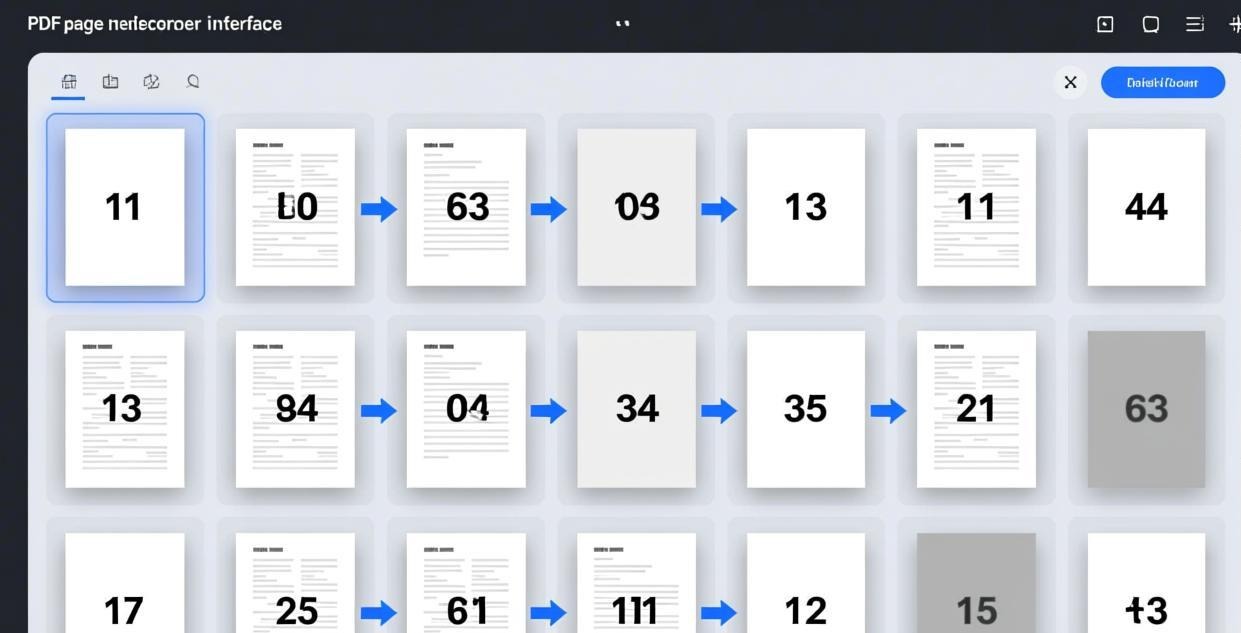
All five tools are competent, but they differ significantly in usability and feature depth. PDF24 and PDFgear are the best all-around choices for most users. PDFsam is ideal if you’re on Linux or prefer open-source software. Sejda Desktop has the best undo support but a restrictive free tier. PDFill works in a pinch on Windows but feels dated.
PDF24 Creator: Step-by-Step Page Reordering
PDF24 Creator is a Swiss-army-knife PDF tool that handles reordering as one of its many features. It’s completely free with no limitations, no watermarks, and no nag screens. The interface is straightforward even if it’s not the most polished.
Step 1: Open the Page Reordering Module
After installing PDF24 Creator, launch the toolbox from your desktop or Start menu. You’ll see a grid of tool icons — look for “Reorder PDF pages” (it has a page-shuffling icon). Click it.
Step 2: Load Your PDF File
Drag your PDF file into the workspace, or click the “Select PDF file” button to browse for it. PDF24 supports any PDF version and handles files up to several hundred megabytes without issues.
Step 3: Rearrange the Pages
The page thumbnails appear in a vertical list. Drag any page to its new position. You can also:
- Select multiple pages by holding Ctrl (Windows) or Cmd (macOS) and clicking, then drag the group together.
- Rotate pages by clicking the rotation icon on any thumbnail — handy when scans come in sideways.
- Delete pages you don’t need by selecting them and pressing Delete or clicking the trash icon.
- Add pages from other PDFs using the “Add” button if you’re combining files while reordering.
Step 4: Save the Result
Once the pages are in the order you want, click “Apply changes” or the save icon. Choose your output location and filename. PDF24 preserves the original quality — no compression, no quality loss.
The entire process takes about 30 seconds for a typical 20-page document. For large files with hundreds of pages, PDF24 handles the thumbnail rendering well but can feel slightly slower than PDFgear on older hardware.
PDFgear: Modern Reordering with Undo Support
PDFgear is a relative newcomer that has quickly become one of the best free PDF tools available. It’s built on a modern codebase with a clean interface that feels like premium software — but it’s completely free with no feature restrictions.
Loading and Viewing Your PDF
Open PDFgear and drag your file onto the main window. The app opens the PDF with a full-page view in the center and a sidebar with page thumbnails on the left. These thumbnails are high-resolution and update in real time as you make changes.
Drag-and-Drop Reordering
Click and drag any page thumbnail in the sidebar to reorder it. The drop indicator is clear — a blue line shows exactly where the page will land. You can drag single pages or select multiple pages with Ctrl+Click and move them together.
Undo and Redo
This is where PDFgear pulls ahead. Press Ctrl+Z (or Cmd+Z on Mac) to undo any reordering change. Press Ctrl+Shift+Z to redo. This alone makes PDFgear worth using for complex reordering tasks where you might second-guess yourself — like reorganizing a 100-page report into a new chapter structure.
Additional Editing While Reordering
PDFgear is a full PDF editor, so while you’re reordering pages you can also add text annotations, highlight sections, insert blank pages, or crop pages. This is convenient when your reordering task is part of a larger document preparation workflow — say, organizing a presentation deck and adding page numbers at the same time.
Saving
Click File → Save to overwrite the original, or File → Save As to create a new file. PDFgear saves quickly and preserves all formatting.
PDFsam Basic: Open-Source Reordering for All Platforms
PDFsam (PDF Split and Merge) Basic is a free, open-source tool that runs on Windows, macOS, and Linux. It’s been around for years and has a loyal following, particularly among developers and Linux users who appreciate transparency in their tools.
Visual Mode for Page Reordering
PDFsam Basic offers two modes: Visual and Alternate Mix. For reordering, use Visual mode. It displays your PDF pages as a scrollable strip of thumbnails. Drag pages to rearrange them, right-click to rotate or delete pages, and the interface updates instantly.
Merging While Reordering
One of PDFsam’s strengths is combining reordering with merging. You can load multiple PDFs into the Visual mode, reorder pages across all of them, and save the result as a single file. This is perfect when you need to combine documents from different sources into a specific page order — like assembling a report from individual chapter PDFs.
Batch Reordering
PDFsam doesn’t have a dedicated batch reordering mode, but you can set up multiple merge-and-reorder tasks in the tool’s queue and process them sequentially. For simple batch operations (like moving the last page to the front across 20 files), a command-line workflow with PDFsam’s CLI might be more efficient.
Limitations
The main downside is the lack of undo support. If you accidentally drop a page in the wrong spot, you’ll need to manually drag it back. The interface is functional but not as polished as PDFgear or Sejda Desktop. And while it handles most PDFs well, heavily encrypted or DRM-protected files may cause issues.
How to Choose the Right Tool
For Most Users: PDF24 Creator
If you just need to reorder pages quickly and don’t want to think about which tool to use, PDF24 is the safe pick. It’s free with zero limitations, works on both Windows and Mac, and the interface is intuitive enough that you won’t need instructions. It also includes merge, split, compress, and convert tools, so it’s a solid all-purpose PDF toolkit.
For Complex Reordering: PDFgear
If you’re reordering a large document with lots of back-and-forth adjustments, the undo/redo support in PDFgear is a lifesaver. The modern interface is pleasant to work with, and the additional editing tools mean you can handle other document tasks in the same session without switching apps.
For Linux Users and Open-Source Purists: PDFsam Basic
PDFsam is the only tool on this list that fully supports Linux out of the box. It’s also open source, which matters if you want to audit the code or contribute. The Visual mode is capable for reordering, and the merge-while-reorder workflow is genuinely useful.
For Occasional Use: Sejda Desktop
Sejda Desktop has a great interface with smooth drag-and-drop and proper undo/redo. But the free tier limits you to a few tasks per day, which makes it impractical for regular use. If you only need to reorder pages once in a while and don’t mind the limits, it’s a polished option.
For Windows-Only Quick Tasks: PDFill PDF Tools
PDFill is a collection of individual tools rather than a unified app, and the page reordering interface shows its age. It works, but the lack of thumbnail previews makes it harder to use for anything beyond simple tasks. Use it if you already have it installed or need a lightweight Windows-only tool, but most users will be better served by PDF24 or PDFgear.
Frequently Asked Questions
Can I reorder pages in a password-protected PDF?
It depends on the type of protection. PDFs with an owner password (restricting editing) can often be reordered after you enter the password in tools like PDF24 or PDFgear. PDFs with user-password encryption (requiring a password to open) need the password before any tool can access the pages. DRM-protected PDFs from publishers typically cannot be reordered with any free tool.
Will reordering pages reduce my PDF quality?
No. All the tools discussed here reorder pages by updating the PDF’s internal page order references — they don’t re-render or recompress the content. Your text, images, and formatting will be identical in the reordered file. The file size may change slightly due to PDF structure differences, but the visual quality remains the same.
Is there a keyboard shortcut way to reorder pages?
In PDFgear, you can select pages with Ctrl+Click and use standard cut (Ctrl+X) and paste (Ctrl+V) to move them. PDF24 doesn’t have dedicated keyboard shortcuts for reordering, but you can use Tab to navigate the thumbnail list and drag with the mouse. For power users, PDFsam’s command-line interface supports scripting page order changes.
Can I reorder pages in a PDF without opening it?
Yes, using PDFsam’s command-line interface. You can specify the desired page order in a text file or command arguments, and PDFsam will produce the reordered PDF without ever opening a GUI. This is useful for automation scripts or batch processing large numbers of files.
What’s the largest PDF file these tools can handle?
PDF24 and PDFsam can handle PDFs several hundred megabytes in size. PDFgear handles large files well too, though very large files (500 MB+) may show slight thumbnail loading delays. Sejda Desktop’s free tier imposes page count and file size limits. In practice, all these tools handle typical business documents (10–100 MB) without any issues.
Can I reorder pages and add page numbers at the same time?
PDFgear lets you do both in a single session — reorder pages in the sidebar, then add page numbers from the edit menu. PDF24 requires two separate steps: reorder in the page tool, then add page numbers using a different module. PDFsam is reordering/merging only and doesn’t add page numbers — you’d need a separate tool for that.
Do these tools work with scanned PDFs?
Yes, all five tools work with scanned PDFs. Since they reorder pages at the structural level, it doesn’t matter whether the pages contain text, images, or scanned raster data. The thumbnails may take slightly longer to render for scan-heavy PDFs, but the reordering itself works identically.
Bottom Line
Reordering PDF pages doesn’t require expensive software or uploading your files to the cloud. PDF24 Creator is the best free-all-around choice with no limitations. PDFgear adds undo support and a polished interface for more complex tasks. PDFsam Basic covers Linux users and open-source enthusiasts. All three handle typical reordering tasks in under a minute, keep your files private, and won’t cost you anything.
Download one of these tools, drag your pages into order, and get back to work. The right tool is the one you don’t have to think about — it should just work.
📖 Recommended Reading
Best Free PDF Merge & Split Software Offline (2026)
6 free offline PDF merge & split tools tested. No limits, no watermarks, no upload.
Best Offline PDF Printer — Virtual PDF Print Driver Free (2026)
5 free virtual PDF printers. Create PDFs from any application offline.
Compress PDF for Email Offline — Under 25MB Free (2026)
4 free methods to compress PDFs for email. Get under 25MB offline.