Best Offline PDF Watermark Remover Desktop (2026)
📑 Table of Contents
PDF watermarks serve a purpose — they identify document ownership and deter unauthorized use. But sometimes you need to remove them: you’ve purchased the rights to a document, you created the watermark yourself and want a clean version, or you’re working with your own files that were auto-watermarked by a trial tool.
Whatever your reason, you don’t need to upload sensitive documents to a random website. Here are 5 free offline methods to remove watermarks from PDF files.
Types of PDF Watermarks
Before removing a watermark, it helps to know what type you’re dealing with:
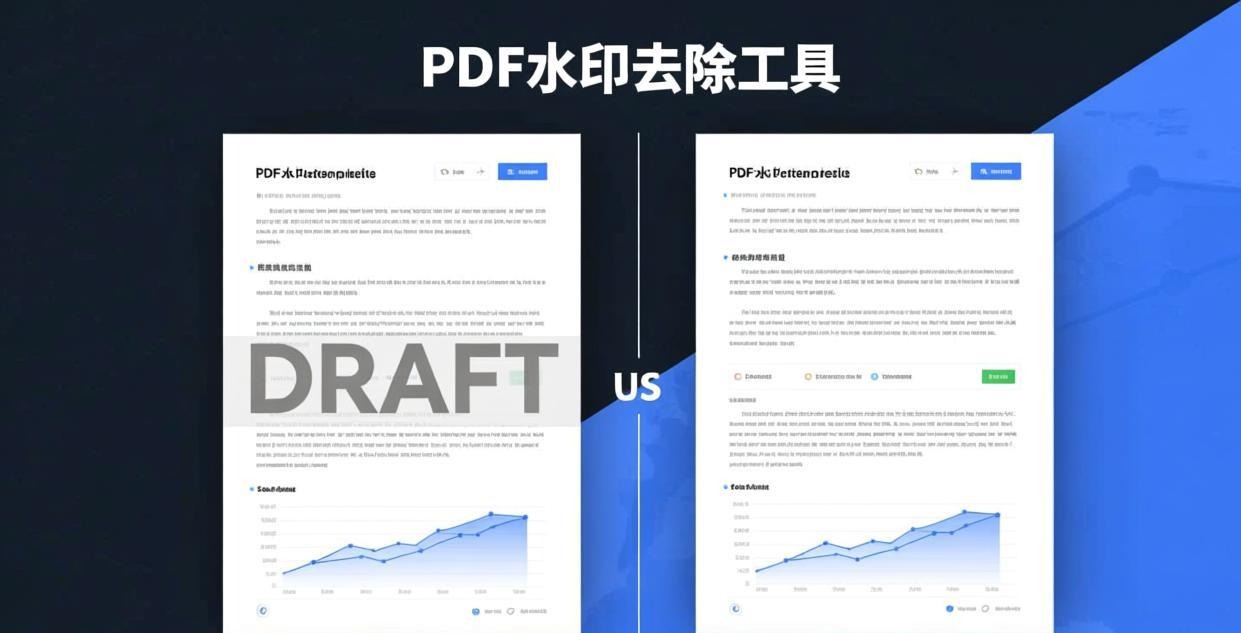
- Text watermarks — semi-transparent text overlaid on pages (e.g., “DRAFT,” “CONFIDENTIAL,” “SAMPLE”)
- Image watermarks — logos or graphics placed as background elements
- Header/footer watermarks — text in the page header or footer area
- Stamp watermarks — digital stamps added by PDF annotation tools
Text watermarks are the easiest to remove. Image watermarks require more effort. Header/footer watermarks can usually be edited directly.
Top 5 Free Offline Watermark Removal Methods
| Tool | Platforms | Text Watermarks | Image Watermarks | Batch | Free Tier |
|---|---|---|---|---|---|
| PDFgear | Win / Mac | Yes (edit/delete) | Yes (redact) | Yes | Unlimited |
| PDF24 Creator | Windows | Yes (edit mode) | Limited | No | Unlimited |
| LibreOffice Draw | Win / Mac / Linux | Yes (select/delete) | Yes (select/delete) | No | Unlimited (open source) |
| PDFelement | Win / Mac | Yes (one-click) | Yes (one-click) | Yes | Trial (watermark added) |
| Apowersoft PDF | Win / Mac | Yes | Yes | No | Trial (watermark added) |
#1 Pick: PDFgear — Best Free Watermark Remover
PDFgear handles watermark removal through its editing and redaction tools. It’s the only fully free tool that reliably removes both text and image watermarks.
Removing text watermarks:
- Open the PDF in PDFgear
- Click “Edit” to enter editing mode
- Click on the watermark text — it becomes selected as a text object
- Press Delete to remove it
- Save the file
Removing image watermarks:
- Open the PDF in PDFgear
- Click “Edit” to enter editing mode
- Click on the watermark image — selection handles appear
- Press Delete to remove it
- If the image is part of the background, use the “Redact” tool to cover it with a white box
- Save the file
Batch removal:
For documents with the same watermark on every page, PDFgear can apply the same edit across all pages at once, saving you from removing it page by page.
For more PDFgear features, see our Best Free Offline PDF Editor for PC guide.
#2 Pick: PDF24 Creator — Quick Text Watermark Removal
PDF24 Creator has a built-in watermark tool that can both add and remove watermarks. It works best for text watermarks.
Step-by-step:
- Open PDF24 Creator
- Drag your PDF into the window
- Click “Watermark” tool
- Select “Remove watermark”
- Choose the watermark type (text or position-based)
- Click Apply and save
PDF24 is particularly effective for watermarks it created itself. For watermarks added by other tools, you may need to use the edit mode to manually select and delete the watermark objects.
#3 Pick: LibreOffice Draw — Open Source Solution
LibreOffice Draw can open PDF files and let you interact with individual elements, making it possible to select and delete watermarks directly.
How to remove watermarks with LibreOffice Draw:
- Open LibreOffice Draw
- Go to File → Open and select your PDF
- Click on the watermark — it should become selected as an object
- Press Delete to remove it
- Go to File → Export as PDF to save
Limitations:
- Complex PDF layouts may not render perfectly in Draw
- Watermarks that are part of the page background may be difficult to select
- Very large PDFs may be slow to open
- Some formatting may shift after removing watermark objects
For more open source tools, see our Best Open Source PDF Desktop Software guide.
Trial Tools: PDFelement and Apowersoft PDF
Both PDFelement and Apowersoft PDF offer dedicated “Remove Watermark” buttons that work with one click. However, their free trials add their own watermark to the output — essentially replacing one watermark with another.
These tools are worth mentioning because:
- They have the best automatic watermark detection
- They handle complex image watermarks well
- The one-click interface is the easiest to use
If you only need to remove watermarks occasionally and don’t mind the trial watermark, they can be useful. But for ongoing watermark removal, stick with PDFgear or LibreOffice Draw.
Text vs Image Watermark Removal — Which Is Harder?
Text watermarks are relatively easy to remove because they exist as editable text objects in the PDF. Most editing tools can select and delete them directly.
Image watermarks are harder because they may be:
- Embedded as background images (not easily selectable)
- Tiled across the page at low opacity
- Part of a flattened PDF layer (no separate object to select)
For stubborn image watermarks, the redaction approach works best: use PDFgear’s redact tool to paint a white box over the watermark area. This covers the watermark but also covers any content beneath it.
If you need to remove password protection after watermark removal, see our Best Offline PDF Password Remover guide.
Frequently Asked Questions
Is it legal to remove watermarks from PDFs?
It depends on the context. Removing watermarks from your own documents is perfectly legal. Removing watermarks from documents you don’t own the rights to may violate copyright law. Always ensure you have the legal right to modify a document before removing its watermark.
Can I remove watermarks from a password-protected PDF?
You’ll need to remove the password protection first. PDFgear can open password-protected PDFs (if you know the password) and then you can edit and remove watermarks. See our Offline PDF Password Remover guide.
What’s the fastest way to remove a “DRAFT” watermark?
If it’s a text watermark, open the PDF in PDFgear’s edit mode, click the “DRAFT” text, and press Delete. For the same watermark on multiple pages, use PDFgear’s batch editing feature. This typically takes under 30 seconds.
Why can’t I select the watermark in my PDF?
If the watermark is part of a flattened or merged layer, it won’t be selectable as a separate object. In this case, try the redaction method: cover the watermark area with a white box using PDFgear’s redact tool, or use LibreOffice Draw to see if it can separate the layers.
Can I batch-remove watermarks from multiple PDFs?
PDFgear supports batch watermark removal for the same watermark pattern across multiple files. For different watermarks, you’ll need to process each file individually. PDFelement also offers batch removal but adds its own watermark in the free trial.
Will removing a watermark affect the rest of the PDF?
If you’re deleting a separate watermark object, the rest of the PDF remains unchanged. If you’re using redaction to cover a watermark, any content beneath the watermark will also be covered. Always check the result after watermark removal.
📖 Recommended Reading
Best Free PDF Merge & Split Software Offline (2026)
6 free offline PDF merge & split tools tested. No limits, no watermarks, no upload.
Best Offline PDF Printer — Virtual PDF Print Driver Free (2026)
5 free virtual PDF printers. Create PDFs from any application offline.
Compress PDF for Email Offline — Under 25MB Free (2026)
4 free methods to compress PDFs for email. Get under 25MB offline.