Best Offline PDF Rotate & Crop Tool Desktop Free (2026)
📑 Table of Contents
Scanned documents come in upside down. Landscape pages need rotation. Margins are too wide after printing. These common PDF issues are easy to fix offline — you just need the right tool.
Common Rotation and Cropping Needs
- Scanned pages upside down — scanner auto-detect failed, pages are rotated 180°
- Landscape pages — need 90° rotation to view correctly
- Wide margins — PDFs with unnecessary white space around content
- Mixed orientation — some pages portrait, some landscape in the same document
- Trim marks — print-ready PDFs with crop marks that need removing
Top 4 Free Offline PDF Rotate & Crop Tools
| Tool | Platforms | Rotate | Crop | Batch | Free Tier |
|---|---|---|---|---|---|
| PDFgear | Win / Mac | Yes (90°/180°/270°) | Yes (visual) | Yes | Unlimited |
| PDF24 Creator | Windows | Yes (any angle) | Yes (margin) | Yes | Unlimited |
| Sejda Desktop | Win / Mac / Linux | Yes | Yes (visual) | Limited | 3 tasks/day |
| qpdf | Win / Mac / Linux | Yes | No | Via script | Unlimited (open source) |
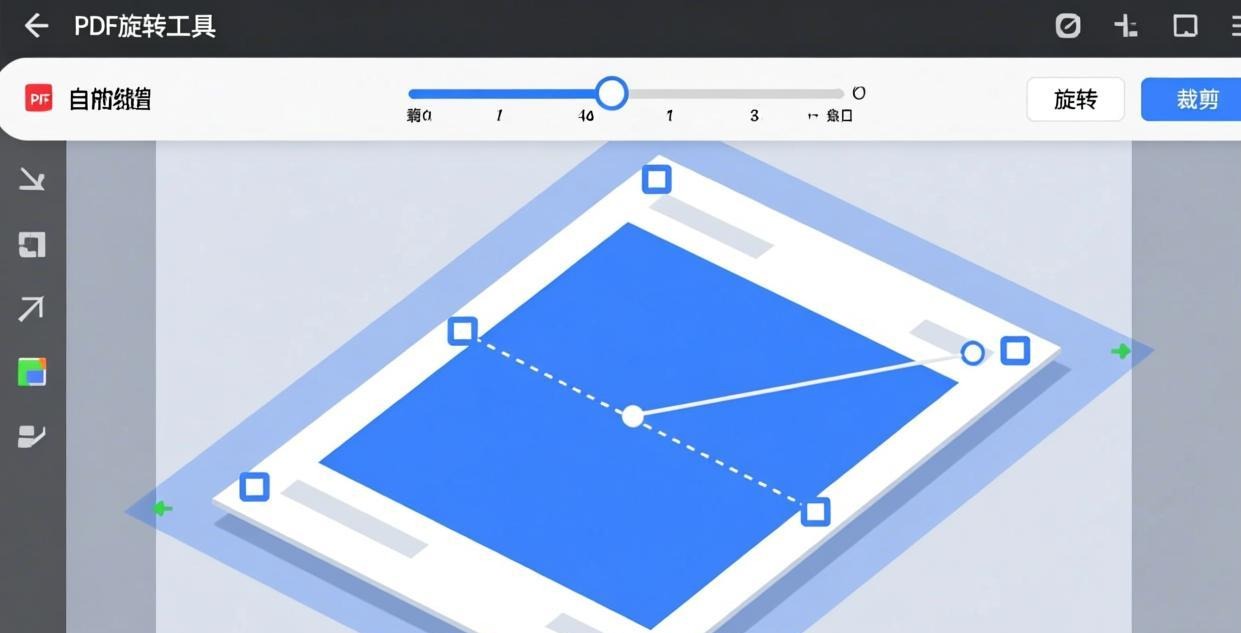
#1 Pick: PDFgear — Visual Crop and Rotate
PDFgear provides the most intuitive rotate and crop experience with visual feedback.
Rotating pages:
- Open the PDF in PDFgear
- Right-click on the page (or select multiple pages in the sidebar)
- Choose “Rotate Left” (90° counter-clockwise) or “Rotate Right” (90° clockwise)
- Save the rotated PDF
Batch rotation:
Select all pages in the sidebar (Ctrl+A), then right-click and rotate. All pages rotate at once — perfect for documents where every page is upside down.
Cropping pages:
- Open the PDF in PDFgear
- Click “Edit” → “Crop”
- Drag the crop handles to define the visible area
- Preview the result in real-time
- Click “Apply” to crop
- Save the cropped PDF
For more page manipulation options, see our Best Tool to Reorder PDF Pages Offline guide.
#2 Pick: PDF24 Creator — Any-Angle Rotation
PDF24 Creator stands out with rotation at any angle (not just 90° increments), which is useful for slightly tilted scanned pages.
Rotating pages:
- Open PDF24 Creator
- Drag your PDF into the window
- Click “Rotate pages”
- Set rotation angle (90°, 180°, 270°, or custom angle)
- Choose which pages to rotate
- Click Apply and save
Cropping pages:
- Open PDF24 Creator
- Drag your PDF into the window
- Click “Change page size”
- Set new margins (top, bottom, left, right) in mm or inches
- Preview the result
- Click Apply and save
PDF24’s margin-based cropping is precise but less visual than PDFgear’s drag approach. It’s better when you need exact measurements.
#3 Pick: qpdf — Command-Line Rotation
qpdf provides fast batch rotation from the command line.
Rotate all pages 90° clockwise:
qpdf --rotate=+90 input.pdf output.pdf
Rotate specific pages:
qpdf --rotate=+90:1,3,5 input.pdf output.pdf
Rotate pages 180° (fix upside-down scans):
qpdf --rotate=+180 input.pdf output.pdf
Batch rotation for all PDFs in a folder:
Get-ChildItem *.pdf | ForEach-Object {
    qpdf --rotate=+90 $_.FullName ("rotated\" + $_.Name)
}
qpdf doesn’t support cropping, but for rotation it’s the fastest option.
Fixing Common Scanning Issues
Slightly tilted scans
Use PDF24’s custom angle rotation to straighten tilted scans. Start with 1-3° rotation and adjust until the text is level.
Mixed orientation in one document
In PDFgear, select only the pages that need rotation (Ctrl+click in the sidebar), then rotate just those pages. The rest stay unchanged.
Oversized margins after scanning
Use PDFgear’s visual crop tool to drag the content area. This trims the white space without changing the content.
For extracting specific pages after fixing, see our How to Extract Pages from PDF Offline guide.
Frequently Asked Questions
Can I rotate a single page in a multi-page PDF?
Yes. In PDFgear, select the specific page in the sidebar, right-click, and choose Rotate. Only that page will be rotated. In qpdf, specify the page number: qpdf --rotate=+90:3 input.pdf output.pdf rotates only page 3.
Can I crop a PDF without losing quality?
Cropping a PDF doesn’t reduce quality — it simply changes the visible area of each page. The content within the crop area remains at its original resolution. Cropping is a metadata operation, not a resampling operation.
How do I fix a scanned document that’s upside down?
Rotate all pages 180° using PDFgear (select all pages → Rotate → Rotate twice) or qpdf (qpdf --rotate=+180 input.pdf output.pdf).
Can I rotate PDF pages at custom angles?
PDF24 Creator supports rotation at any angle, useful for straightening slightly tilted scans. Most other tools only support 90° increments.
Will rotating a PDF affect the file size?
No. Rotation is stored as a page attribute in the PDF metadata — it doesn’t re-render or re-encode the content. The file size remains essentially the same.
How do I crop multiple PDF pages with the same settings?
In PDFgear, select all pages and apply the same crop to all. In PDF24, the crop settings apply to all selected pages. For command-line batch cropping, use a script that calls qpdf or Ghostscript with consistent parameters.
📖 Recommended Reading
How to Reduce PDF File Size Offline Free (2026)
5 methods to shrink PDFs offline. Step-by-step for each approach.
Best Offline PDF Printer — Virtual PDF Print Driver Free (2026)
5 free virtual PDF printers. Create PDFs from any application offline.
Compress PDF for Email Offline — Under 25MB Free (2026)
4 free methods to compress PDFs for email. Get under 25MB offline.