Best Offline PDF Printer — Virtual PDF Print Driver Free (2026)
📑 Table of Contents
A virtual PDF printer lets you create PDF files from any application that has a Print command. Instead of sending your document to a physical printer, you “print” it to a PDF file. It’s the simplest way to create PDFs, and it works 100% offline.
How Virtual PDF Printers Work
A virtual PDF printer installs as a printer driver on your system. When you select it and click Print:
- The application renders your document as it would for a physical printer
- The virtual printer intercepts the print data
- It converts the data to PDF format
- You choose where to save the resulting PDF file
The advantage is universal compatibility — any application with a Print function can create PDFs, including web browsers, office apps, design software, and even legacy programs.
Top 5 Free Virtual PDF Printers
| Tool | Platforms | PDF Quality | Custom Settings | Font Embedding | Free Tier |
|---|---|---|---|---|---|
| Microsoft Print to PDF | Windows 10+ | High | Limited | Yes | Built-in |
| PDF24 Virtual Printer | Windows | High | Extensive | Yes | Unlimited |
| doPDF | Windows | High | Good | Yes | Free (nag screen) |
| Bullzip PDF Printer | Windows | High | Extensive | Yes | Free for personal |
| CUPS-PDF | Mac / Linux | High | Standard | Yes | Unlimited (open source) |
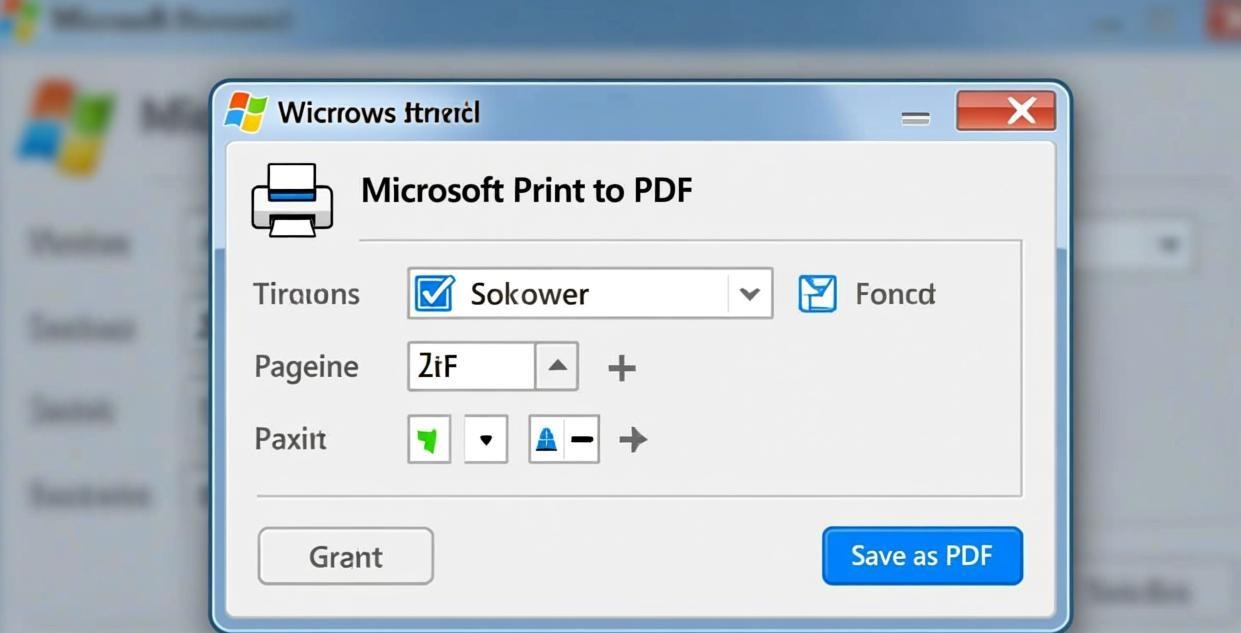
#1 Pick: Microsoft Print to PDF — Built-in and Zero Config
If you’re on Windows 10 or later, you already have a virtual PDF printer. Microsoft Print to PDF is built into the operating system — no installation required.
How to use:
- Open any document in any application
- Go to File → Print (or Ctrl+P)
- Select “Microsoft Print to PDF” as the printer
- Click Print
- Choose where to save the PDF file
Advantages:
- Zero installation — it’s already there
- Perfect font embedding
- Uses the application’s own rendering engine for maximum fidelity
- No nag screens, ads, or watermarks
Limitations:
- No quality/compression settings
- No PDF/A compliance option
- No automatic file naming
- No merge with existing PDFs
For more PDF creation options, see our Best Free Offline PDF Editor for PC guide.
#2 Pick: PDF24 Virtual Printer — Most Customizable
PDF24 installs a virtual printer with extensive customization options. It’s the best choice when you need control over PDF output quality.
Key settings:
- Quality presets — screen (72 DPI), eBook (150 DPI), printer (300 DPI), prepress (300 DPI)
- Color model — RGB or CMYK
- Compression — JPEG quality for images (0-100)
- Font embedding — full or subset
- PDF version — 1.3 to 1.7
- PDF/A compliance — archival standard
- Auto-save — specify output folder and filename pattern
- Post-processing — automatically open, email, or upload after creation
How to use:
- Install PDF24 Creator
- Print from any application and select “PDF24” as the printer
- Choose your settings in the PDF24 dialog
- Click Save
For compressing PDFs after creation, see our Best Offline PDF Compressor for Windows guide.
#3 Pick: doPDF — Lightweight and Fast
doPDF is a lightweight virtual printer that focuses on simplicity and speed. The installer is only about 60MB and it doesn’t require Ghostscript.
Features:
- Custom page sizes
- Resolution settings (72-2400 DPI)
- Font embedding
- PDF version selection
- No Ghostscript dependency
- Multi-language interface
doPDF is free for personal and commercial use but shows a brief nag screen on startup. It’s a good option if you want something lighter than PDF24 with more settings than Microsoft Print to PDF.
Mac and Linux Options
macOS (Built-in)
macOS has had a built-in “Save as PDF” option in the Print dialog since OS X. No installation needed:
- Go to File → Print in any application
- Click the PDF dropdown button in the bottom-left corner
- Select “Save as PDF”
- Choose location and set metadata
- Click Save
You can also add password protection and set Quartz filters (including “Reduce File Size”) in the save dialog.
Linux (CUPS-PDF)
Most Linux distributions can install CUPS-PDF:
sudo apt install cups-pdf   # Debian/Ubuntu
sudo dnf install cups-pdf   # Fedora
After installation, “PDF” appears as a printer option. Printed documents are saved to ~/PDF/ by default.
Choosing the Right PDF Printer
| Need | Best Option | Why |
|---|---|---|
| Quick and simple | Microsoft Print to PDF | No installation, just works |
| Maximum quality control | PDF24 Virtual Printer | Extensive settings and presets |
| Lightweight | doPDF | Small installer, fast |
| Mac user | Built-in Save as PDF | Already available |
| Linux user | CUPS-PDF | Standard CUPS integration |
Frequently Asked Questions
Do I need to install a PDF printer on Windows 10?
No. Windows 10 and 11 include “Microsoft Print to PDF” as a built-in virtual printer. You can create PDFs from any application without installing anything.
What’s the difference between a PDF printer and a PDF creator?
A PDF printer creates PDFs by intercepting print output — it works with any application. A PDF creator (like PDFgear) can also edit, merge, split, and manipulate existing PDFs. PDF printers only create new PDFs.
Can I set the default quality for Microsoft Print to PDF?
Not directly. Microsoft Print to PDF uses the application’s print settings. For quality control, use PDF24 Virtual Printer, which lets you set DPI, compression, and other output parameters.
How do I create PDF/A files with a virtual printer?
PDF24 Virtual Printer supports PDF/A output — select it in the settings dialog. Microsoft Print to PDF doesn’t offer PDF/A compliance. For converting existing PDFs to PDF/A, use PDFgear’s optimization features.
Can I append to an existing PDF instead of creating a new one?
PDF24 Virtual Printer has an “append” option that adds the new content to an existing PDF file. Other virtual printers create new files only. For merging PDFs, use our Best Free PDF Merge & Split Software guide.
📖 Recommended Reading
Best Free PDF Form Filler Offline Desktop (2026)
5 free offline PDF form fillers. Complete interactive forms without uploading.
Best Offline PDF Watermark Remover Desktop (2026)
5 free offline PDF watermark removers. Delete text and image watermarks without uploading.