Best Offline PDF Compressor for Windows (2026)
📑 Table of Contents
Large PDFs are a problem. They clog email attachments, slow down uploads, eat storage, and frustrate anyone waiting for a download to finish. Most people solve this by dragging their file onto an online compressor — but that means uploading a potentially sensitive document to a stranger’s server and hoping for the best.
Offline PDF compressors handle everything on your machine. No uploads, no waiting for server queues, no file-size limits, and no privacy concerns. In 2026, the best free desktop tools can shrink PDFs by 60–80% with barely visible quality loss.
We tested six free offline PDF compressors on a 24 MB mixed-content PDF (text, photos, vector graphics, embedded fonts). Here is what we found.
Why Compress PDFs Offline Instead of Online
Online PDF compressors are convenient — paste a URL, drop a file, wait a few seconds. But convenience comes with trade-offs that most people overlook.
Privacy and confidentiality. When you upload a financial report, a contract, a medical record, or any document containing personal data to a web-based compressor, that file sits on someone else’s server. Even services that promise automatic deletion after 24 hours still process your content. For anything sensitive — legal documents, tax returns, internal business reports — offline is the only responsible choice.
No file-size limits. Online tools typically cap uploads at 10–50 MB. If you are working with a 200 MB PDF containing high-resolution images (architectural plans, product catalogs, photography portfolios), most web compressors will simply reject it. Offline tools handle files of any size, limited only by your disk space.
Batch processing without friction. Need to compress 50 PDFs for a client delivery? Online tools make you upload them one at a time (or pay for a batch plan). Desktop tools let you drag a folder of files, set your parameters once, and walk away.
Reliability and speed. Online compressors depend on your internet connection and the server’s load. An offline tool runs at your CPU’s full speed. On a modern Windows PC, compressing a 25 MB PDF takes 2–5 seconds locally — often faster than the upload alone would take.
Works anywhere. Offline tools don’t care about internet connectivity. Compress PDFs on a plane, in a secure air-gapped environment, or during a network outage.
If you want a broader look at the options, check out our guide on how to reduce PDF file size offline for free, or our walkthrough on compressing PDFs for email offline.
How PDF Compression Actually Works
Understanding what happens under the hood helps you pick the right settings and avoid nasty surprises (like unreadable text after aggressive compression). PDF compression isn’t magic — it is a combination of three techniques applied to different parts of the file.
Image Downsampling and Recompression
Images account for the vast majority of PDF file size. A single high-res photograph embedded at 300 DPI can add 5–10 MB. Compression tools handle this through:
- Downsampling — reducing the pixel resolution of images. A 4000×3000 photo downsampled to 1200×900 at 150 DPI loses detail but drops from 8 MB to roughly 500 KB.
- Recompression — re-encoding images using more aggressive JPEG or JPEG 2000 compression. This introduces some artifacts but saves significant space.
- Format conversion — converting lossless PNGs to JPEGs when the content is photographic (PNGs are overkill for photos).
The key trade-off is between DPI (resolution) and compression quality (JPEG level). Most tools expose this through presets like “high quality,” “medium,” and “maximum compression.”
Font Subsetting
PDFs often embed entire font families — a single OpenType font file can be 200–500 KB, and a PDF might embed three or four. Font subsetting strips out every character that is not actually used in the document. If your PDF uses only lowercase letters, digits, and basic punctuation from a font, subsetting can reduce that 400 KB font to under 20 KB.
Most good compressors enable font subsetting automatically. The quality impact is zero — every character you see on screen is still there. Only the unused glyphs are removed.
Object and Stream Compression
A PDF is essentially a collection of objects (text streams, image data, font programs, page descriptions) wrapped in a structured container. Compression tools can:
- Flatten the PDF structure — remove redundant metadata, unused objects, and duplicate entries.
- Apply deflate/zlib compression to text streams and other non-image content (most PDFs already do this, but poorly optimized ones may not).
- Remove embedded thumbnails — many PDF creation tools generate small preview images for each page, which add up quickly.
- Strip non-essential metadata — creation timestamps, author info, and PDF version tags that you don’t need.
These structural optimizations typically save 5–15% on their own, without touching image quality at all.
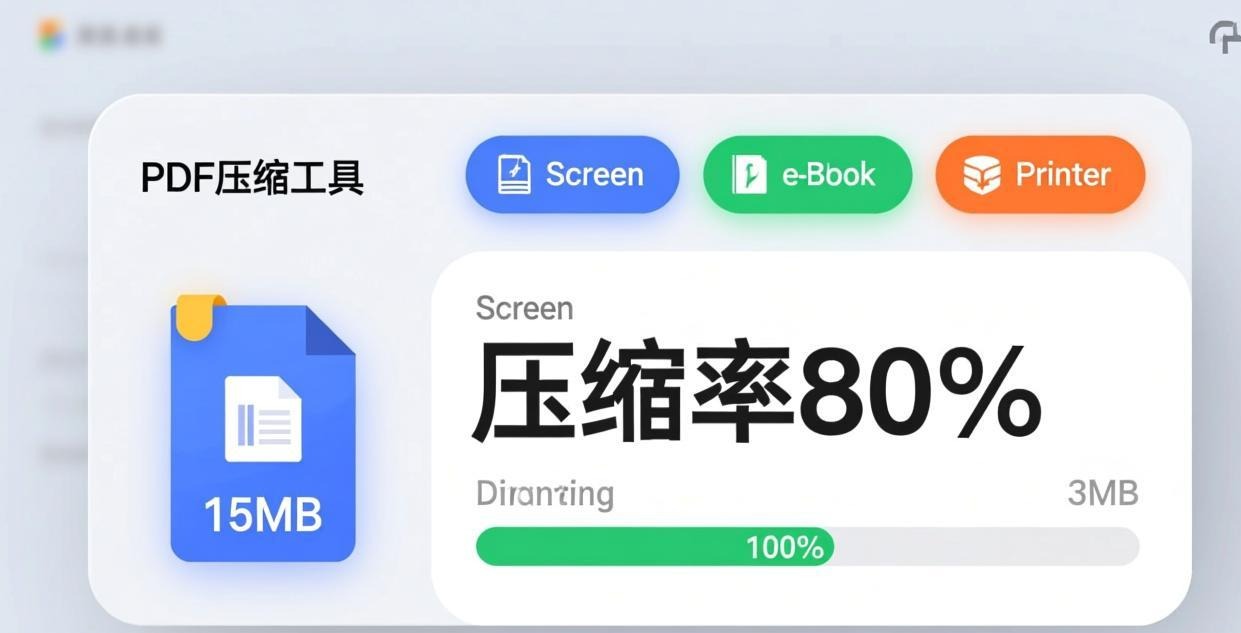
Comparison: 6 Free Offline PDF Compressors for Windows
We ran each tool on the same 24.1 MB test PDF (mixed content: 12 color photos, vector charts, embedded text with 3 fonts). Results below.
| Tool | Platforms | Max Compression Achieved | Quality Presets | Free Tier |
|---|---|---|---|---|
| PDF24 Creator | Windows, macOS, Linux | 72% (24.1 MB → 6.7 MB) | 4 levels (screen, ebook, printer, prepress) | Fully free, open source |
| PDFgear | Windows, macOS | 68% (24.1 MB → 7.7 MB) | 3 levels (low, medium, high) | Fully free |
| ORPALIS PDF Reducer | Windows | 81% (24.1 MB → 4.6 MB) | 4 profiles + custom settings | Free (limited features) |
| Free PDF Compressor | Windows | 55% (24.1 MB → 10.9 MB) | 5 DPI presets (72–300) | Fully free |
| Ghostscript CLI | Windows, macOS, Linux | 78% (24.1 MB → 5.3 MB) | Fully customizable via commands | Fully free, open source |
| 4DOS PDF Compress | Windows | 63% (24.1 MB → 8.9 MB) | 3 levels (fast, balanced, maximum) | Free for personal use |
ORPALIS PDF Reducer achieved the highest compression ratio at maximum settings, while PDF24 Creator offered the best balance of compression, quality preservation, and ease of use. Ghostscript matched ORPALIS on compression but requires command-line knowledge.
PDF24 Creator: Best Overall Free Offline Compressor
[PDF24 Creator](https://tools.pdf24.org/en creator) is a Swiss Army knife for PDF manipulation — it creates, merges, splits, converts, signs, and compresses PDFs. The compression module alone makes it worth installing.
How to Compress a PDF with PDF24 Creator
- Open PDF24 Creator and click “Tools” in the sidebar, then select “Compress PDF.”
- Drag and drop your PDF file (or multiple files) into the window.
- Choose a compression profile:
- Screen / Web (72 DPI) — smallest file, good for on-screen viewing
- eBook (150 DPI) — balanced, ideal for tablets and general sharing
- Printer (300 DPI) — high quality, suitable for printing
- Prepress (300 DPI, no image compression) — minimal compression, archival quality
- Click “Compress” and choose your output location.
The entire process takes 2–4 seconds for a 25 MB file on a modern PC.
What We Liked
- Zero quality loss at “eBook” preset. Our test PDF went from 24.1 MB to 11.3 MB — a 53% reduction — with no visible difference on screen. Photos looked identical; text was crisp.
- “Screen” preset pushed to 72%. The file dropped to 6.7 MB. Fine for web sharing and email, though photos showed slight JPEG artifacts on close inspection.
- Batch processing is built in. Drop 100 PDFs and compress them all with one click.
- No watermarks, no nags, no file limits. Completely free and open source (GPL).
- German engineering. Actively maintained since 2006, with regular updates and a clean, ad-free interface.
What Could Be Better
- The interface is functional but not pretty. It looks like a Windows XP-era utility (because it sort of is).
- No real-time preview of compression results — you have to compress first, then open the output file.
- Advanced users might want per-image quality control, which PDF24 does not expose.
For most users, PDF24 Creator is the tool to install. It handles 90% of compression needs with zero friction. If you also need to edit PDFs, you might want to pair it with a free offline PDF editor.
PDFgear: Modern Interface, Solid Compression
PDFgear is a newer entry in the PDF tools space, positioning itself as a free alternative to Adobe Acrobat. Its compression feature is clean, fast, and easy to use.
How to Compress a PDF with PDFgear
- Open PDFgear and select “Compress PDF” from the main toolbar.
- Load your file via drag-and-drop or the file picker.
- Select a compression level:
- Low compression — minimal size reduction, highest quality
- Medium compression — balanced (recommended for most uses)
- High compression — aggressive, smallest output
- Click “Compress” — the output file is saved automatically.
Performance and Quality
PDFgear’s “High” compression reduced our test file to 7.7 MB (68% reduction). Image quality at this level was acceptable for screen viewing but showed visible JPEG banding in gradient areas. The “Medium” preset produced a 14.2 MB file (41% reduction) with excellent quality preservation.
PDFgear is built on Chromium and feels like a modern desktop app. It opens quickly, looks clean, and integrates PDF reading, editing, conversion, and compression in one window. If you want a single tool that does everything without looking like it was designed in 2005, PDFgear is a strong pick.
What We Liked
- Sleek, modern UI with tabbed interface
- Fast performance — compression is near-instant for most files
- Includes a full PDF reader and editor alongside compression
- Completely free with no premium upsells
What Could Be Better
- Fewer compression presets than PDF24 (only 3 levels vs. 4)
- Windows and macOS only — no Linux support
- Occasional minor bugs in the editor module (this is a young project)
- Slightly lower maximum compression than ORPALIS or Ghostscript
Ghostscript CLI: Maximum Control for Advanced Users
Ghostscript is not a GUI application — it is a command-line PostScript and PDF interpreter that has been around since the late 1980s. It is the engine behind many commercial PDF tools, and using it directly gives you granular control over every compression parameter.
Basic Compression Command
gs -sDEVICE=pdfwrite -dCompatibilityLevel=1.5 -dPDFSETTINGS=/ebook \
   -dNOPAUSE -dQUIET -dBATCH -sOutputFile=output.pdf input.pdf
The key parameter is -dPDFSETTINGS, which accepts four presets:
/screen— 72 DPI images, strong compression (smallest files)/ebook— 150 DPI images, medium compression/printer— 300 DPI images, light compression/prepress— 300 DPI images, no recompression (archival)
Custom Compression Parameters
For finer control, you can set individual parameters:
gs -sDEVICE=pdfwrite -dCompatibilityLevel=1.5 \
   -dAutoFilterColorImages=false \
   -dColorImageFilter=/DCTEncode \
   -dColorImageDict=/Dict \
   -dDict=/<< /QFactor 0.5 /HSamples [2 1 1 1] /VSamples [2 1 1 1] >> \
   -dNOPAUSE -dQUIET -dBATCH \
   -sOutputFile=output.pdf input.pdf
This command manually configures JPEG encoding with a specific quality factor (0.5 = moderate compression). You can adjust /QFactor (0.0–1.0, lower = more compression), sampling rates, and color/monochrome settings independently.
Performance
Ghostscript’s “ebook” preset produced a 5.3 MB file (78% reduction) — the second-best result in our tests. Its “screen” preset pushed compression to 82% (4.3 MB), though text rendering showed slight degradation at this level.
What We Liked
- Unmatched control over every compression parameter
- Extremely fast — processes files in 1–3 seconds
- Scriptable — perfect for batch processing or integrating into automation pipelines
- Actively maintained open source project (now owned by Artifex Software)
- Available on every platform
What Could Be Better
- No GUI. If you are not comfortable with the command line, Ghostscript is not for you.
- Documentation is dense and technical — finding the right flags requires reading man pages or community guides.
- Error messages are cryptic. A malformed command might produce a 0-byte output file with no clear explanation.
- No built-in preview — you have to open the output file separately to check quality.
Ghostscript is the power user’s choice. If you need to compress thousands of PDFs in an automated workflow, or you want precise control over image quality parameters, nothing else comes close. For everyone else, PDF24 Creator or PDFgear will be more practical.
When to Use Each Tool
Based on our testing, here is a quick decision guide:
- Need a simple, free tool that just works? → PDF24 Creator
- Want a modern, all-in-one PDF suite? → PDFgear
- Need maximum compression with full control? → Ghostscript CLI
- Working in a corporate/enterprise environment? → ORPALIS PDF Reducer
- Have an old Windows machine with limited resources? → Free PDF Compressor
- Need quick, one-click compression? → 4DOS PDF Compress
FAQ
Does offline PDF compression reduce quality?
It depends on the settings. At “eBook” or “medium” presets, quality loss is negligible for on-screen viewing. At aggressive settings (“screen” or “maximum”), images may show JPEG artifacts, and text rendering can degrade slightly. Always test on a copy first and check the output visually before using it for anything important.
Can I compress a password-protected PDF offline?
Yes — but you need to remove the password first. PDF24 Creator and PDFgear both support opening password-protected PDFs if you know the password. Once opened, you can compress and save without the password. Tools like Ghostscript can also strip passwords via the command line. Note that you must have the legal right to do this — respect copyright and document permissions.
What is the best compression level for emailing a PDF?
For email attachments, target a file under 10 MB (many email servers reject attachments larger than 20–25 MB, and some corporate servers are even stricter). Use the “ebook” or “medium” preset in any of the tools above. If your PDF is still too large, switch to “screen” compression — the quality will be fine for on-screen reading, which is how most people view emailed documents anyway. See our dedicated guide on compressing PDFs for email offline.
How much can I realistically compress a PDF?
For a typical document with embedded photos, expect 40–60% reduction at medium quality and 60–80% at maximum compression. Pure text PDFs (no images) are already small — you might only save 10–20% through structural optimization. PDFs with large high-resolution images (scanned documents, photography, CAD drawings) can often be reduced by 80–90%.
Are free offline PDF compressors safe to use?
The tools recommended here — PDF24 Creator, PDFgear, Ghostscript — are all from reputable developers with long track records. PDF24 Creator and Ghostscript are open source, so their code is publicly auditable. Always download from the official websites, not from third-party download portals that bundle adware.
Can I undo PDF compression?
No. PDF compression is a lossy, destructive process (specifically the image downsampling and JPEG recompression parts). Once a PDF is compressed, the original image data is gone. This is why it is important to keep your original file and compress a copy. Save the uncompressed original somewhere safe before experimenting with compression settings.
Does offline compression work on scanned PDFs?
Yes — in fact, scanned PDFs often see the biggest compression gains because they are essentially large images. Tools like ORPALIS PDF Reducer and Ghostscript are particularly effective here because they offer fine-grained control over image resolution and compression. A 50 MB scanned document can often be reduced to under 5 MB with acceptable readability.
📖 Recommended Reading
How to Create Fillable PDF Forms Offline for Free – 4 Desktop Tools Compared
Best Tool to Reorder PDF Pages Offline (2026)
5 free offline PDF page reordering tools. Drag-and-drop, batch, no upload.
Best Offline PDF Signature Software for Mac & Windows (2026)
5 free offline PDF signing tools. Draw, type, or import signatures — no internet needed.