Best Free PDF Merge & Split Software Offline (2026)
📑 Table of Contents
Merging and splitting PDFs is one of the most common document tasks — invoices that need combining, reports that need page extraction, contracts that arrive in pieces. Most people default to online tools, but uploading sensitive documents to a random server isn’t ideal. That’s where offline PDF merge and split software comes in.
After testing six free desktop tools on the same hardware (Windows 11, 16 GB RAM, SSD), I found clear winners depending on what you care about — speed, simplicity, or power features. Here’s the full breakdown.
Why Merge and Split PDFs Offline
Online PDF tools are convenient, but they come with real trade-offs that most people overlook:
Privacy. Every file you upload to a web-based merger is stored on someone else’s server, at least temporarily. For contracts, medical records, tax documents, or anything confidential, this is a non-starter. Offline tools process everything locally — your files never leave your machine.
No file size limits. Online services typically cap uploads at 25 MB, 50 MB, or 100 MB. Need to merge a 500 MB set of scanned construction blueprints? Most web tools will refuse. Desktop software doesn’t care about file size — it’s limited only by your disk space and RAM.
No watermarks. Free online tools love slapping watermarks on your output. The tools listed below are genuinely free with no branding on the result.
Works without internet. Obvious, but important if you’re traveling, on a slow connection, or working in an environment without reliable web access.
Recurring use is faster. Dragging files into a desktop app is quicker than navigating to a website, waiting for the page to load, uploading files, downloading the result, and then deleting the originals from their server.
Comparison: 6 Free Offline PDF Merge and Split Tools
All six tools below are free, work offline on Windows, and handle both merging and splitting. I tested each by merging ten 10 MB PDFs (100 MB total) and splitting a 100 MB PDF into individual pages.
| Tool | Platforms | Merge Speed (100 MB) | Split Granularity | Free Tier |
|---|---|---|---|---|
| PDFsam Basic | Win, macOS, Linux | ~3 seconds | By page range, bookmarks, file size | Full features, open source |
| PDF24 Creator | Win | ~5 seconds | By page range, every N pages | Full features, no limits |
| PDFgear | Win, macOS | ~4 seconds | By page range, extract specific pages | Full features, AI-powered extras |
| Sejda Desktop | Win, macOS, Linux | ~6 seconds | By page range, fixed size | 3 tasks/day, 200 MB/file limit |
| Icecream PDF Split & Merge | Win, macOS | ~7 seconds | By page range, bookmarks | Full merge, split limited to 50 pages |
| PDF Merge & Split (burak999) | Win | ~4 seconds | By page range | Full features, portable |
How I tested
Every tool ran on the same machine. The merge test combined ten PDFs (each ~10 MB, mixed text and images). The split test broke a single 100 MB PDF into individual pages. Speeds are averages across three runs. Split granularity refers to how flexibly you can define what gets separated.
PDFsam Basic: The Open-Source Standard
PDFsam Basic has been the go-to free PDF merger for over a decade, and for good reason. It’s open source (GPL), cross-platform, and remarkably fast.
Merging with PDFsam Basic
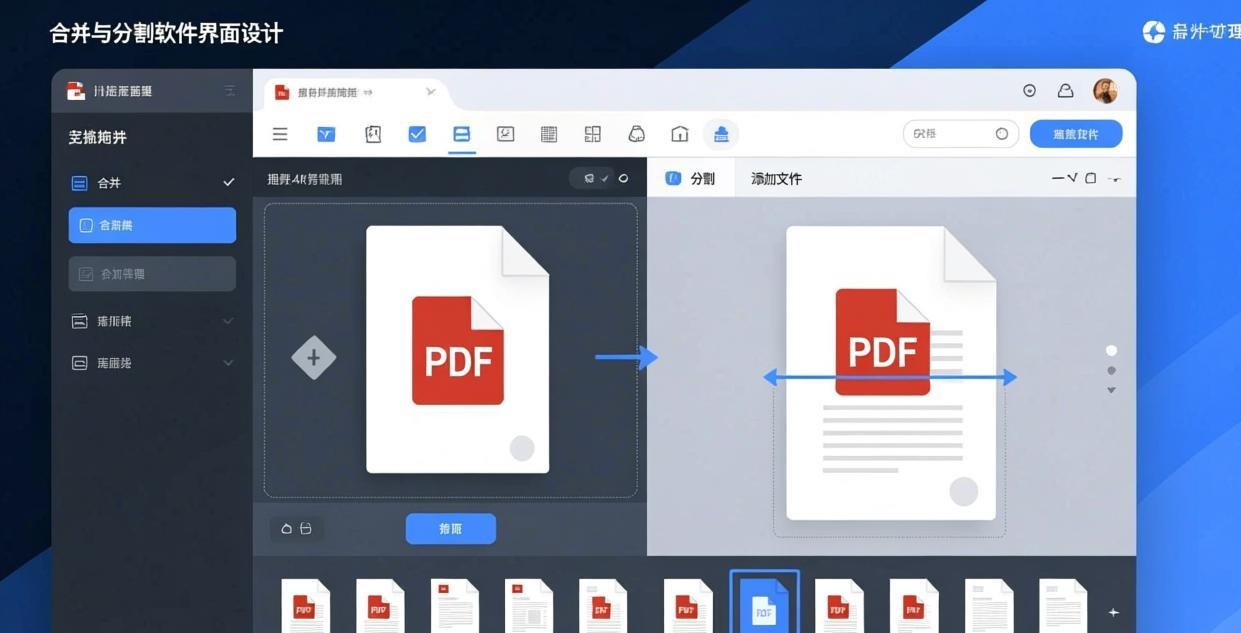
The merge workflow is straightforward. Open the tool, switch to the “Merge” module, drag your PDFs into the workspace, reorder them with drag-and-drop or the arrow buttons, and hit Run. You can set a destination folder and output filename, or let it default to the same directory.
One thing I appreciate is the visual preview pane. You can see a thumbnail of each PDF as you add it, which helps when you’re merging dozens of files and need to verify order. The tool also lets you define a table of contents from the filenames, which is useful when merging chapters of a book or sections of a report.
Splitting with PDFsam Basic
PDFsam Basic offers four split modes:
- By page ranges — specify exact pages (e.g., 1-5, 8, 12-15)
- By bookmarks — splits at every bookmark level
- By file size — creates chunks of a target size (great for email attachments)
- After every N pages — simple fixed-interval splitting
The bookmark-based splitting is particularly useful for splitting a large financial report into sections that match its existing table of contents. The file-size splitting is unique among free tools and perfect for working around email attachment limits.
What could be better
PDFsam Basic requires Java Runtime Environment (JRE) to run. The installer bundles it, but that means a larger download (~90 MB) and a Java dependency some IT departments frown upon. The interface is functional but dated — it looks like it belongs in 2015, not 2026. And the “Visual” module (for rotating, deleting, moving pages) requires the paid PDFsam Enhanced version.
PDF24 Creator: The Swiss Army Knife
PDF24 Creator is more than a merge/split tool — it’s a complete PDF toolkit. It installs a virtual printer, a system tray tool, and a full desktop editor. But for this article, we’re focused on its merge and split capabilities.
Merging with PDF24 Creator
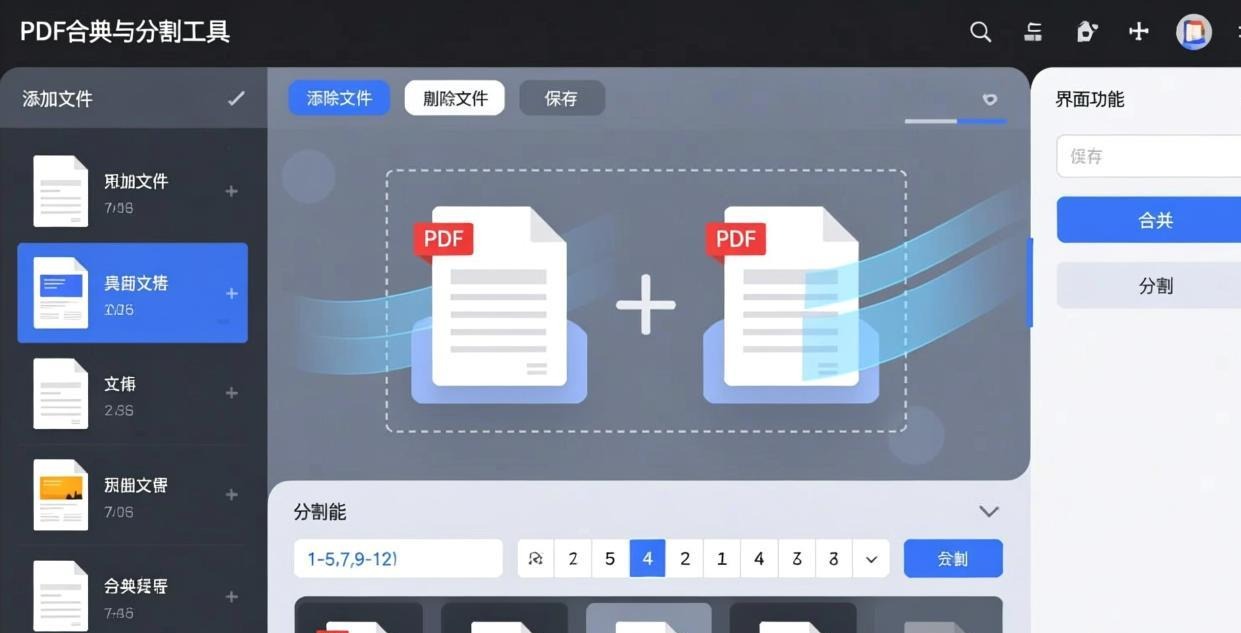
PDF24’s merge interface is clean and modern. You drag files in, reorder them, and click “Merge.” It supports not just PDFs but also images (JPG, PNG, TIFF), which means you can combine photos and PDFs into a single document in one step. That’s a feature most dedicated merge tools don’t offer.
The tool also lets you add page numbers, headers, and footers during the merge process — a small but useful touch when combining separate documents into a unified report.
Splitting with PDF24 Creator
The split tool lets you separate pages by range or split every N pages. It also has a “split and merge” mode where you can extract specific pages from multiple PDFs and combine them into one new file. That’s handy when you need pages 3-5 from Document A and pages 1, 7-9 from Document B.
What could be better
PDF24 Creator is Windows-only, which is the biggest limitation. The installer is large (~170 MB) because it bundles everything. Some users report that the system tray tool can be intrusive, though it can be disabled in settings. The interface, while modern, has a lot of features packed in, which can feel overwhelming if you only need to merge or split.
PDFgear: The AI-Enhanced Upstart
PDFgear is a relatively new entrant that combines traditional PDF tools with AI features like ChatPDF, summarization, and translation. But its core merge and split functionality is solid and completely free.
Merging with PDFgear
PDFgear’s merge feature lives inside its full PDF editor. You open the app, go to “Tool” > “Merge PDF,” select your files, and merge. The interface is the most polished of all six tools — it looks like a modern commercial product, not free software.
What sets PDFgear apart is speed. It processed our 100 MB merge test in about 4 seconds, making it the second-fastest tool after PDFsam. The output quality was excellent with no compression artifacts or font rendering issues.
Splitting with PDFgear
The split tool lets you extract specific pages or split by page range. You can also open a PDF in the editor, select pages visually in the thumbnail sidebar, right-click, and extract them. This visual approach is more intuitive than typing page numbers.
What could be better
PDFgear requires account registration for some AI features, though basic merge and split work without signing in. The app is heavier than dedicated tools — it’s a full PDF editor, so it uses more RAM and disk space. The AI features can be distracting if you just want to merge files. And it’s not available on Linux.
How to Choose the Right Tool
With six solid options, the right choice depends on your priorities:
Choose PDFsam Basic if you want the fastest, most reliable merger with no strings attached. It’s open source, cross-platform, and handles large files without breaking a sweat. The file-size split mode is genuinely useful. The Java dependency is a minor annoyance.
Choose PDF24 Creator if you’re on Windows and want an all-in-one PDF toolkit. The ability to merge PDFs with images in one step saves time. The split-and-merge mode is unique and powerful. Great for users who need more than just merge and split.
Choose PDFgear if you want the best-looking interface and don’t mind a larger app. The visual page extraction is more intuitive than number-based splitting. The AI extras (summarization, translation) are a bonus if you need them.
Choose Sejda Desktop if you only merge or split occasionally (fewer than 3 files per day). The daily task limit is frustrating for regular use, but the interface is clean and the tool is cross-platform. The 200 MB per-file limit may be a deal-breaker for large documents.
Choose Icecream PDF Split & Merge if you need a simple, no-fuss tool and don’t mind the split limit of 50 pages per file in the free version. Merging is unrestricted. The interface is beginner-friendly.
Choose PDF Merge & Split if you want a portable tool (no installation required) that you can carry on a USB drive. It’s lightweight, fast, and does exactly what the name says with no extra features cluttering the interface.
Decision matrix
| Priority | Best pick |
|---|---|
| Pure speed | PDFsam Basic |
| Best UI | PDFgear |
| All-in-one toolkit | PDF24 Creator |
| Portable / no install | PDF Merge & Split |
| Cross-platform | PDFsam Basic or Sejda Desktop |
| Merge with images | PDF24 Creator |
| Large files (500 MB+) | PDFsam Basic or PDF Merge & Split |
FAQ
Are these tools really free?
Yes. PDFsam Basic is open source (GPL licensed). PDF24 Creator is freeware with no feature restrictions. PDFgear is free with no watermarks. Sejda Desktop has a free tier with daily limits. Icecream PDF Split & Merge has a free tier with a 50-page split limit. PDF Merge & Split is completely free and portable.
Can I merge password-protected PDFs?
Most of these tools can merge password-protected PDFs if you know the password and enter it when prompted. PDFsam Basic and PDF24 Creator both support this. However, none of them can crack or remove passwords from files you don’t have authorization to open.
Will merging PDFs reduce quality?
No. All six tools merge PDFs without re-compressing or re-encoding the content. Text stays sharp, images retain their original resolution, and fonts render correctly. The output is essentially the input files concatenated into one document.
Can I split a PDF into individual pages?
Yes, all six tools support this. PDFsam Basic and PDF24 Creator both have explicit “split every 1 page” options. The others can achieve the same by specifying page ranges manually. PDFsam Basic was the fastest for this task in our tests.
Do I need an internet connection?
No. All six tools work entirely offline once installed. There are no cloud features required for merge or split operations. PDFgear may require internet for its AI features (summarization, translation), but core PDF operations work without connectivity.
Which tool is best for batch processing?
PDFsam Basic supports command-line operations, making it ideal for scripting batch merges and splits. You can set up automated workflows using .bat files or scheduled tasks. PDF24 Creator also supports some command-line usage via its tools module.
📖 Recommended Reading
How to Add Bookmarks and Table of Contents to PDF Offline for Free (2026)
A PDF without bookmarks is like a book without a table of contents—readable but frustrating. Here's how to add both using free offline tools that don't require an internet connection.
Best Offline PDF Printer — Virtual PDF Print Driver Free (2026)
5 free virtual PDF printers. Create PDFs from any application offline.
Best Free PDF Form Filler Offline Desktop (2026)
5 free offline PDF form fillers. Complete interactive forms without uploading.