How to Add Bookmarks and Table of Contents to PDF Offline for Free (2026)
📑 Table of Contents
You open a 200-page PDF manual.
You need to find the section on troubleshooting. You scroll. And scroll. And scroll. No bookmarks. No table of contents. Just 200 pages of undifferentiated text.
Someone created that PDF and didn’t add navigation. Don’t be that someone.
Why PDF bookmarks matter more than you think
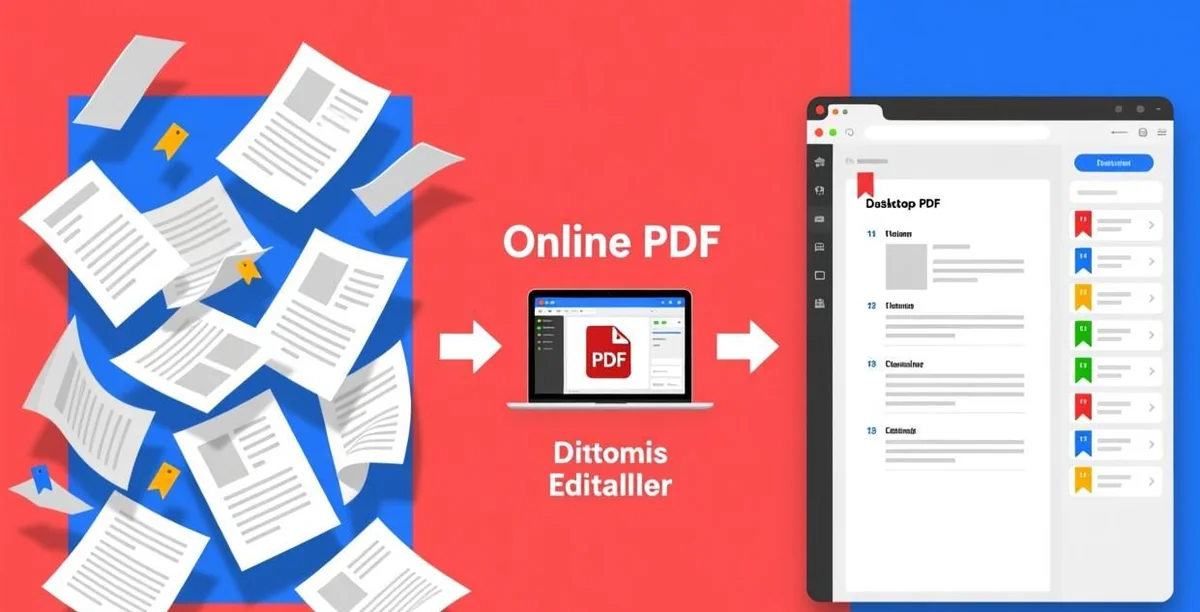
Bookmarks in a PDF are the navigation panel on the left side of your reader—the clickable outline that lets you jump directly to any section. They’re the digital equivalent of a book’s table of contents, except they’re always visible regardless of which page you’re on.
For the person creating the PDF, bookmarks are an afterthought—most people finish the document, export to PDF, and call it done. For the person reading it, bookmarks are the difference between “I found what I needed in 5 seconds” and “I closed the PDF after 2 minutes of frustrated scrolling.”
If you create PDFs that other people read—reports, manuals, proposals, ebooks—adding bookmarks takes 5 minutes and saves every reader hours. Collectively.
Four free offline tools that can add PDF bookmarks
I tested the most commonly recommended free PDF tools for bookmark editing. Here’s how they compare:
| Tool | Bookmark Creation | Auto-Detect Headings | Nested Bookmarks | Export/Import | Price |
|---|---|---|---|---|---|
| PDF-XChange Editor | ✅ Full | ✅ | ✅ | Paid only | Free mode |
| PDFsam Enhanced | ✅ Basic | ❌ | ✅ | ❌ | Free |
| Stirling PDF | ✅ Basic | ❌ | ✅ | ❌ | Open source |
| LibreOffice Draw | ⚠️ Manual | ❌ | ❌ | ❌ | Free |
PDF-XChange Editor (free mode) is the most capable. The free version lets you create, edit, and organize bookmarks with full hierarchy (parent/child nesting). The only limitation in free mode: certain advanced features like bookmark export/import and auto-generation from headings are watermarked or restricted. For manual bookmark creation, the free mode has everything you need. Download: tracker-software.com/product/pdf-xchange-editor.
PDFsam Enhanced is completely free with no feature restrictions. Bookmark editing is basic—you can add, rename, delete, and reorder bookmarks, but there’s no heading auto-detection or bookmark export. If your needs are simple (manually adding 20-30 bookmarks to a document), PDFsam works perfectly. Visit: pdfsam.org.
Stirling PDF is open source and self-hosted (runs locally in Docker or as a desktop app). It handles bookmarks through its “Organize” module. The interface is web-based but everything runs offline on your machine. Best for users who prefer open source and don’t mind the slightly less polished UI. Available at: github.com/Stirling-Tools/Stirling-PDF.
LibreOffice Draw (part of LibreOffice) can technically add PDF bookmarks by opening the PDF, adding headings, and re-exporting. But this approach often breaks complex PDF formatting—tables shift, fonts change, images misalign. I only recommend it for simple text-only PDFs where you’re willing to manually fix formatting issues.
Step-by-step: Adding bookmarks with PDF-XChange Editor (free mode)
Here’s the exact workflow, tested on Windows:
- Download and install PDF-XChange Editor from tracker-software.com. The installer offers both paid and free options—choose the free version.
- Open your PDF in PDF-XChange Editor.
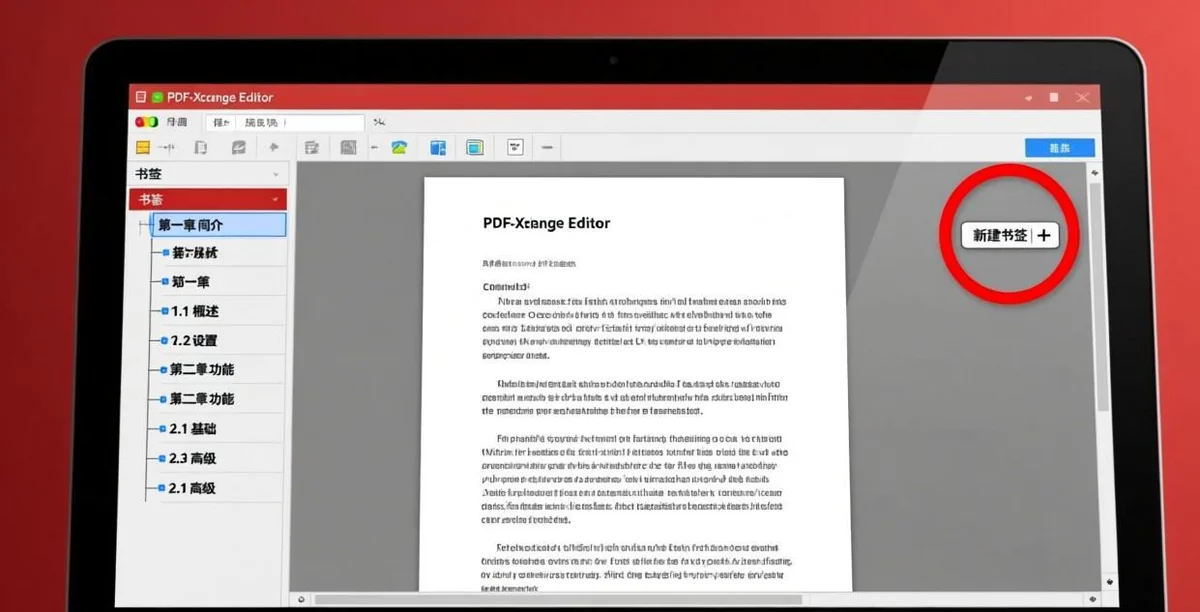
- On the left sidebar, click the “Bookmarks” tab (look for the bookmark ribbon icon). If the sidebar isn’t visible, press Ctrl+B or go to View → Bookmarks.
- Navigate to the page where you want to add a bookmark. Click the “New Bookmark” button (a star with a plus icon) in the bookmarks panel toolbar.
- Type the bookmark name. Press Enter.
- To create nested bookmarks (sub-sections under a chapter): create the parent bookmark first, then right-click it → “Add Child Bookmark.” The child will be indented under the parent.
- Repeat for all sections. Use drag-and-drop to reorder bookmarks if needed.
- Save the PDF (Ctrl+S). Your bookmarks are now part of the PDF.
The entire process for a 50-page document with 15 sections takes about 5-7 minutes.
Building a table of contents page that links to sections
Bookmarks handle digital navigation. A table of contents page handles both digital and printed navigation. Here’s how to add one:
Method 1: Create the TOC in your source document. If you’re creating the PDF from Word, Google Docs, or LibreOffice Writer, insert an automatic table of contents before exporting to PDF. Word’s built-in TOC (References → Table of Contents) automatically generates hyperlinked entries that survive the PDF export. This is the cleanest approach—do the work in your source document, not in the PDF.
Method 2: Add a TOC page directly in the PDF. With PDF-XChange Editor, you can add a blank page at the beginning of your PDF (Document → Insert Pages → Insert Empty Page), then use the Typewriter or Text Box tool to manually type out your table of contents. For each entry, you can add a link: select the text → right-click → “Add Link” → “Go to a page in the document” → enter the target page number. This method is more work but gives you full control over the TOC appearance.
Method 3: Use bookmarks to generate a TOC page. PDF-XChange Editor (paid feature) can generate a TOC page from your existing bookmarks. In the free version, you can approximate this by: exporting bookmarks as text (Bookmarks panel → Options → Export Bookmarks to Text File), then manually formatting that text into a TOC page using Method 2 above. Not elegant, but functional.
As mentioned in our guide on reordering PDF pages offline, page numbering matters when building a TOC—make sure your PDF pages are in the right order first, then add the TOC page at the beginning.
Common problems and their solutions
“My bookmarks disappear when I open the PDF in another reader.” This happens when the PDF wasn’t saved properly after adding bookmarks. In PDF-XChange Editor, always use File → Save (not Save As optimized, which can strip metadata). Verify by opening the PDF in a different reader (like your browser’s built-in PDF viewer) to confirm bookmarks are visible.
“Bookmarks go to the wrong page.” Bookmarks in most tools are linked to the current page view when created—not the page number. If you add bookmarks while zoomed in to a specific section, the bookmark may link to that zoom level and position. Solution: before creating each bookmark, scroll to the top of the target page and set zoom to “Fit Page” or “Fit Width.”
“Can’t create nested bookmarks.” Some free tools (like LibreOffice Draw) don’t support bookmark hierarchy. Switch to PDF-XChange Editor or PDFsam for nested bookmarks.
“Bookmarks show in the panel but clicking them doesn’t jump.” The bookmark’s page action may be broken—this sometimes happens when pages are deleted or reordered after bookmarks were created. Delete and recreate the affected bookmarks.
For more complex PDF manipulation tasks, check our other offline guides—from adding signatures to PDFs offline to free offline OCR. Bookmark editing is one of the simpler tasks, which is why it’s surprising so few people bother to do it.
The 5-minute rule
If you create PDFs that other people read, remember this: 5 minutes of adding bookmarks saves every reader a cumulative total of hours. For a 100-page PDF read by 50 people, that’s potentially 50+ hours of saved time.
The tools are free. They work offline. There’s genuinely no reason not to do it—except that most people never learned how.
Now you have.
📖 Recommended Reading
How to Extract Pages from PDF Offline Free (2026)
4 free ways to extract PDF pages offline. Step-by-step for each tool.
Best Offline PDF Signature Software for Mac & Windows (2026)
5 free offline PDF signing tools. Draw, type, or import signatures — no internet needed.
Compress PDF for Email Offline — Under 25MB Free (2026)
4 free methods to compress PDFs for email. Get under 25MB offline.