How to Extract Pages from PDF Offline Free (2026)
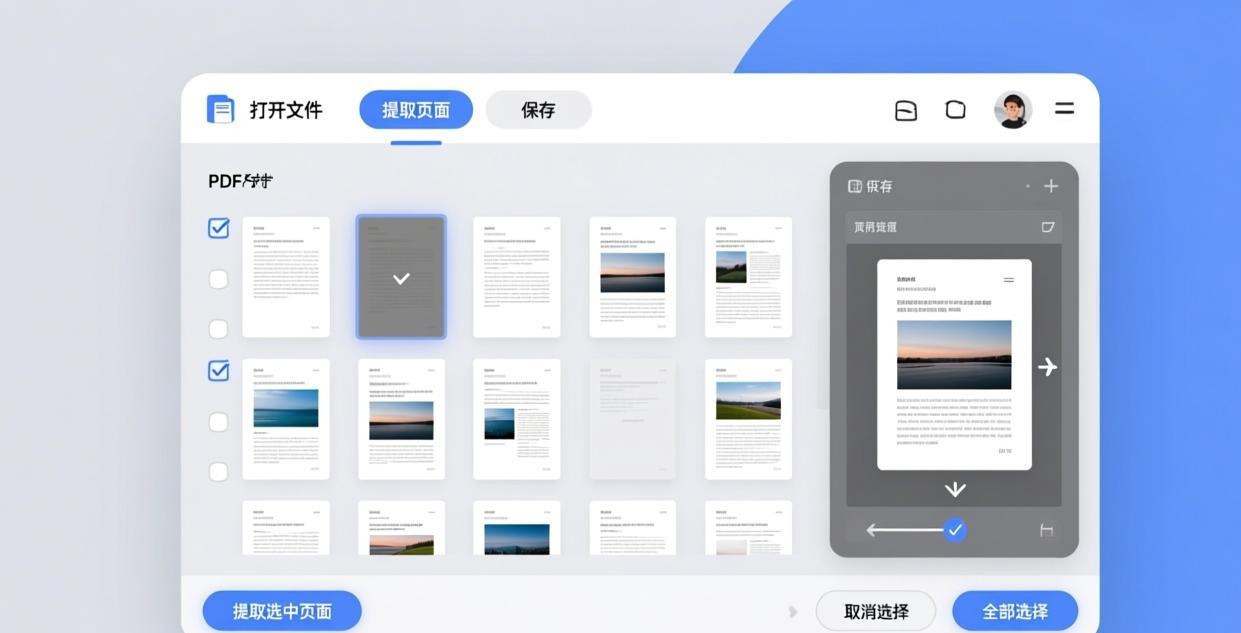
📑 Table of Contents
You have a 300-page PDF report and only need chapters 5 through 9. Instead of uploading the entire file to a random website, extracting those pages locally takes under a minute with the right tool — and keeps your data on your machine where it belongs.
This guide covers four completely free, offline methods to pull specific pages from any PDF file. No watermarks, no file-size limits, no registration walls, and no internet connection required.
Why Extract PDF Pages Offline
Most people reach for an online PDF tool first because it’s convenient. But uploading documents to unknown servers carries real risks, especially when dealing with contracts, medical records, tax returns, or any file containing sensitive information. Even if the service claims to delete your file after processing, there’s no way to verify that.
Offline extraction solves several problems at once:
- Privacy. Your file never leaves your computer. No server-side processing, no cloud storage, no data harvesting.
- Speed with large files. A 500 MB PDF chokes most web uploaders. Desktop tools handle it instantly because there’s no transfer step.
- No internet required. Work on a flight, in a dead zone, or on a secure air-gapped network.
- No usage limits. Free online tools cap you at 2–3 tasks per day or restrict file size to 25 MB. Desktop tools have no such restrictions.
- Repeatability. Need to extract the same page range from 50 files? A command-line tool handles that in one line. Online tools make you click through the same form 50 times.
If you regularly work with PDFs, a desktop extractor is not a luxury — it’s a basic tool in your productivity stack.
Comparison: Best Free Offline PDF Page Extractors
The table below covers four solid options ranging from graphical applications to a command-line utility. All of them are free, work entirely offline, and produce clean PDF output without watermarks.
| Tool | Platforms | Page Range Selection | Batch Processing | Free Tier |
|---|---|---|---|---|
| PDF24 Creator | Windows, macOS | Visual page picker, custom ranges | Yes (drag & drop multiple files) | 100% free, no limitations |
| PDFsam Basic | Windows, macOS, Linux | Custom ranges, odd/even pages | Yes (queue multiple tasks) | 100% free, open source |
| PDFgear | Windows, macOS | Visual page thumbnails, ranges | No (one file at a time) | 100% free, AI-powered extras |
| qpdf (CLI) | Windows, macOS, Linux | Custom ranges in command syntax | Yes (shell scripting / loops) | 100% free, open source |
Method 1: Extract Pages with PDF24 Creator
PDF24 Creator is a Swiss-army-knife PDF toolkit for Windows and macOS. It’s developed by a German company, is completely free with no ads or toolbars, and handles page extraction through an intuitive visual interface.
Step 1: Download and Install
Visit tools.pdf24.org and download PDF24 Creator for your operating system. The Windows installer is roughly 35 MB. macOS users can also grab it from the Mac App Store. Installation is straightforward — no bundled software, no account creation.
Step 2: Open the Page Extraction Module
Launch PDF24 Creator. From the main toolbox, click “PDF pages - extract” (or find it under the “Organize” category). The module opens a clean workspace where you can drag in your PDF file.
Step 3: Load Your PDF
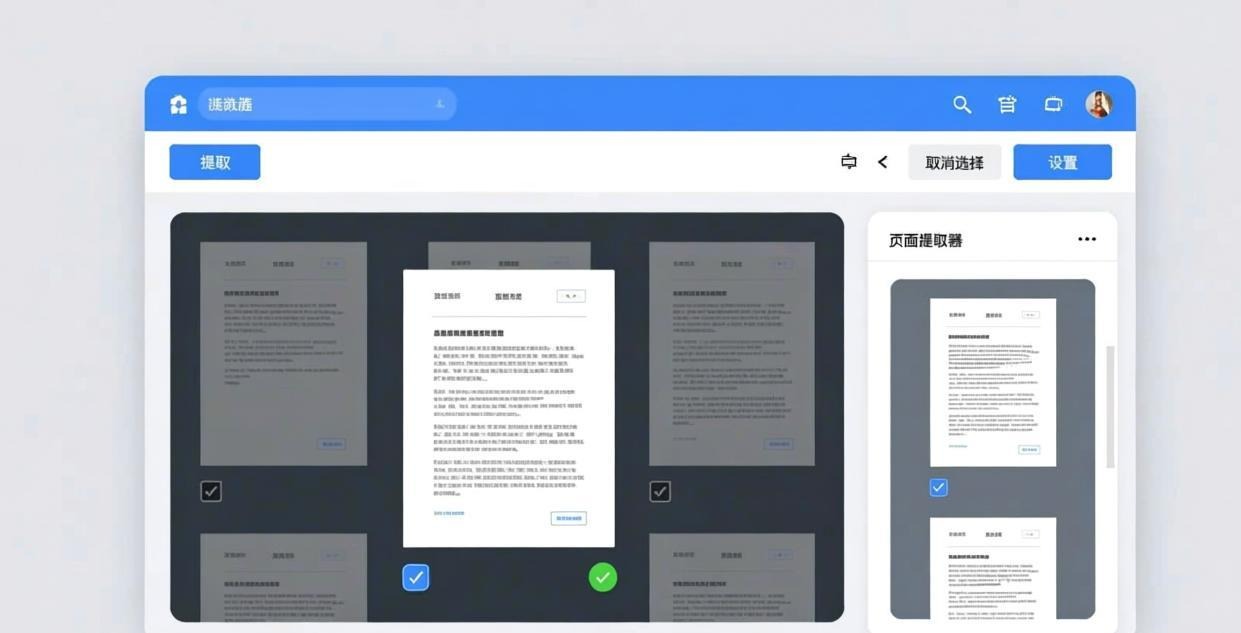
Drag and drop the PDF file into the workspace, or click the “Add PDF file” button to browse for it. The tool immediately renders thumbnails of every page. For a 100-page document, you’ll see all 100 pages laid out in a scrollable grid.
Step 4: Select the Pages to Extract
There are two ways to pick pages:
- Click individual page thumbnails while holding Ctrl (Windows) or Cmd (macOS) to select non-adjacent pages.
- Use the page range input at the top to type ranges like
5-12, 18, 25-30.
The selected pages get highlighted so you can visually confirm your selection before proceeding.
Step 5: Extract and Save
Click the “Extract pages” button (the page-scissors icon at the bottom). PDF24 processes the extraction instantly and opens a save dialog. Choose your output location and filename. The extracted pages are saved as a new PDF with no quality loss and no watermark.
Why PDF24 is great for most users: The visual thumbnail interface makes it impossible to select the wrong pages accidentally. You see exactly what you’re getting before you save. It’s the most beginner-friendly option on this list.
Method 2: Extract Pages with PDFsam Basic
PDFsam Basic (PDF Split and Merge) is an open-source tool available on Windows, macOS, and Linux. It’s lightweight (around 25 MB), fast, and particularly strong when you need structured page selection — odd pages, even pages, reversed order, and custom ranges.
Step 1: Download and Install
Go to pdfsam.org and download PDFsam Basic. The installer includes a bundled Java runtime, so you don’t need Java pre-installed. Linux users can install via Flatpak or the package manager of their distribution.
Step 2: Choose the Split Module
Open PDFsam Basic. The left sidebar shows several modules — click “Split”. This module lets you extract page ranges from one or more PDF files.
Step 3: Add Your PDF File
Click the "+" button or drag the PDF into the input area. The file appears in the queue with its page count displayed. You can add multiple files if you want to extract the same range from several documents.
Step 4: Configure the Split Settings
In the split settings panel, select “Split by page ranges” from the dropdown. Then type your page range in the text field. PDFsam supports flexible syntax:
3-10extracts pages 3 through 101,3,5,7extracts specific pages1-5,10,15-20combines ranges and individual pagesevenoroddextracts even or odd numbered pages
For batch extraction across multiple files, PDFsam applies the same range to every file in the queue.
Step 5: Set Output and Run
Choose your output folder at the bottom of the window. Click the “Run” button. PDFsam processes the file and saves the extracted pages. Each output file is named based on the original filename with a suffix indicating the page range.
Why PDFsam is great for power users: The odd/even page selection is unique among free tools and incredibly useful for printing double-sided documents or separating chapters. The batch queue handles dozens of files in one pass.
Method 3: Extract Pages with PDFgear
PDFgear is a newer entry in the free PDF tools space that combines standard PDF manipulation with AI-powered features. It has a modern, polished interface and works well for quick single-file extractions.
Step 1: Download and Install
Visit pdfgear.com and download PDFgear for Windows or macOS. The installer is about 80 MB due to the bundled AI components. No account is required to use any feature.
Step 2: Open Your PDF
Launch PDFgear and open the PDF file you want to work with. PDFgear displays the document in its built-in viewer with a page thumbnail panel on the left side.
Step 3: Select and Extract Pages
In the thumbnail panel, you can visually select pages the same way you would in a file manager — click to select one, Ctrl+click for multiple, or Shift+click for a range. Selected pages are highlighted with a blue border.
Right-click on any selected page and choose “Extract” from the context menu. Alternatively, look for the “Extract” option in the toolbar at the top of the page thumbnail panel.
Step 4: Save the Extracted Pages
PDFgear creates a new document containing only the selected pages and opens it in a new tab. Go to File → Save As to save the extracted pages as a new PDF file. The output maintains original quality, bookmarks, and formatting.
Why PDFgear is great for casual users: If you already use PDFgear as your default PDF reader, the extraction feature is right there — no separate tool needed. The AI features (summarization, translation) are a nice bonus but not required for page extraction.
Method 4: Extract Pages with qpdf (Command Line)
qpdf is a command-line PDF content transformation tool that’s blazing fast, scriptable, and available on every major platform. It’s the best choice for automation, batch processing, and anyone comfortable with a terminal.
Step 1: Install qpdf
- Windows: Download the installer from qpdf.sourceforge.net or install via
winget install qpdf - macOS: Run
brew install qpdf - Linux: Run
sudo apt install qpdf(Debian/Ubuntu) orsudo dnf install qpdf(Fedora)
Step 2: Basic Page Extraction
The fundamental syntax for extracting pages with qpdf:
qpdf input.pdf --pages . 5-12 -- extracted.pdf
This extracts pages 5 through 12 from input.pdf and saves them as extracted.pdf. The dot (.) refers to the input file in the --pages clause.
Step 3: Advanced Range Syntax
qpdf supports flexible page ranges:
# Extract specific pages
qpdf report.pdf --pages . 1,3,5,7 -- select-pages.pdf

# Extract multiple ranges
qpdf report.pdf --pages . 1-5,10,15-20 -- combined.pdf

# Extract odd pages
qpdf report.pdf --pages . 1-z:2 -- odd-pages.pdf

# Extract even pages
qpdf report.pdf --pages . 2-z:2 -- even-pages.pdf

# Reverse page order
qpdf report.pdf --pages . z-1 -- reversed.pdf
Step 4: Batch Extraction Script
For extracting the same page range from multiple files, use a shell loop:
# PowerShell — extract pages 1-5 from every PDF in a folder
Get-ChildItem *.pdf | ForEach-Object {
    $output = $_.BaseName + "_pages1-5.pdf"
    qpdf $_.Name --pages . 1-5 -- $output
}
# Bash — same thing on macOS/Linux
for f in *.pdf; do
    qpdf "$f" --pages . 1-5 -- "${f%.pdf}_pages1-5.pdf"
done
Step 5: Preserve Metadata and Bookmarks
By default, qpdf preserves all metadata, bookmarks, and hyperlinks in the extracted pages. If you want to strip metadata (useful for redacting document history):
qpdf --linearize --no-warn input.pdf --pages . 5-12 -- clean-output.pdf
The --linearize flag optimizes the output for fast web viewing.
Why qpdf is great for automation: It processes files in milliseconds, handles gigabyte-sized PDFs without breaking a sweat, and integrates trivially into scripts, Makefiles, CI pipelines, and cron jobs. If you extract pages more than once a week, learning qpdf pays off fast.
FAQ
Is offline page extraction as good quality as online tools?
Yes, in most cases it’s actually better. Offline tools like qpdf and PDF24 don’t recompress or re-render your pages — they copy the raw PDF objects into a new file. This means zero quality loss, identical fonts, preserved vector graphics, and no unexpected reflow. Many online tools re-process the PDF through a conversion layer that can degrade image quality or break complex layouts.
Can I extract pages from a password-protected PDF offline?
PDF24 and qpdf both support password-protected files, but only if you know the password. PDF24 prompts for the password when you open the file. With qpdf, use the --password=yourpassword flag:
qpdf --password=secret locked.pdf --pages . 1-10 -- unlocked-extract.pdf
PDFsam Basic also handles password-protected files — enter the password in the file’s settings within the queue. PDFgear asks for the password when you open the file in its viewer.
Note that these tools can only process files with “owner” or “user” passwords that restrict editing/printing. If the PDF is encrypted with an unknown “document open” password, you cannot extract pages with any tool.
Will extracted pages lose their bookmarks and hyperlinks?
No. All four tools in this guide preserve internal bookmarks (table of contents), hyperlinks, annotations, and form fields in the extracted pages. qpdf and PDF24 are particularly reliable here because they work at the PDF object level rather than re-rendering pages. PDFsam Basic also maintains bookmarks by default. PDFgear preserves most metadata through its extraction workflow.
What’s the fastest way to extract a single page from a large PDF?
For a single page extraction from a large file (hundreds of pages), qpdf is the fastest option by far. The command qpdf large.pdf --pages . 42 -- page42.pdf runs in under a second regardless of the file size. For a graphical approach, PDF24 renders thumbnails quickly and lets you click a single page to extract it.
Can I extract pages and save them as images instead of PDF?
The tools in this guide output PDF files. If you need the extracted pages as images (PNG, JPG, TIFF), you’ll need an additional step:
- qpdf + Poppler: After extracting pages to a PDF, use
pdftoppm extracted.pdf output-page -pngto convert each page to a PNG image. - PDF24: Has a built-in PDF-to-image converter in its toolbox. Extract the pages first, then convert.
- PDFgear: Includes an export-to-image feature. Extract the pages to a new PDF, then use File → Export → Image.
For batch image conversion, the qpdf + Poppler combination is the most efficient.
Do these tools work with scanned PDFs?
Yes, but with a caveat. Scanned PDFs contain image data rather than text layers. The extraction tools will copy the scanned pages faithfully — you’ll get the same scanned images in the output file. If you need to extract specific content from scanned pages, you’d need OCR (Optical Character Recognition) software first. PDFgear includes basic OCR capabilities in its paid tier, and free offline PDF editors like LibreOffice Draw can also help with scanned document processing.
Which tool should I choose if I’ve never used a PDF tool before?
Start with PDF24 Creator. Its visual interface shows you every page as a thumbnail, so there’s no guesswork. You click the pages you want, hit extract, and save. No command-line knowledge, no complex settings — just point, click, done. Once you’re comfortable with the basics, PDFsam Basic is a natural next step for more structured extractions like odd/even pages.
📖 Recommended Reading
Best Offline PDF Signature Software for Mac & Windows (2026)
5 free offline PDF signing tools. Draw, type, or import signatures — no internet needed.
Best Free PDF Form Filler Offline Desktop (2026)
5 free offline PDF form fillers. Complete interactive forms without uploading.
Best Offline PDF Page Number Adder Desktop Free (2026)
4 free offline tools to add page numbers to PDFs. Custom position, format, and style.