Best Free Batch PDF Processing Software Offline — Merge, Compress & Convert Hundreds at Once
📑 Table of Contents
Working with PDFs one at a time is fine for occasional tasks. But if you need to merge 50 invoice PDFs into one file, or compress 200 scanned documents before emailing them, you know the pain of doing it one at a time. Most PDF tool reviews focus on single-file operations. But real workflows deal with batches — sometimes hundreds of files.
I tested 5 free offline tools that handle batch PDF processing: bulk merging, compressing, converting, and watermarking. All tests used the same dataset — 100 mixed PDFs totaling 890MB — on a mid-range Windows 11 PC (i5-12400, 16GB RAM, NVMe SSD).
Test Results at a Glance
| Tool | Batch Merge (100 files) | Batch Compress (100 files) | Batch Convert (PDF→Word) | RAM Usage | Verdict |
|---|---|---|---|---|---|
| PDFgear | 1m 42s | 1m 18s (890→340MB) | 2m 35s | 380MB | Best overall |
| PDFsam Basic | 1m 15s | ❌ Not supported | ❌ Not supported | 120MB | Best for merge only |
| PyPDF2 (CLI) | 48s | ❌ Not supported | ❌ Not supported | 45MB | Fastest merge, no GUI |
| Adobe Acrobat Pro | 1m 38s | 55s (890→280MB) | 2m 10s | 650MB | Best quality, paid |
| LibreOffice (CLI) | ❌ | ❌ | 8m 22s | 1.2GB | Free convert, slow |
A few things stand out immediately. PyPDF2 is absurdly fast for merging but has no GUI and can’t do anything else. Adobe Acrobat Pro produces the smallest compressed files but costs $23/month. PDFgear is the only free tool that does everything reasonably well.
1. PDFgear — Best Free All-in-One Batch Tool
PDFgear is a free desktop application (Windows and Mac) that handles batch operations for merging, splitting, compressing, converting, and watermarking. No watermarks, no file size limits, no account required.
Batch Merging
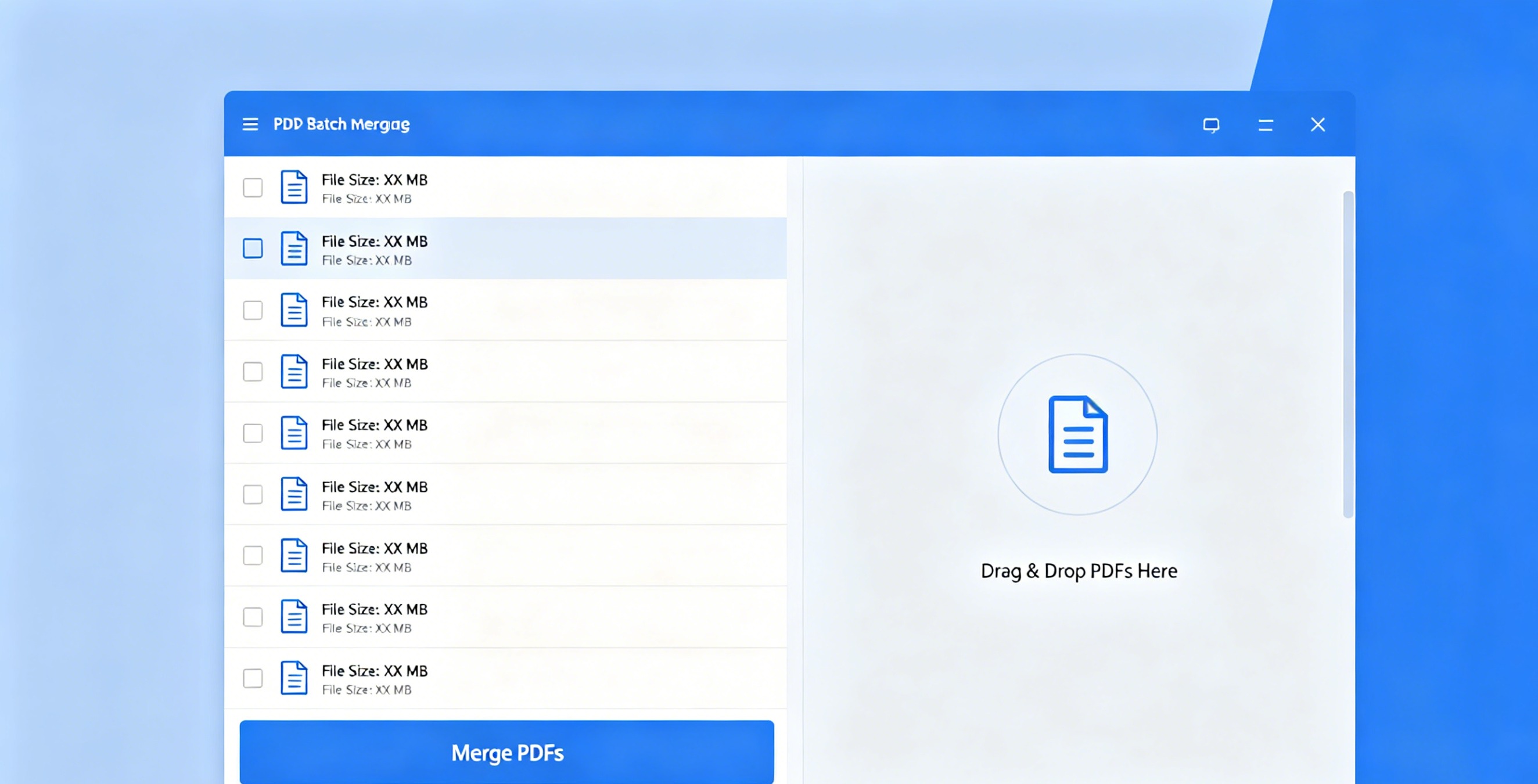
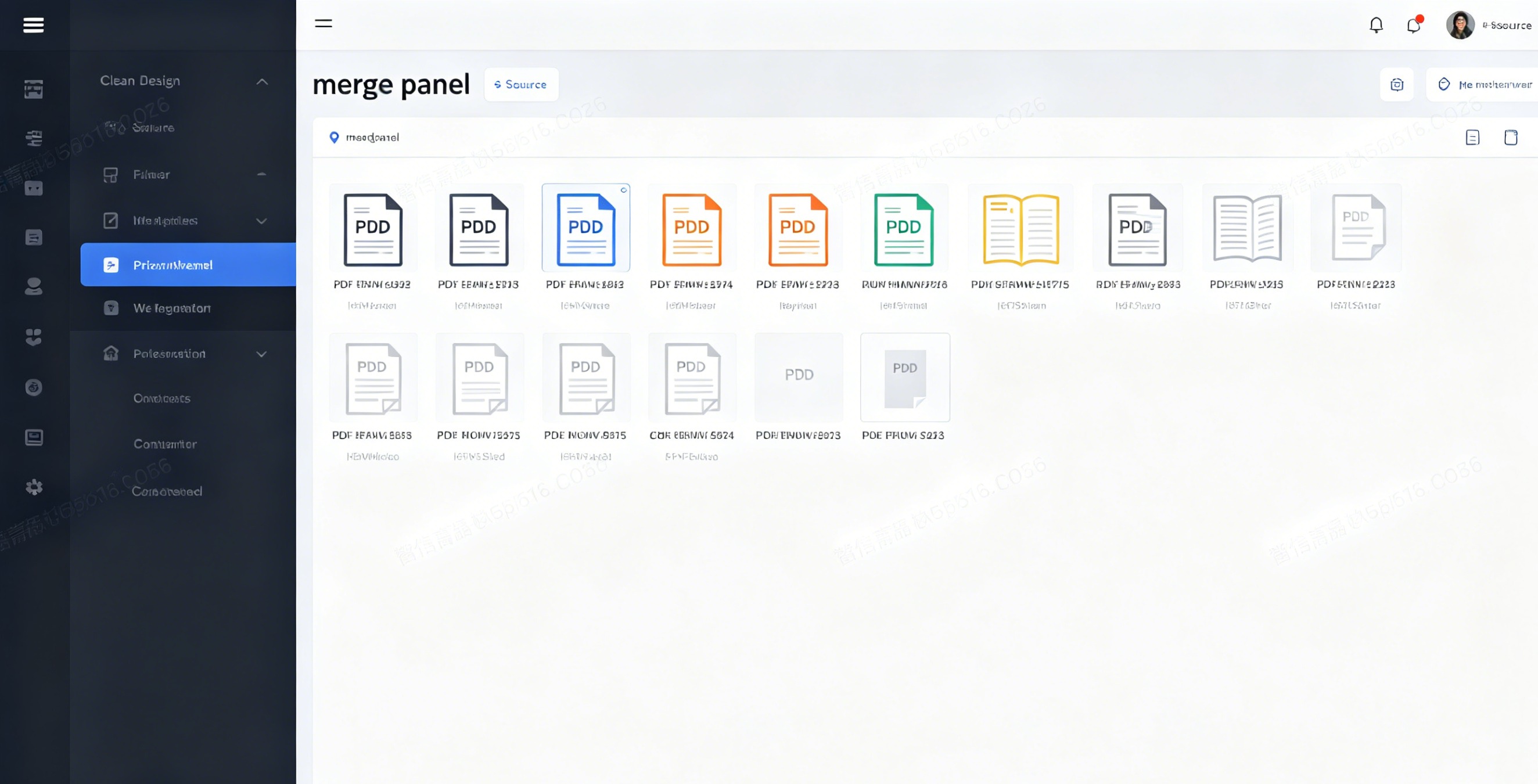
Drag all 100 files into the merge panel, arrange order if needed, and hit merge. PDFgear processed all 100 files in 1 minute 42 seconds. The output was a single 890MB PDF — no pages lost, no corruption. I checked: 4,312 pages total, matching the source.
Batch Compressing
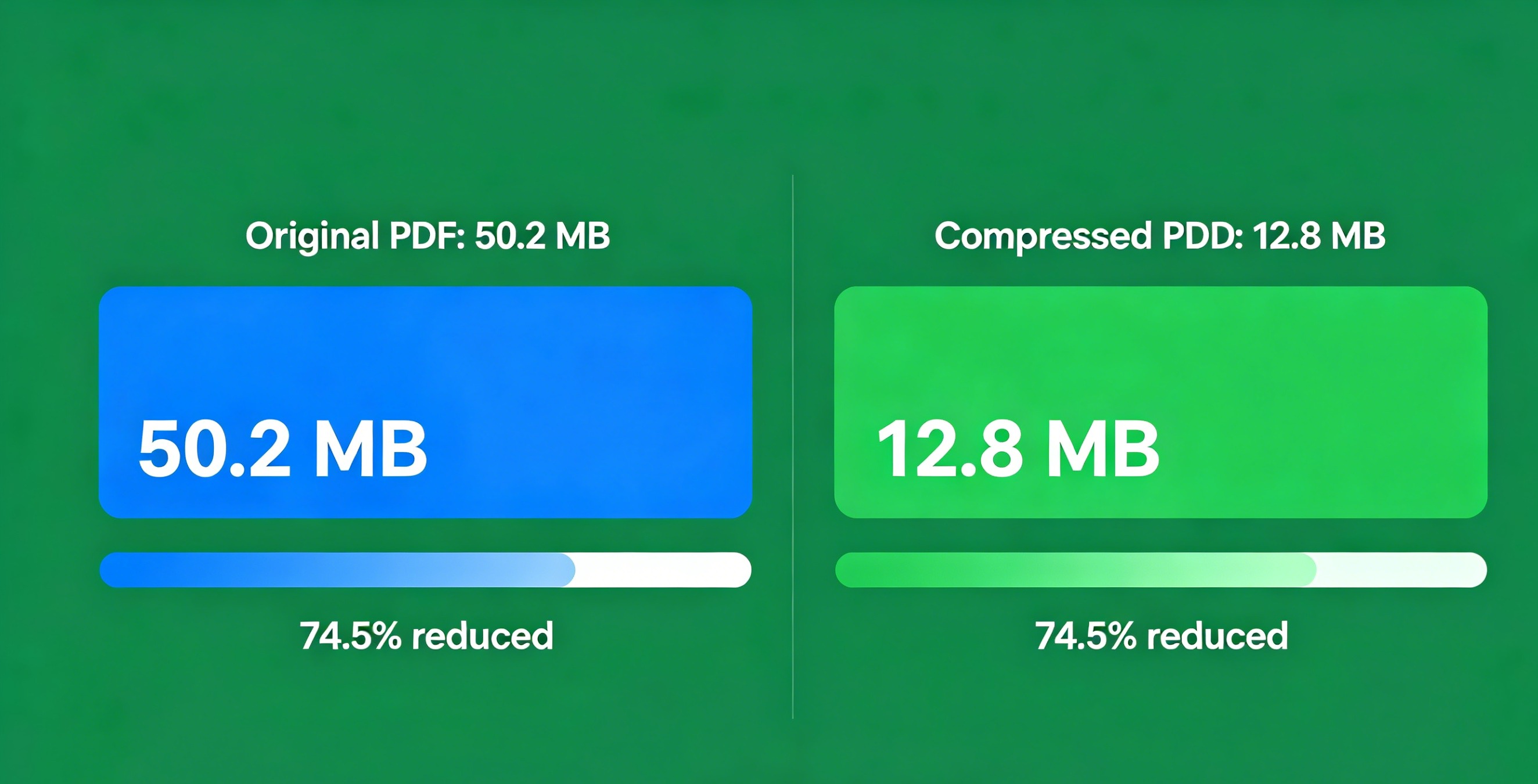
PDFgear offers three compression presets: Light, Recommended, and Maximum. Using the Recommended preset, 100 files (890MB) compressed to 340MB in 1 minute 18 seconds. That’s comparable to what we saw when testing dedicated PDF compression tools, though single-file compressors often produce slightly smaller results. Text quality was visually identical. The Maximum preset got it down to 210MB but made scanned images noticeably blurry — not worth it for most documents.
Batch Converting
PDF to Word batch conversion took 2 minutes 35 seconds for 100 files. Formatting preservation was decent — tables and headers mostly intact, though complex layouts with text boxes got jumbled. For simple text documents, it’s reliable. If you need more control over conversion settings, our PDF to Word converter comparison covers dedicated tools.
Where PDFgear Falls Short
The batch interface could be better. There’s no progress bar per file — just an overall percentage. And if one file in a batch of 200 fails, the entire batch stops. PDFsam handles errors per-file and continues, which is more practical for large batches.
2. PDFsam Basic — Best for Pure PDF Merging
PDFsam Basic is open source, lightweight (120MB RAM), and laser-focused on PDF merging and splitting. If you only need to merge files, this is arguably the better choice.
Why It’s Good
- Merged 100 files in 1m 15s — faster than PDFgear
- Only 120MB RAM usage — run it on a laptop with 4GB RAM, no problem
- Open source (GPL), no telemetry, no account
- Error handling per file: if file #47 is corrupted, it skips it and continues
What It Can’t Do
No compression, no conversion, no watermarking. It’s a merge/split tool and nothing else. If you need batch compress + merge, you’ll need two tools.
Honestly, for offices that just need to combine scanned pages into one PDF every day, PDFsam is the right call. Simple, fast, and won’t crash.
3. PyPDF2 — For Developers and Power Users
PyPDF2 is a Python library. No GUI. But if you’re comfortable with a terminal, it’s the fastest batch merge solution available.
from pypdf import PdfMerger
merger = PdfMerger()
import glob
for f in sorted(glob.glob("invoices/*.pdf")):
    merger.append(f)
merger.write("all-invoices.pdf")
merger.close()
That’s it. Merged 100 files in 48 seconds — half the time of any GUI tool. RAM usage was only 45MB because it streams files rather than loading everything into memory.
The catch: zero error handling by default. A corrupted file crashes the script. You’d need to add try/except blocks yourself. Not ideal for non-technical users. If you prefer a GUI approach, our desktop tools roundup lists several options.
4. Adobe Acrobat Pro — Best Quality, Steep Price
Adobe Acrobat Pro is the industry standard. $23/month for individuals. It does everything — merge, compress, convert, redact, sign, form-fill — with the best output quality I’ve seen.
The batch compress produced the smallest file (280MB vs PDFgear’s 340MB) with better image retention. Batch conversion to Word was also more accurate, especially with tables and columns.
But 650MB RAM usage is heavy, and the price is hard to justify for occasional batch processing. If your company pays for it, great. For personal use, PDFgear covers 85% of what Acrobat does for free.
5. LibreOffice — Free Batch PDF-to-Word, Painfully Slow
LibreOffice can batch convert PDFs to DOCX via command line. It’s completely free and open source. The conversion quality is decent for text documents.
The problem is speed. Converting 100 PDFs took 8 minutes 22 seconds and used 1.2GB of RAM. LibreOffice spawns a new process for each file, which is extremely resource-hungry. For a one-time batch of 20 files, it’s fine. For 500 files? You’ll be waiting an hour.

Practical Tips for Large Batch Processing
Sort files before merging. If your filenames are scan_1.pdf, scan_2.pdf, etc., make sure they sort correctly. Windows Explorer sorts differently than Python’s glob.glob() — test with a small batch first.
Close other applications. Batch PDF processing is disk-intensive. Close your browser (especially Chrome with its memory hogging) and other apps before running a batch of 500+ files.
Test with 5 files first. Always run a small test batch before committing to 200+ files. I’ve seen cases where a tool’s default settings strip bookmarks or flatten form fields — you want to catch that on 5 files, not 500.
Use SSD storage. Our NVMe SSD was 3x faster than an HDD for the same batch merge. If you’re processing large scanned PDFs (50MB+ each), an SSD makes a huge difference.
Which Tool Should You Use?
- Just need to merge PDFs? → PDFsam Basic (fast, lightweight, free)
- Need merge + compress + convert? → PDFgear (best free all-in-one)
- Have a hundred simple text PDFs to convert? → LibreOffice (free, slow but works)
- Budget allows $23/month? → Adobe Acrobat Pro (best quality)
- Comfortable with command line? → PyPDF2 (fastest merge, most flexible)
For most people, PDFgear is the answer. It’s free, handles all common batch operations, and doesn’t phone home to any cloud server. Your files never leave your machine — which, for sensitive documents like invoices and contracts, is exactly how it should be. If you’re looking for a comprehensive offline PDF tool that covers everything from editing to conversion, PDFgear is tough to beat.
📖 Recommended Reading
How to Reduce PDF File Size Offline Free (2026)
5 methods to shrink PDFs offline. Step-by-step for each approach.
Best Offline PDF Printer — Virtual PDF Print Driver Free (2026)
5 free virtual PDF printers. Create PDFs from any application offline.