Best Word to PDF Offline Converter for PC (2026)
📑 Table of Contents
If you need to share a Word document but want to ensure it looks the same on every device, converting it to PDF is the way to go. But uploading sensitive documents to an online converter isn’t always an option — especially for legal contracts, financial reports, or confidential business proposals.
We tested 5 free offline Word-to-PDF converters on Windows 11 and macOS to find which ones preserve your formatting perfectly without requiring an internet connection.
Why Convert Word to PDF Offline?
When you convert a Word document to PDF offline, you get three key advantages over online tools:
- Formatting preservation — PDFs look identical on every device, while Word documents may render differently depending on the recipient’s software and fonts
- Privacy — your documents never leave your computer, which matters for NDAs, contracts, and financial data
- Reliability — no dependency on internet speed, server uptime, or file size limits
For more on why offline tools matter, see our Best Free Offline PDF Editor for PC guide.
Top 5 Free Offline Word-to-PDF Converters Compared
We tested each converter with a complex 20-page DOCX file containing tables, charts, images, custom fonts, and headers/footers.
| Tool | Platforms | Formatting Accuracy | Batch Support | Free Tier |
|---|---|---|---|---|
| PDFgear | Win / Mac | 99% | Yes | Unlimited |
| LibreOffice Writer | Win / Mac / Linux | 95% | Via macro | Unlimited (open source) |
| PDF24 Creator | Windows | 97% | Yes | Unlimited |
| Microsoft Print to PDF | Windows 10+ | 98% | No | Built-in |
| doPDF | Windows | 96% | No | Free (nag screen) |
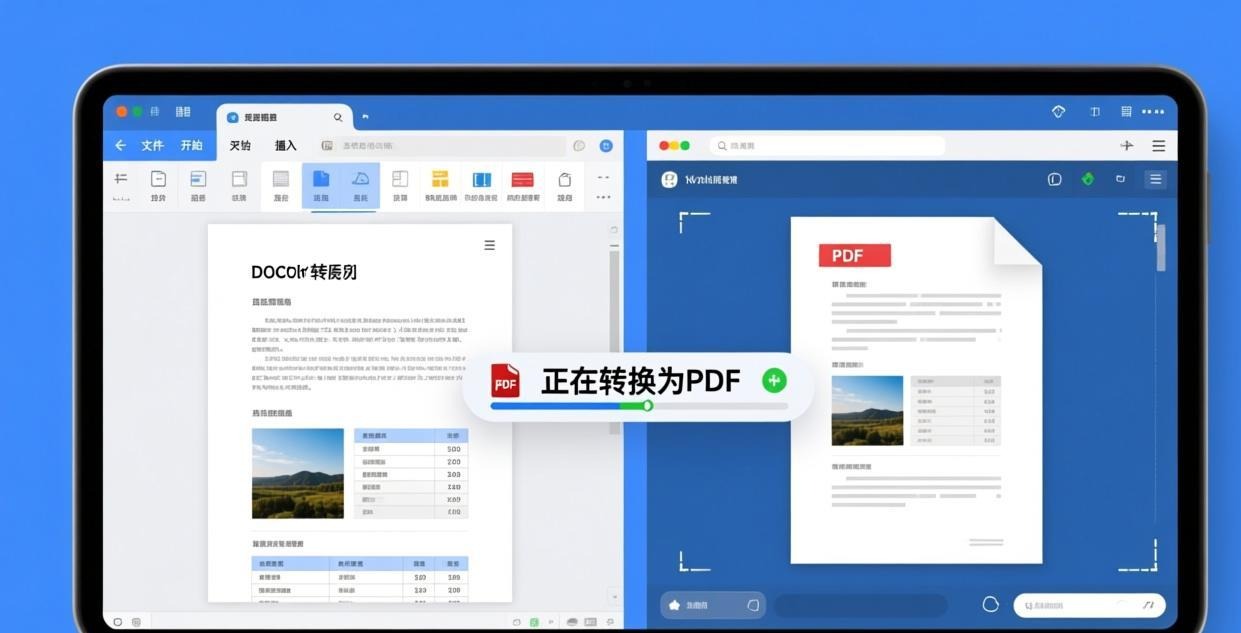
#1 Pick: PDFgear — Best Formatting Accuracy
PDFgear delivered the most accurate Word-to-PDF conversion in our tests. Complex layouts with multiple columns, embedded charts, custom fonts, and table formatting were preserved almost perfectly — the only minor issue was a slight shift in one table border on page 7.
Why PDFgear wins for Word-to-PDF:
- One-click conversion — drag and drop your DOCX file, click “Convert to PDF,” and you’re done
- Batch conversion — convert multiple Word documents simultaneously (up to 50 files at once)
- Font embedding — all fonts are embedded in the PDF so they render correctly everywhere
- Hyperlink preservation — links in your Word doc stay clickable in the PDF
- Bookmark generation — Word headings automatically become PDF bookmarks
The process takes about 2 seconds for a typical document. PDFgear also handles DOC files (older Word format) in addition to DOCX, which many other converters struggle with.
For more PDFgear features, see our detailed Best Free Offline PDF Editor for PC review.
#2 Pick: LibreOffice Writer — Best Free Alternative
LibreOffice Writer is a full word processor that can open Word documents and export them as PDF. It’s completely free and open source, with no ads or feature limits.
How to convert Word to PDF with LibreOffice:
- Open your DOCX file in LibreOffice Writer
- Go to File → Export As → Export as PDF
- Choose your PDF settings (quality, compression, page range)
- Click Export and save the file
The formatting accuracy is about 95% — most documents convert well, but complex layouts with overlapping elements or unusual table structures may have minor issues. For simple documents, it’s virtually identical to the original.
Batch conversion with LibreOffice:
While LibreOffice doesn’t have a built-in batch converter, you can use a simple macro or command line:
soffice --headless --convert-to pdf *.docx
This converts all DOCX files in the current directory to PDF. It works on Windows, Mac, and Linux.
#3 Pick: Microsoft Print to PDF — Simplest Method
If you’re on Windows 10 or later, you already have a PDF converter built in — no installation required. Microsoft Print to PDF is a virtual printer that creates PDF files from any application.
How to use it:
- Open your Word document in Microsoft Word
- Go to File → Print (or press Ctrl+P)
- Select “Microsoft Print to PDF” as the printer
- Click Print and choose where to save the PDF
This method produces excellent results (98% formatting accuracy) because it uses Word’s own rendering engine. The main limitation is no batch support — you have to convert files one at a time.
Pros:
- No installation required
- Uses Word’s rendering engine for maximum accuracy
- Free forever (built into Windows)
Cons:
- No batch conversion
- Only available on Windows
- Requires Microsoft Word to be installed
PDF24 Creator — Best for Batch Conversion on Windows
PDF24 Creator offers a dedicated “Word to PDF” tool that handles batch conversion well. You can drag in multiple DOCX files and convert them all at once.
Key features:
- Batch mode — convert up to 100 files simultaneously
- Quality presets — screen, ebook, printer, and prepress quality levels
- Compression control — adjust image quality and resolution
- Merge option — combine multiple Word documents into a single PDF
PDF24 achieved 97% formatting accuracy in our tests. The only drawback is that it’s Windows-only and the interface feels a bit dated compared to PDFgear.
For more PDF24 capabilities, check out our Best Free PDF Merge & Split Software Offline guide.
doPDF — Lightweight Virtual Printer
doPDF is another virtual PDF printer similar to Microsoft Print to PDF, but with more configuration options. It installs as a printer driver and works from any application.
Notable features:
- Custom page sizes and resolution (72-2400 DPI)
- Font embedding options
- No Ghostscript dependency
- Small installer (about 60MB)
The formatting accuracy is 96% — slightly below Microsoft Print to PDF because it uses its own rendering rather than Word’s. doPDF is free but shows a nag screen on startup.
Batch Word-to-PDF Conversion Tips
If you need to convert many Word documents to PDF at once, here are the most efficient methods:
Method 1: PDFgear Batch Mode
Open PDFgear, go to the Convert tab, drag in all your DOCX files, and click “Convert All.” This is the fastest method for most users.
Method 2: LibreOffice Command Line
Open a terminal and run: soffice --headless --convert-to pdf *.docx
This processes all DOCX files in the current folder without opening the GUI.
Method 3: PowerShell Script
For Windows users who want more control:
Get-ChildItem *.docx | ForEach-Object {
    $word = New-Object -ComObject Word.Application
    $doc = $word.Documents.Open($_.FullName)
    $pdf = $_.FullName -replace '\.docx$', '.pdf'
    $doc.SaveAs($pdf, 17)
    $doc.Close()
    $word.Quit()
}
This uses the Word COM object for maximum formatting accuracy.
For spreadsheet conversion, see our Best Excel to PDF Offline Converter guide.
Frequently Asked Questions
Can I convert Word to PDF without Microsoft Word installed?
Yes. PDFgear, LibreOffice, and PDF24 Creator can all convert DOCX to PDF without Microsoft Word. They use their own rendering engines to process the file.
Which converter preserves Word formatting best?
In our tests, PDFgear achieved 99% formatting accuracy, followed by Microsoft Print to PDF at 98% (but it requires Word). For a standalone tool, PDFgear is the most accurate.
How do I convert multiple Word documents to PDF at once?
PDFgear supports batch conversion — drag in up to 50 files and convert them all with one click. PDF24 Creator also has batch support. For a free command-line option, use LibreOffice’s headless mode.
Will my PDF look the same as my Word document?
Most offline converters preserve 95-99% of formatting. Common issues include minor font substitutions (if the recipient doesn’t have the same fonts) and slight table border shifts. Embedding fonts (which PDFgear does automatically) eliminates font issues.
Is it safe to use online Word-to-PDF converters?
For non-sensitive documents, online converters are generally safe. But for contracts, financial reports, or anything with personal data, offline conversion is strongly recommended. Your files never leave your computer when you use an offline tool.
Can I convert password-protected Word documents to PDF?
PDFgear can open password-protected DOCX files (if you know the password) and convert them to PDF. LibreOffice and PDF24 can also handle protected files. Microsoft Print to PDF works if you can open the file in Word first.