Best Offline PDF to Text Converter Free — 2026
📑 Table of Contents
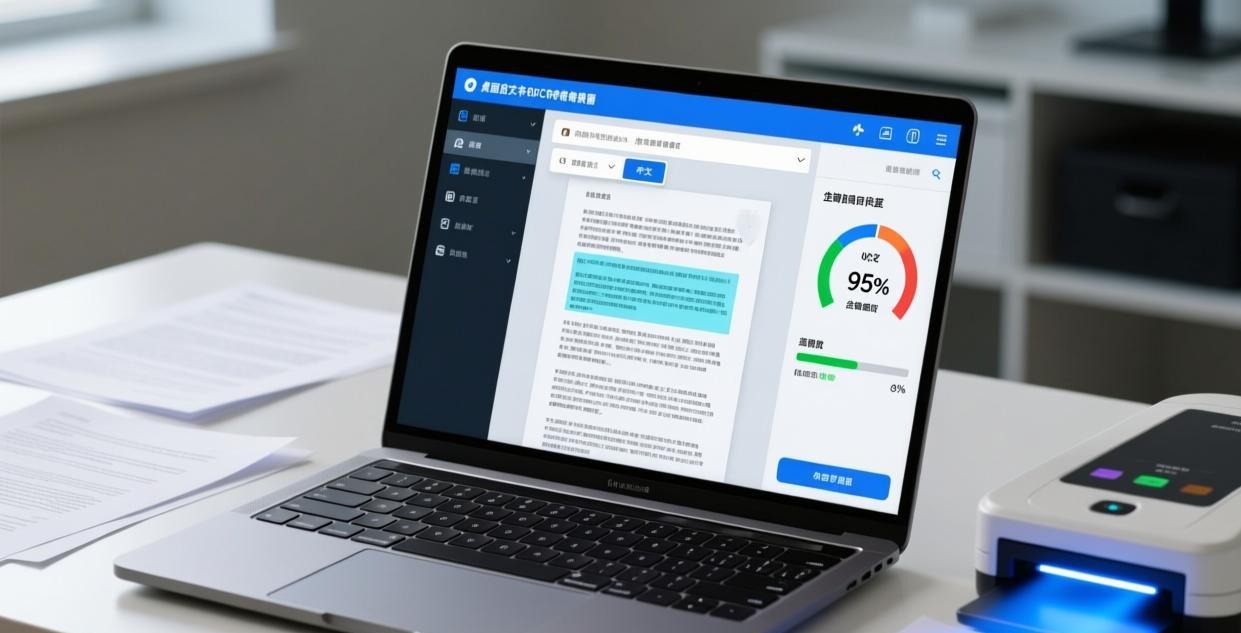
Extracting text from PDF files is essential for data mining, archiving, content repurposing, and accessibility. But uploading sensitive documents to an online OCR service isn’t always acceptable. We tested 5 free offline PDF-to-text tools to find the best options for 2026.
Native PDFs vs Scanned PDFs — Why It Matters
Before choosing a tool, you need to understand what type of PDF you’re working with:
- Native PDFs — generated from Word, Excel, or other software. The text is embedded in the file and can be extracted directly without OCR. Fast and 100% accurate.
- Scanned PDFs — created by scanning physical documents. The text is actually an image, so OCR (Optical Character Recognition) is required to extract it. Slower and accuracy varies.
About 40% of business PDFs are scanned documents. If you work with scans, OCR capability is essential.
Top 5 Free Offline PDF-to-Text Tools Compared
We tested each tool with a 30-page native PDF and a 20-page scanned PDF (300 DPI).
| Tool | OCR Support | Languages | Native PDF Accuracy | OCR Accuracy | Free Tier |
|---|---|---|---|---|---|
| PDFgear OCR | Yes | 20+ | 100% | 96% | Unlimited |
| Tesseract OCR | Yes | 100+ | N/A (OCR only) | 94% | Unlimited (open source) |
| Calibre | No | N/A | 99% | N/A | Unlimited (open source) |
| pdftotext (Xpdf) | No | N/A | 100% | N/A | Unlimited (open source) |
| ABBYY FineReader | Yes | 190+ | 100% | 98% | 30-day trial |
#1 Pick: PDFgear OCR — Best for Most Users
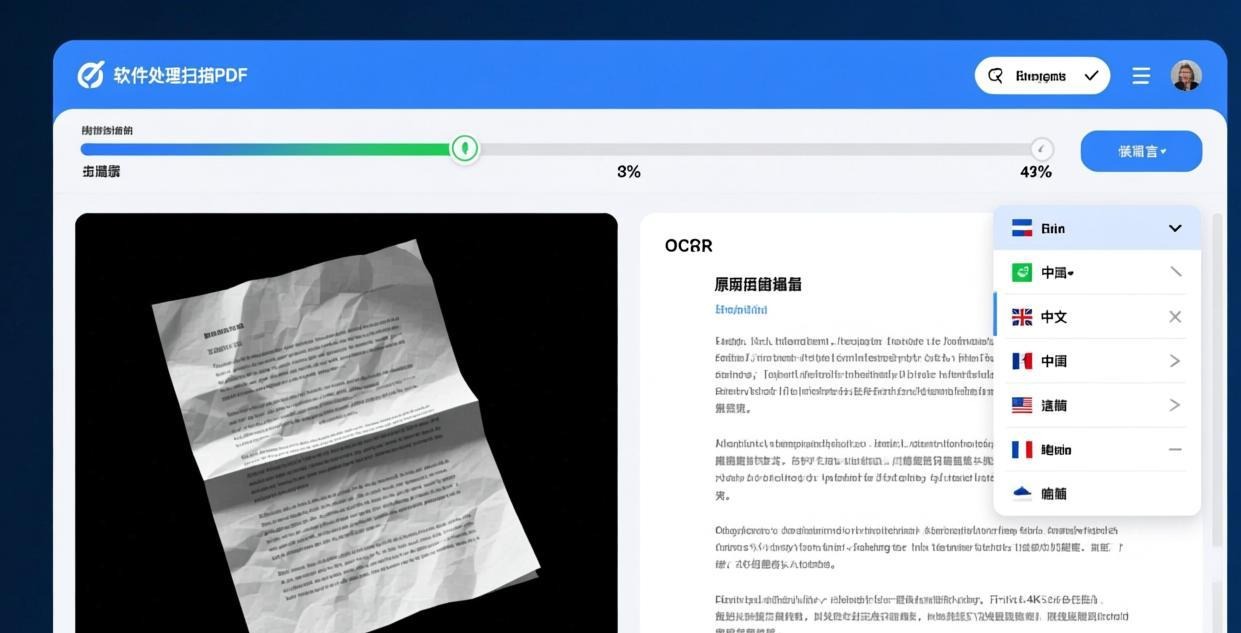
PDFgear combines native text extraction with built-in OCR in a single easy-to-use application. It automatically detects whether a PDF is native or scanned and applies the appropriate method.
Why PDFgear is the top pick:
- Auto-detection — knows when to use direct extraction vs OCR
- 20+ OCR languages — English, Chinese, Japanese, Korean, German, French, Spanish, and more
- Batch processing — extract text from multiple PDFs at once
- Formatted output — preserves paragraphs, headings, and basic formatting
- Copy or export — copy extracted text to clipboard or save as TXT/DOCX
In our tests, PDFgear extracted text from native PDFs with 100% accuracy and achieved 96% OCR accuracy on scanned documents. The OCR errors were mostly in small text (below 8pt) and decorative fonts.
For more on PDFgear’s capabilities, see our Best Free Offline PDF Editor for PC review.
#2 Pick: Tesseract OCR — Best Open Source OCR Engine
Tesseract is Google’s open source OCR engine. It’s the most powerful free OCR tool available, supporting over 100 languages with ongoing development by a large community.
Key features:
- 100+ languages — the widest language support of any free OCR engine
- LSTM neural network — modern AI-powered recognition for high accuracy
- Custom training — train Tesseract on your own data for specialized documents
- Command-line interface — easy to automate and integrate into workflows
- Completely free — Apache 2.0 license, no restrictions
How to use Tesseract on Windows:
- Download the Tesseract installer from UB Mannheim’s GitHub releases
- Install with additional language packs as needed
- Run from command line:
tesseract input.pdf output -l eng
Tesseract achieved 94% OCR accuracy in our tests. It struggles with:
- Very small text (below 7pt)
- Handwritten content
- Documents with complex layouts and multi-column formatting
- Low-quality scans (below 200 DPI)
For more open source tools, see our Best Open Source PDF Desktop Software guide.
#3 Pick: pdftotext (Xpdf) — Fastest for Native PDFs
If you only work with native PDFs (not scans), pdftotext is the fastest and most accurate option. It’s part of the Xpdf toolkit and extracts embedded text directly — no OCR needed.
Advantages:
- Instant — extracts text in milliseconds, even from large PDFs
- 100% accurate — reads the embedded text data, not image recognition
- Tiny — the entire Xpdf toolkit is under 10MB
- Command-line — easy to script and automate
- Preserves layout — optional
-layoutflag maintains the original text positioning
Usage:
pdftotext input.pdf output.txt
pdftotext -layout input.pdf output.txt  # preserve layout
pdftotext is the go-to tool for batch processing native PDFs. If you have 1,000 PDFs to extract text from, this will do it in minutes.
Calibre — Best for eBooks
Calibre is primarily an eBook manager, but it has an excellent PDF-to-text conversion feature. It handles native PDFs well and can convert them to multiple formats (EPUB, MOBI, TXT, DOCX).
When to use Calibre:
- Converting PDF books to readable eBook formats
- Extracting text with chapter/section structure preserved
- Batch converting multiple PDF eBooks
Calibre doesn’t support OCR, so it’s only useful for native PDFs. It achieved 99% accuracy on native documents in our tests.
How to Improve OCR Accuracy
If you’re working with scanned documents, these tips will help you get better results:
1. Increase Scan Resolution
OCR accuracy improves significantly with higher DPI:
- 200 DPI: ~85% accuracy
- 300 DPI: ~94% accuracy
- 400 DPI: ~97% accuracy
- 600 DPI: ~98% accuracy
2. Pre-process Images
Before running OCR, clean up the scanned images:
- Despeckle — remove noise and speckles
- Deskew — straighten tilted scans
- Increase contrast — make text clearer against the background
- Convert to grayscale — reduces color interference
3. Choose the Right Language Pack
If your document is in English, don’t use the “auto-detect” option. Explicitly select English for better results. For multilingual documents, specify all languages present.
4. Proofread the Output
Even the best OCR tools make mistakes. Common errors include:
- Confusing “0” (zero) and “O” (letter)
- Missing punctuation in small text
- Misreading “rn” as “m”
For Word-to-PDF conversion in the other direction, see our Best Word to PDF Offline Converter guide.
Frequently Asked Questions
Can I extract text from a scanned PDF without OCR?
No. Scanned PDFs contain images, not text data. You must use OCR (Optical Character Recognition) to convert the image of text into editable text. PDFgear and Tesseract both provide free offline OCR.
What’s the best free OCR tool for offline use?
PDFgear offers the best balance of accuracy (96%) and ease of use for most users. Tesseract provides the widest language support (100+ languages) but requires command-line knowledge. ABBYY FineReader has the highest accuracy (98%) but is only free for 30 days.
How accurate is offline OCR compared to online services?
The best offline OCR tools achieve 94-98% accuracy, which is comparable to online services. The difference is that offline tools keep your data private and don’t require an internet connection.
Can I extract text from a password-protected PDF?
Yes, if you know the password. PDFgear can open password-protected PDFs and extract the text. pdftotext can also handle protected files if you provide the password via command line: pdftotext -upw PASSWORD input.pdf output.txt
How do I extract text from multiple PDFs at once?
PDFgear supports batch text extraction — drag in multiple files and click “Extract All.” For native PDFs, pdftotext can be scripted: for %f in (*.pdf) do pdftotext "%f". For OCR processing, Tesseract can be batched via shell scripts.
Which languages does PDFgear OCR support?
PDFgear OCR supports over 20 languages including English, Chinese (Simplified and Traditional), Japanese, Korean, German, French, Spanish, Italian, Portuguese, Russian, Arabic, Hindi, and more. Select the appropriate language before running OCR for best results.
📖 Recommended Reading
Best Word to PDF Offline Converter for PC (2026)
5 offline Word-to-PDF converters tested. Perfect formatting, no upload, batch support.
Best Excel to PDF Offline Converter for PC (2026)
5 offline Excel-to-PDF converters tested. Preserve formatting, formulas and charts.