Best Offline PDF to Image Converter Desktop Free (2026)
📑 Table of Contents
Sometimes you need PDF pages as images — for presentations, social media, design mockups, or archives. Converting PDFs to JPG, PNG, or TIFF images offline keeps your documents private and gives you full control over quality and resolution.
When to Convert PDF to Image
- Presentations — insert PDF content into PowerPoint or Keynote slides
- Social media — share document excerpts on platforms that prefer images
- Design work — use PDF content as reference material in Photoshop or Figma
- Archiving — preserve document appearance as image files
- Compliance — some systems require image-format submissions
Top 5 Free Offline PDF-to-Image Converters
| Tool | Platforms | Output Formats | Max DPI | Batch | Free Tier |
|---|---|---|---|---|---|
| PDFgear | Win / Mac | JPG, PNG, TIFF, BMP | 600 | Yes | Unlimited |
| PDF24 Creator | Windows | JPG, PNG, TIFF, BMP, GIF | 600 | Yes | Unlimited |
| pdftoppm (Xpdf) | Win / Mac / Linux | PPM, JPG, PNG | Unlimited | Via script | Unlimited (open source) |
| Ghostscript | Win / Mac / Linux | JPG, PNG, TIFF, BMP | Unlimited | Via script | Unlimited (open source) |
| IrfanView | Windows | JPG, PNG, TIFF, BMP + 50+ | Unlimited | Yes | Free for personal |
#1 Pick: PDFgear — Best GUI Converter
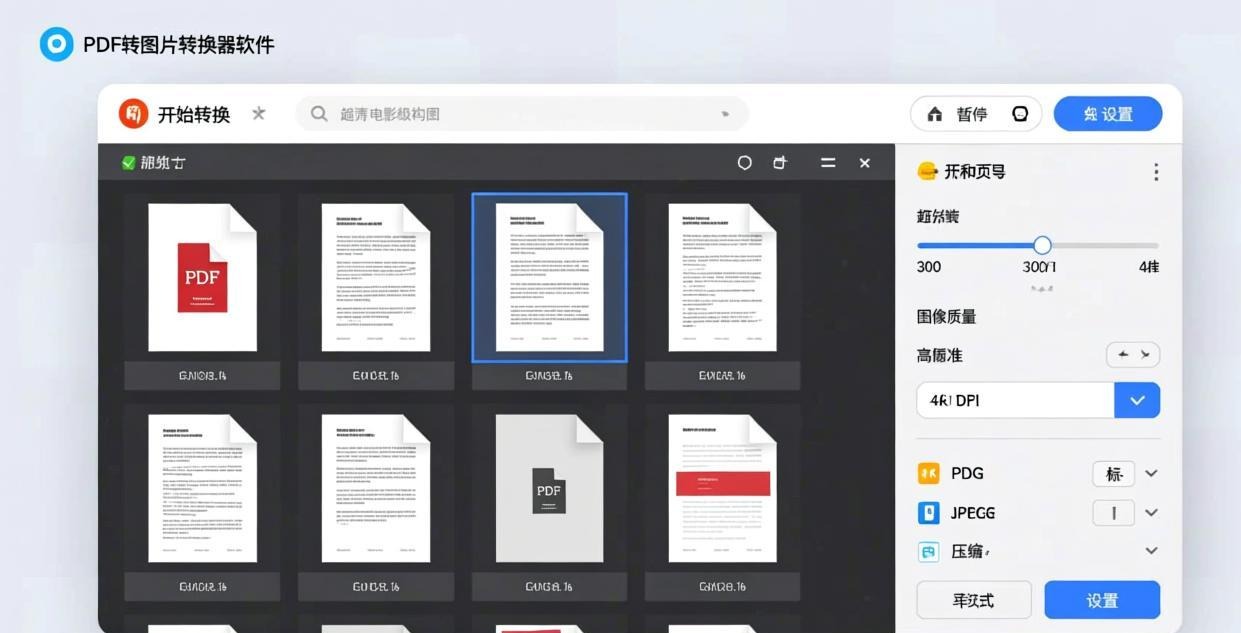
PDFgear provides a simple drag-and-drop interface for converting PDFs to images with quality control.
Step-by-step:
- Open PDFgear
- Click “Convert” → “PDF to Image”
- Drag in your PDF file
- Choose settings:
- Format — JPG, PNG, TIFF, or BMP
- DPI — 72 (screen), 150 (eBook), 300 (print), or custom
- Page range — all pages or specific range
- Quality — for JPG, set compression level (1-100)
- Click “Convert” and choose the output folder
Quality recommendations:
| Use Case | Format | DPI | JPG Quality |
|---|---|---|---|
| Web/social media | JPG | 150 | 80 |
| Presentations | PNG | 200 | N/A |
| TIFF | 300 | N/A | |
| Archiving | PNG | 300 | N/A |
| Thumbnails | JPG | 72 | 70 |
For the reverse (image to PDF), see our Best Image to PDF Offline Converter guide.
#2 Pick: PDF24 Creator — Most Format Options
PDF24 Creator offers the widest range of output formats and detailed quality controls.
Key features:
- 5 output formats — JPG, PNG, TIFF, BMP, GIF
- DPI control — 72 to 600 DPI
- Color mode — RGB, CMYK, or grayscale
- Page range — individual pages, ranges, or all
- Batch mode — convert multiple PDFs at once
- Custom naming — set filename patterns for output images
PDF24 is the best choice when you need specific format requirements like TIFF for professional printing or GIF for simple previews.
#3 Pick: pdftoppm — Fastest Command-Line Converter
pdftoppm (part of the Xpdf toolkit) is the fastest PDF-to-image converter for batch processing.
Basic conversion:
pdftoppm -png input.pdf output
High-quality conversion:
pdftoppm -png -r 300 -jpegopt quality=95 input.pdf output
Single page:
pdftoppm -png -f 1 -l 1 input.pdf output
Batch all PDFs:
Get-ChildItem *.pdf | ForEach-Object {
    pdftoppm -png -r 300 $_.FullName ("output\" + $_.BaseName)
}
pdftoppm produces high-quality images extremely quickly. A 100-page PDF at 300 DPI takes about 15 seconds.
Choosing the Right Output Format
| Format | Best For | File Size | Transparency | Quality |
|---|---|---|---|---|
| JPG | Photos, web, email | Small | No | Lossy |
| PNG | Text, screenshots, graphics | Medium | Yes | Lossless |
| TIFF | Print, archiving, professional | Large | Yes | Lossless |
| BMP | Windows applications | Very large | No | Lossless |
| GIF | Simple graphics, thumbnails | Small | Yes | Limited colors |
For most use cases, PNG offers the best balance of quality and compatibility. Use JPG only when file size is the primary concern.
For more details, check out our PDF to text converter guide.
Frequently Asked Questions
What DPI should I use for PDF-to-image conversion?
Use 72-150 DPI for screen/web, 200-300 DPI for presentations and print, and 300+ DPI for professional printing. Higher DPI means larger files but sharper images.
Can I convert a PDF to a single high-resolution image?
Yes. PDFgear and PDF24 can merge all pages into a single tall image, or you can export each page as a separate image and combine them in an image editor. Most tools export one image per PDF page by default.
How do I convert a scanned PDF to images?
Scanned PDFs are already images wrapped in PDF format. Use any of the tools above — they’ll extract the original images at their native resolution. PDFgear and pdftoppm handle this efficiently without quality loss.
Can I convert password-protected PDFs to images?
PDFgear can open password-protected PDFs (if you know the password) and convert them to images. pdftoppm and Ghostscript also support password input via command-line flags.
What’s the fastest way to convert many PDFs to images?
Use pdftoppm in a batch script for the fastest processing. For a GUI approach, PDFgear’s batch mode handles multiple files with consistent settings. See the pdftoppm section above for a PowerShell batch example.
📖 Recommended Reading
Best Word to PDF Offline Converter for PC (2026)
5 offline Word-to-PDF converters tested. Perfect formatting, no upload, batch support.