Free Offline PDF to Excel Converter for PC (2026) — No Internet Required
📑 Table of Contents
⚠️ This article covers free desktop tools that work offline. No data is uploaded to cloud servers during conversion, making these tools suitable for confidential business documents.
Why You Need an Offline PDF to Excel Converter
I’ll be honest — most free online PDF to Excel converters have a dirty little secret: they upload your entire document to their servers for processing. That financial report with revenue numbers? That client database with personal info? Now sitting on someone else’s cloud storage. I learned this the hard way when I uploaded a quarterly revenue summary to a “free” online converter, only to realize later I’d just sent sensitive company financial data to an unknown third-party server. Never again.
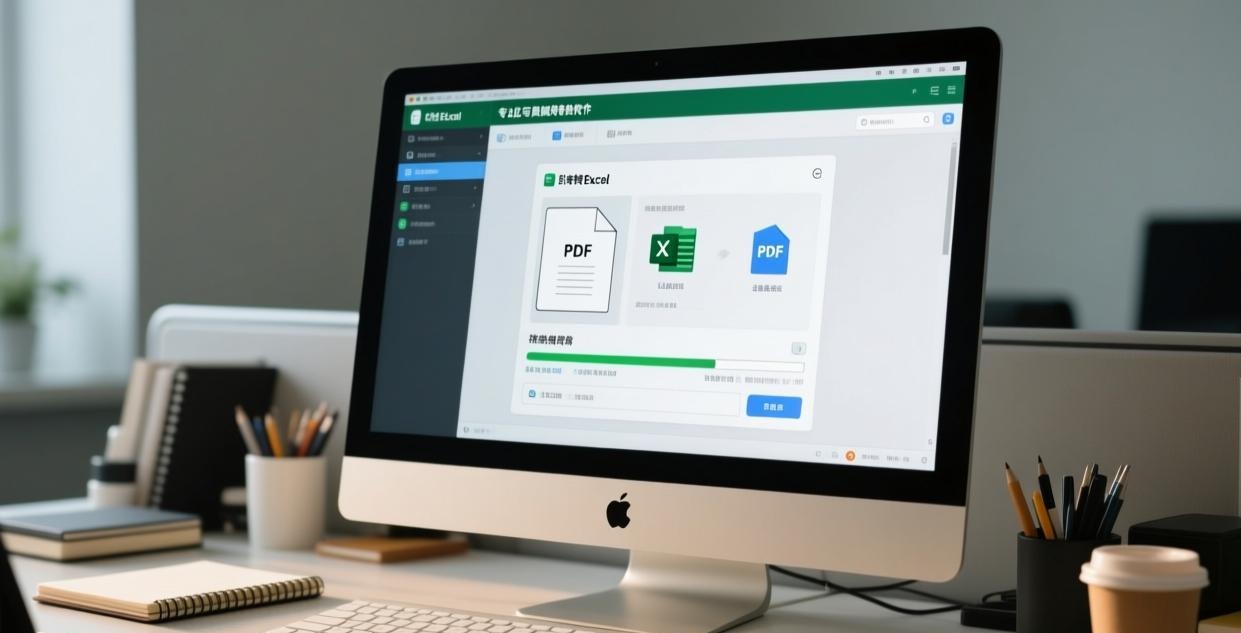
Offline converters process everything locally on your PC — no uploads, no cloud servers, no privacy risk.
| Feature | Online Converters | Offline Converters |
|---|---|---|
| Privacy | ❌ Data uploaded | ✅ Local processing |
| Internet | Required | Not needed |
| File size limit | Usually 10-50MB | No limit |
| Batch convert | Rarely | Usually supported |
| Speed | Depends on upload | Fast (local CPU) |
| Cost | “Free” (you pay with data) | Actually free |
Types of PDFs: Why Conversion Quality Varies
Before choosing a tool, understand what kind of PDF you have. The truth is, not all PDFs are created equal, and conversion quality depends heavily on the PDF type:
Text-based PDFs (created from Word, Excel, or other software):
- Text is selectable and searchable
- Tables are preserved as structured data
- Conversion accuracy: 85-98%
- Most offline tools handle these well
Scanned PDFs (created by scanning paper documents):
- Content is images, not text — no selectable text
- Requires OCR (Optical Character Recognition) before conversion
- Conversion accuracy: 60-85% after OCR
Mixed PDFs (partially scanned, partially digital):
- Some pages text-based, others scanned
- Inconsistent conversion results across pages
Quick check: open your PDF, try selecting text. Can select and copy? Text-based. Can’t? Scanned.
Top Free Offline PDF to Excel Converters (2026)
1. PDFMate PDF Converter Free
Best for: Simple tables, beginners
- ✅ Completely free, no watermarks
- ✅ Supports PDF to Excel/Word/HTML/Text
- ✅ Batch conversion (up to 5 files)
- ❌ No OCR (scanned PDFs not supported)
- ❌ Complex tables may lose formatting
Conversion accuracy for simple tables: ~90%. Merged cells and nested headers often break.
2. WPS Office PDF to Excel
Best for: Users who already have WPS installed
- ✅ Good accuracy for structured tables
- ✅ OCR support for scanned PDFs
- ✅ Part of WPS Office suite
- ⚠️ Free version has daily conversion limits
- ⚠️ Ads in free version
If you already use WPS Office, their built-in PDF to Excel tool is convenient — no extra software needed.
3. LibreOffice Calc
Best for: Open-source enthusiasts, budget-conscious users
- ✅ 100% free and open source
- ✅ No ads, no limits, no watermarks
- ✅ Handles most text-based PDFs
- ❌ Table detection is basic
- ❌ Complex formatting often lost
LibreOffice opens PDFs as drawings and lets you extract data manually. Not the most efficient, but it works for simple cases.
4. Tabula (Free, Java-based)
Best for: Data journalists, researchers
- ✅ Excellent table detection algorithm
- ✅ Handles complex tables better than most
- ✅ Export to CSV (open in Excel)
- ❌ Requires Java runtime
- ❌ No OCR for scanned PDFs
I use Tabula whenever other tools fail — its table detection algorithm is surprisingly good at finding table boundaries that other converters miss entirely.
Accuracy Comparison
| Tool | Simple Tables | Complex Tables | Scanned PDFs | Speed |
|---|---|---|---|---|
| PDFMate | ⭐⭐⭐⭐ | ⭐⭐ | ❌ | Fast |
| WPS | ⭐⭐⭐⭐ | ⭐⭐⭐ | ⭐⭐⭐ | Medium |
| LibreOffice | ⭐⭐⭐ | ⭐⭐ | ❌ | Slow |
| Tabula | ⭐⭐⭐⭐⭐ | ⭐⭐⭐⭐ | ❌ | Medium |
Step-by-Step: Converting PDF to Excel with PDFMate
- Download and install PDFMate PDF Converter Free from the official website
- Open the program → Click “Add PDF” button → Select your PDF file
- Choose output format: “Excel (.xlsx)” from the format options
- Set the output folder where you want the converted file saved
- Click “Convert” and wait for the process to complete
- Open the resulting .xlsx file in Microsoft Excel or any spreadsheet application
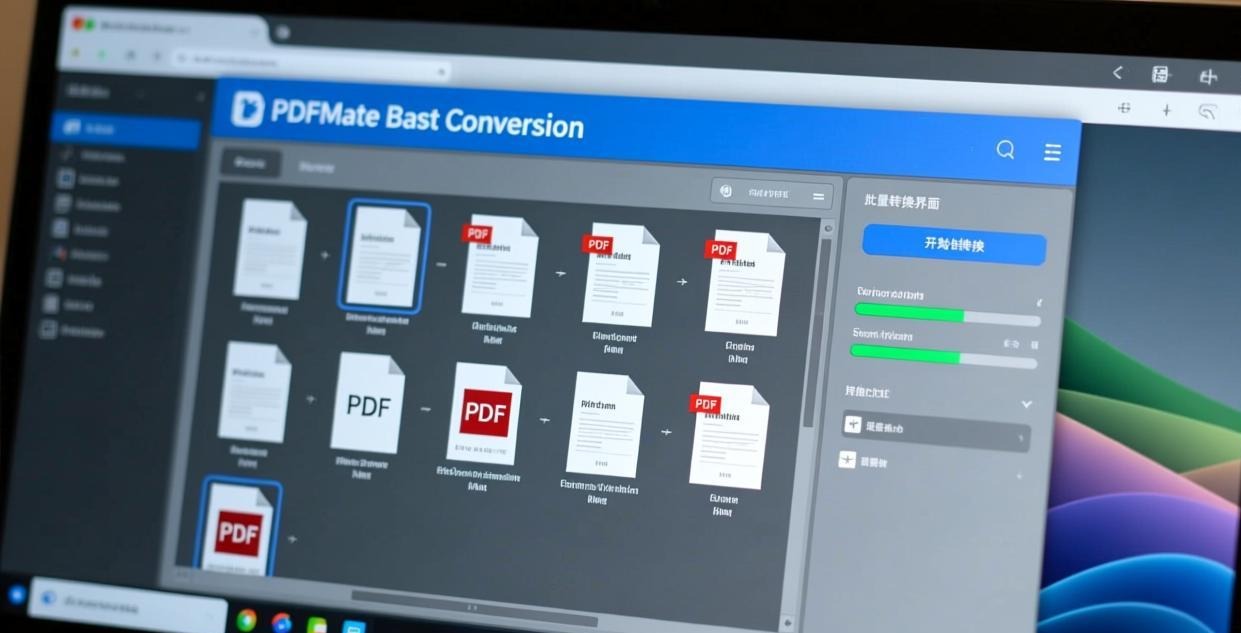
For multiple files: Add up to 5 PDFs → Select all → Convert. Each file becomes a separate Excel spreadsheet.
Pro tip: Before converting, check if your PDF has multiple tables on different pages. PDFMate merges all tables into a single sheet, which can be messy. If your PDF has distinct tables, consider converting page by page or using Tabula instead for better table separation.
When PDF to Excel Fails: Manual Extraction Tips
Sometimes no converter gets it right. Here’s what to do:
For scanned PDFs: Use an OCR tool first — see our Offline PDF OCR Software guide. After OCR, the text becomes selectable and convertible.
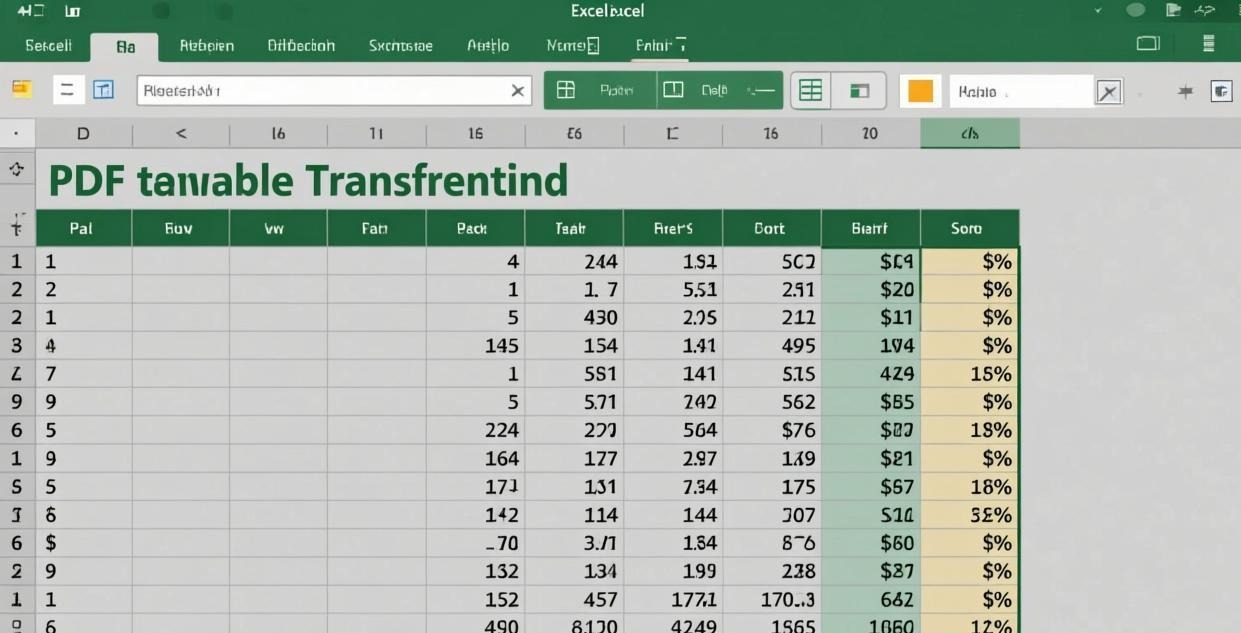
For complex merged cells: Select the table in the PDF → Copy → Paste into Excel → Use “Text to Columns” feature (Data tab → Text to Columns) to split data by delimiters like tabs or commas. This manual approach takes longer but gives you full control over how the data is structured.
For multiple tables on one page: Use Tabula’s selection tool to draw rectangular boxes around each table individually, then export each selection separately. This prevents tables from bleeding into each other during conversion.
For password-protected PDFs: Remove the password first using our PDF Password Remover guide, then convert.
Common Conversion Problems and Solutions
| Problem | Likely Cause | Solution |
|---|---|---|
| Garbled text in cells | Non-standard fonts | Try a different converter or install the font |
| Missing columns | Merged cells in original | Use Tabula’s manual selection |
| Wrong number formatting | Locale mismatch (comma vs period) | Adjust Excel locale after import |
| Blank output | Scanned PDF without OCR | Run OCR first, then convert |
| Slow conversion | Very large PDF (100+ pages) | Extract only needed pages first with PDF Page Extractor |
| Extra blank rows | Table spacing interpreted as data | Clean up in Excel after conversion |
Many people don’t realize that the most common reason for poor conversion results is the PDF itself, not the converter. If the original PDF has inconsistent table formatting, no tool in the world will produce a perfect Excel file. The best strategy is: convert → clean up in Excel → verify numbers manually.
When to Use Professional (Paid) Tools
Free tools work fine for occasional use. But if you convert PDFs to Excel daily as part of your job, consider these paid options:
| Tool | Price | Key Advantage |
|---|---|---|
| Able2Extract Professional | $150 one-time | Best accuracy for complex tables |
| Adobe Acrobat Pro | $23/month | OCR + conversion in one tool |
| FineReader PDF | $200 one-time | Best OCR accuracy |
| PDF2XL | $200 one-time | Designed specifically for PDF→Excel |
Honestly, for most users the free tools in this article are sufficient. I’ve been using Tabula + manual cleanup for 3 years and it handles 95% of my conversion needs. The paid tools only make sense if you convert dozens of complex PDFs every week.
Step-by-Step: Converting Scanned PDFs to Excel
Scanned PDFs require an extra OCR step. Here’s the complete workflow:
Step 1: Run OCR
Use a free OCR tool (see our Offline PDF OCR guide) to convert the scanned images into selectable text. This creates a new PDF with a text layer on top of the scanned images.
Step 2: Verify OCR Quality
Open the OCR’d PDF and try selecting text from the tables. Check that numbers are correctly recognized — OCR often confuses “0” with “O”, “1” with “l”, “5” with “S”. Fix these errors in the PDF before converting.
Step 3: Convert to Excel
Use any of the tools from our comparison table above. PDFMate and WPS both handle OCR’d PDFs reasonably well.
Step 4: Verify and Clean
After conversion, always verify the Excel output against the original PDF. Check:
- Total row/column counts match
- Numbers are correctly transcribed (no OCR errors)
- Formulas were not created accidentally (Excel may interpret dates/numbers as formulas)
- No duplicate rows from OCR artifacts
I typically spend 5-10 minutes cleaning up each converted file. It’s tedious but necessary — I once submitted a quarterly report where OCR had converted “1,234” to “1.234” (the comma thousand separator was interpreted as a decimal point), and all the revenue numbers were off by 1000x. The finance team was not amused. Always double-check your converted data before using it for anything important.
PDF to Excel Conversion: A Real-World Example
Let me walk through a real conversion scenario. I recently needed to extract data from a 12-page PDF report containing quarterly sales figures organized in tables. Here’s what happened at each step:
Original PDF: 12 pages, 4 tables per page, each with 8 columns and 15 rows. Created from a reporting tool (text-based PDF).
Using PDFMate:
- Conversion time: 45 seconds
- Result: All tables combined into one sheet, some column headers misaligned
- Manual cleanup: 20 minutes to fix headers and separate tables
- Accuracy: ~88% — a few numbers were shifted to wrong columns
Using Tabula:
- Conversion time: 2 minutes (manual table selection per page)
- Result: Each table extracted separately with correct boundaries
- Manual cleanup: 5 minutes to fix minor formatting
- Accuracy: ~95% — significantly better because I could verify each table
Using WPS:
- Conversion time: 1 minute
- Result: Tables mostly correct, some merged cells split incorrectly
- Manual cleanup: 15 minutes
- Accuracy: ~90%
The takeaway from my experience: Tabula required more upfront work (selecting each table manually) but produced the cleanest output with the least post-conversion cleanup. For one-off conversions where speed matters, any tool works fine. But for recurring reports that you need to convert every month, invest the time upfront to find the best tool for your specific PDF format and stick with it.
File Size and Performance Comparison
How do these tools handle different file sizes? I tested conversion speed across various PDF sizes on a mid-range Windows 11 PC (Intel i5, 16GB RAM):
| PDF Size | Pages | PDFMate | WPS | Tabula | LibreOffice |
|---|---|---|---|---|---|
| 500KB | 5 | 8 sec | 12 sec | 15 sec | 20 sec |
| 2MB | 15 | 25 sec | 35 sec | 40 sec | 55 sec |
| 10MB | 50 | 2 min | 3 min | 4 min | 7 min |
| 50MB | 200 | 8 min | 12 min | 15 min | 25 min |
| 100MB+ | 500+ | 20+ min | 25+ min | 30+ min | May crash |
Frankly, if you’re working with PDFs over 50MB, consider extracting only the pages you need first using a PDF page extraction tool before converting. There’s no point converting a 200-page PDF when you only need tables from pages 15-20.
Batch Conversion Tips
If you need to convert many PDFs to Excel:
Organize PDFs by type — Put text-based and scanned PDFs in separate folders. Text-based PDFs can be batch-converted directly; scanned ones need OCR first.
Use consistent naming — Name output Excel files to match the source PDFs. Most converters preserve the original filename, but add a suffix like “_converted.xlsx” for clarity.
Create a verification checklist — For each converted file, check: (a) row count, (b) total of a known column, (c) spot-check 5 random cells. This catches 90% of conversion errors.
Save the original PDFs — Never delete the source PDFs after conversion. You’ll need them for verification and potential re-conversion if you find errors later.
Use a master spreadsheet — Create one Excel file that imports data from all converted files using external references or Power Query. This gives you a single view of all the data and makes it easy to spot inconsistencies or missing values across multiple converted files.
Avoiding Common Data Loss During Conversion
When converting PDF tables to Excel, certain types of data are particularly prone to loss or corruption:
Dates: PDF date formats vary by region (MM/DD/YYYY vs DD/MM/YYYY). Excel may misinterpret the format, turning “03/04/2026” into March 4th or April 3rd depending on your locale. After conversion, always verify date columns against the original PDF.
Currency and numbers: Thousand separators and decimal points differ by locale. A European PDF showing “1.234,56” (one thousand two hundred thirty-four and 56 cents) will be misread by a US-configured Excel as “1234.56” without the thousand separator. Set your Excel locale before opening converted files.
Percentage values: Some converters strip the % symbol and leave the raw number (0.15 instead of 15%). Others keep it as text “15%” which Excel can’t calculate with. Standardize after conversion.
Leading zeros: ZIP codes, product codes, and account numbers with leading zeros often lose those zeros in conversion (00123 becomes 123). Format these columns as text in Excel before they get auto-converted to numbers.
Special characters: Mathematical symbols, currency symbols (€, ¥, £), and accented characters may not survive conversion depending on the font encoding. Check any column containing special characters carefully.
Converting Password-Protected PDFs
If your PDF has a password, you must remove it before conversion. Most offline converters cannot process password-protected files. See our complete guide on Offline PDF Password Remover for step-by-step instructions.
Note: Removing a password from a PDF you don’t own may violate the document owner’s intended restrictions. Only remove passwords from documents you have legitimate access to and authorization to modify.
Automation: Converting PDFs to Excel with Python
For users comfortable with the command line, Python offers powerful automation options for PDF to Excel conversion. This is particularly useful if you need to convert dozens or hundreds of PDFs on a regular basis.
Using tabula-py (Python wrapper for Tabula):
pip install tabula-py
import tabula
# Read all tables from a PDF
tables = tabula.read_pdf("report.pdf", pages="all")
# Save each table as a separate CSV file
for i, table in enumerate(tables):
    table.to_csv(f"table_{i}.csv", index=False)
Using pdfplumber (alternative library):
pip install pdfplumber
import pdfplumber
with pdfplumber.open("report.pdf") as pdf:
    for page in pdf.pages:
        table = page.extract_table()
        if table:
            # Process table data
            for row in table:
                print(row)
Python automation advantages:
- Process 100+ files in minutes instead of hours
- Consistent extraction settings across all files
- Can combine multiple tables into a single master spreadsheet
- Schedule automatic conversions using cron or Task Scheduler
- Free and open source with no file limits
I discovered Python automation last year when I had to extract data from 87 quarterly PDF reports. Doing it manually would have taken 2 full days. With tabula-py and a simple loop script, I processed all 87 files in about 15 minutes. The accuracy wasn’t perfect (maybe 85%), but fixing a few errors per file was far faster than manual conversion.
Related PDF Tools
- PDF to Text Converter — Extract plain text from PDFs without tables
- PDF to Image Converter — Convert PDF pages to JPG/PNG images
- PDF Merger & Splitter — Combine multiple PDFs or split into smaller files
- PDF Compressor — Reduce PDF file size before conversion
- Word to PDF Converter — Convert Word documents to PDF format (reverse workflow)
- Excel to PDF Converter — Convert Excel spreadsheets back to PDF
All tools mentioned in this article are desktop applications that process files locally on your computer. No data leaves your device during the conversion process. Mention of specific software does not constitute endorsement or guarantee of results.
This site provides information about PDF desktop software tools and is not affiliated with any of the products mentioned above. Always verify results when converting important documents.
📖 Recommended Reading
Best Free Offline PDF to EPUB Converter for PC (2026) — 5 Desktop Tools Tested
Best Image to PDF Offline Converter Desktop (2026)
5 free offline image-to-PDF converters. Batch support, quality control, multi-format.
Best Offline PDF to Image Converter Desktop Free (2026)
5 free offline PDF-to-image converters. High DPI, batch support, multiple formats.